
When the Copied Image Does Not Appear as Desired

When confirming or changing the settings in [Settings], press [Home] (
 ) after closing [Settings].
Condition | Cause | Solution and reference |
|---|---|---|
Vertical colored lines, white lines, or line smears appear on the copied image. | The machine is in a location exposed to direct sunlight. |
|
The exposure glass or platen plate is dirty. |
| |
Horizontal colored lines, white lines, or line smears appear on the copied image. | Paper feed has not been adjusted. Or, the adjustment was not enough. | Adjust the paper feed according to the paper input location. Print the test sheet, and then adjust the paper feed accordingly. |
A nozzle might be misfiring. | If the machine has been left unused for a long time, print the nozzle check pattern to check whether a nozzle is misfiring, and then perform head cleaning, if necessary. | |
White spots or smears in the form of water droplets appear on the copied image. | The moisture in the paper has evaporated and condensed on the surface. |
|
The copied images contain blots or are patchy. The background color appears dirty. |
| Check the thinness of paper that can be used on the machine. |
The ink may be dry or the nozzles of the print-heads may be clogged, preventing effective discharge. | If the machine has been left unused for a long time, print the nozzle check pattern to check whether a nozzle is misfiring, and then perform head cleaning, if necessary. | |
Ink on printed surfaces is not dry. |
| |
The copied images contain blots or are patchy. The background color appears dirty. | [Density] is set too high, or [Auto Density] is not specified when copying an original on colored paper such as newspaper. | Reduce [Density]. When scanning an original on colored paper, select [Density] |
The paper is too thick or curled. | Set Prevent Paper Abrasion mode. | |
[Density] is set too low. | Increase [Density]. | |
Coarse paper or paper with a treated surface is used. | Use recommended paper. | |
The paper contains too much moisture. | Use paper that has been stored in a dry environment. | |
Image blurs or double lines appear. | The print-heads are misaligned. | Adjust the head positions. If they are still misaligned, print the nozzle check pattern to check whether a nozzle is misfiring, and then perform head cleaning, if necessary. |
A fine line is printed as a dashed line or appears blurred. | [High Speed Copy] is specified. | Cancel [High Speed Copy]. |
The image is too dark or too light. Image is dirty or bleeds. | The expiration date of the print cartridge has passed. | Open the print cartridge and use it before the expiration date. |
Use of non-recommended cartridges and cartridge refill ink can result in loss of print quality and other problems. | Use manufacturer-genuine cartridges. Contact your service representative. | |
Depending on the type of paper, images to be printed, or the print quality, the print-head may scratch the paper, causing the ink to smear. | Use recommended paper. | |
The thickness of the paper is not correctly specified. |
| |
Fine ink blots dirty the area around large single color images or ink heavy images. | Fine ink blots may appear on the paper when Prevent Paper Abrasion mode is enabled. |
|
Some white spots or blank spots appear on the image. | The paper contains too much moisture. | Use paper that has been stored in a dry environment. |
Some areas on the original are missing on the copied image. | The position the original is placed or the paper size setting is incorrect. |
|
An artifact that is not on the original exists on the copied image. | The exposure glass or platen plate is dirty. |
|
There may be a problem with the image quality of the original such as an original that has been copied repeatedly. | Select [Original Type] | |
Text appears on the copied image, or the images in the copied page are filled in gray tone. 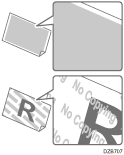 | The unauthorized copy prevention function is applied on the original that was copied. | You cannot copy the original. |
The backside of the original is visible on the copied image. | [Density] is set too high, or the original is too thin. | Reduce [Density]. When scanning a thin original, select [Density] |
A shadow appears on the overlapping region. | [Density] is set too high. | Reduce [Density]. |
There is a problem with the original. | Apply mending tape on the overlapping region. | |
Moire appears on the copied image.  | The original is placed in an orientation in which moire is likely to occur. | Change the orientation the original is placed. |
The shading level in the areas of halftones appears differently from the original. | [Text/Photo] is selected in [Original Type]. | Select [Original Type] |
The copied image is slanted. | The original is fed slanted. | Set the original so that it is squarely aligned with the original guides. |
Paper is fed slanted. | Load the paper correctly. | |
The top margins on the copied images vary. | The paper loaded for copying is too thin or too thick. | Check the thinness of paper that can be used on the machine. Recommended Paper Sizes and Types When the paper thickness is close to the minimum or maximum paper thickness, specify "Paper Type/Thickness" accordingly in [Settings] |
The reverse side of paper becomes dirty. | The machine's internal components are dirty. | Clean the paper output location and the platen. |
Copies shift sideways. | The paper roll is not set correctly. | Set the paper roll correctly, making sure it is straight and not loose. |
The original does not match the size in the original table setting. | Set originals correctly. | |
The paper is not set correctly in the paper bypass location. | Make sure the right side of the paper is aligned with the paper set position at the right side of the platen. | |
Copies shift in the direction of the original feed (or opposite) direction. | Print Position Adjustment or Margin Adjustment mode is selected. | Cancel Print Position Adjustment or Margin Adjustment mode. |
Copies are shorter than the selected size, or cut off before the end. | Print Position Adjustment or Margin Adjustment mode is selected. | Cancel Print Position Adjustment or Margin Adjustment mode. |
Original and copy size does not match. | Dampness can cause paper to stretch. | Adjust the Fine Magnification setting, and then scan the original again. |
