
Making Enlarged or Reduced Copies
You can enlarge or reduce the original when copying with the following methods:
Enlarging or reducing at a specified reduction ratio or into a specified size (Zoom/Reduce/Enlarge/Size Magnification)
Enlarging or reducing according to the paper size (Auto Reduce/Enlarge)
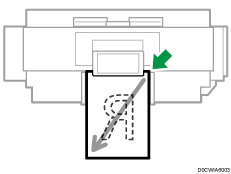
Enlarged or reduced from the top right.
Specifying a Copy Ratio or Size
 Press [Copy] on the Home screen.
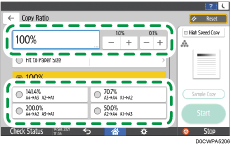
 Press [Copy Ratio] and select a copy ratio or size.

To specify a copy ratio or size other than the displayed setting, press [Others] and perform the following procedure.
Specifying a copy ratio (Zoom/Reduce/Enlarge)
Enter a value or select the copy ratio.
Specifying a size (Size Magnification)
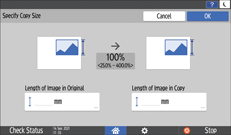
Press [Specify Copy Size], enter the length of the original and copied image, and then press [OK].
 Place the original.
Basic Procedure for Copying Documents
The original is fed into the machine automatically, and copying starts. If the original is not fed automatically, press [Start].

You can change the options of the copy ratio that is displayed on the Copy screen when pressing [Copy Ratio]. You can also change the enlargement and reduction ratios that appear when [Copy Ratio]
 [Others] is pressed on the Copy screen.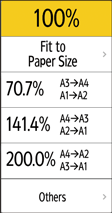
Enlarging or Reducing According to the Paper Size
The original is enlarged or reduced to fit on the specified paper size (Fit to Paper Size).
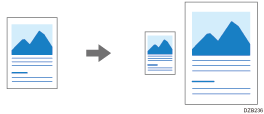
To copy a document whose size cannot be detected, specify [Original Size] on the Copy screen.
For the original size detected automatically, see the following section:
Recommended Original Size and Weight
When you use the paper that loaded into the paper bypass location, you cannot use this function.
Press [Copy] on the Home screen.
On the Copy screen, press [Copy Ratio] and [Fit to Paper Size].
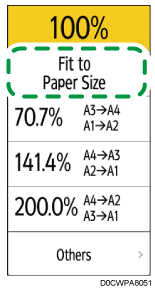
Select the paper input location, and then select a preset cut size.
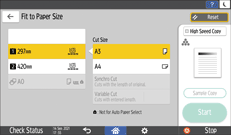
When the orientations of the original and paper in the paper input location do not match, the machine rotates the copied image automatically. To reduce an original of A2 (C) size to A3 (11 × 17) size, for example, you can select either A3 (11 × 17) or A3 (17 × 11)
 .
.
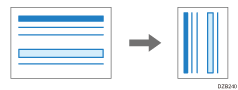
 Press [Original Orientation], and then specify the original orientation.
If the key is not displayed, select it from [Original Setting].
 Place the original.
Basic Procedure for Copying Documents
The original is fed into the machine automatically, and copying starts. If the original is not fed automatically, press [Start].
Specifying a Combination of Original Sizes and Paper Sizes When Copying
You can specify the paper size to one where the machine automatically enlarges or reduces the image of the original to fit when the original is placed (User Auto Reduce/Enlarge).
When you use the paper that loaded into the paper bypass location, you cannot use the User Auto Reduce/Enlarge function.
Press [Settings] on the Home screen.
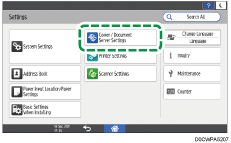
Press [Copier / Document Server Settings] on the Settings screen.
Press [Reduce / Enlarge].
Press [User Auto Reduce/Enlarge] of the desired original size.
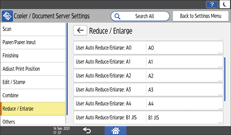
Select the paper size to which to copy the original of the size specified in Step 4.
 Press [OK].
 After completing the procedure, press [Home] (
 ).
).
 Press [Copy] on the Home screen.
 Press [Copy Ratio] on the Copy screen, and then press [Others].
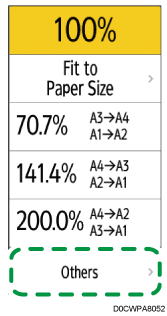
 Press [User Auto Red./Enlg.].
 Press [Original Orientation], and then specify the Original Orientation.
If the key is not displayed, select it from [Original Setting].
 Place the original.
Basic Procedure for Copying Documents
The original is fed into the machine automatically, and copying starts. If the original is not fed automatically, press [Start].
Correcting the Vertical and Horizontal Magnification When Copying
For environmental reasons such as humid conditions, paper may expand or shrink. This can result in a mismatch between the size of the original and copy.
This function uses the measurements of the original and the copy to calculate a ratio to produce copies that are close to the actual size (Fine Magnification).
Calculating the correction value
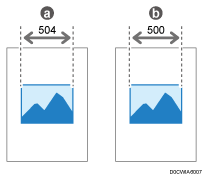
The dimensions of the original image is "a" and the dimensions of the copied image is "b". To make the dimensions of the copied image the same as the original image, calculate the percentage of the correction using the following formula:
(a-b)/b × 100 = correction value (%)
If the horizontal length of the original image is 504 mm (19.8 inches) and the horizontal length of the copied image is 500 mm (19.7 inches), use the following values:
(504-500)/500 × 100 = 0.8%
Press [Copy] on the Home screen.
Press [Copy Ratio] on the Copy screen, and then press [Others].
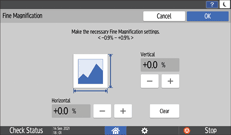
Press [Fine Magnification].
Enter the vertical and horizontal correction value, and then press [OK].
Place the original.
Basic Procedure for Copying Documents
The original is fed into the machine automatically, and copying starts. If the original is not feeds automatically, press [Start].
Fine Magnification is used for originals that have already been scanned. If you want to apply fine correction ratio to paper that has stretched due to the paper type or exposure to humid conditions, specify the setting under [Fine Ratio Adjustment: Copier].
If you specified the ratio in both System Settings and this function, the resulting settings will be the sum of the specified value.
Depending on the image patterns of the originals, moiré patterns may be noticeable, or the image quality may deteriorate.