
Machine
This section describes the settings in [Machine] under [System Settings].
Print Action/Image Quality Adjustment
Setting Items | Description |
|---|---|
Feed Start Method | Specify whether to have originals fed automatically or when [Start] is pressed.
|
Original Feed Delay 2 | Specify the time period to pause the scanning process after originals are inserted. Change the default setting when the original is repeatedly fed slantwise or when the original is of the type that requires adjustment for successful operation. Enter a time period within the range of 1 to 5 seconds.
|
Original Feed Delay 1 | Specify the time period to pause the feeding process after originals are placed. Change the default setting when the original is repeatedly fed slantwise or when the original is of the type that requires adjustment for successful operation. Enter a time period within the range of 1 to 5 seconds.
|
Fine Ratio Adjustment: Copier | Depending on the paper type, some factors, including temperature and humidity, may cause copy paper to expand or shrink slightly. This means that the actual size of the copy and the original do not match. If this happens, specify the vertical and horizontal correction ratio. You can specify this setting for each paper type (Plain/Recycled, Inkjet Plain, Translucent Paper and Coated (CAD)). 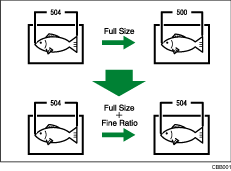 Specify the ratio within the range of -1.0 to +1.0%.
To set the Fine Ratio setting, measure the length of the original and the copy image to calculate the ratio. 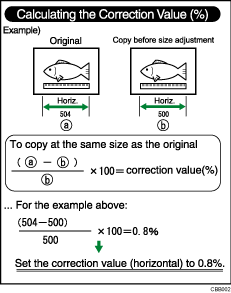 |
Adjust Scan Position | Adjust the positions of the scan areas. Specify the scan position within the range of -10 to +10.
|
Preview Area Settings | Specify the default settings of the area, aria size, and orientation for displaying previews of stored documents on the control panel. This setting is effective when a preview of an entire image cannot be displayed due to document size.
|
Prevent Paper Abrasion | Adjust the head elevation for each paper input to avoid paper abrasion.
When [Film: Matte] is specified for [Paper Input Location/Paper Settings] |
Auto Nozzle Check | Specify how frequently the nozzles are checked for clogging.
Checking whether the nozzles are clogged consumes a small amount of ink. After nozzles are checked, the heads may be cleaned in some occasions. If a specific color does not print or print faintly after no clogging is found by the nozzle check, clean or flush the heads manually. |
Uni/Bi-directional Printing | Select the printing method (uni-directional/bi-directional setting).
|
Allow Logout during Scanning | Specify whether to permit logout on the control panel during scanning the original in Copier function.
|

Power/Energy Saving
Setting Items | Description |
|---|---|
Energy Saving Recovery for Business Application | Specify whether to enable low-energy recovery from Sleep mode. If [On (Energy Saving)] is selected, it can save more energy for the functions, such as Address Book or Browser that do not use the Printer or Scanner function. It takes longer than usual to start printing or scanning.
|
Main Power On by Remote Operation | Specify whether to turn on the main power of the machine using the Wake-On-LAN on the computer on a network.
|
Energy Saver Key to Change Mode | Specify which mode the machine enters when the energy saver key (
|
Control Panel Startup Mode | Specify which one takes priority, the time until the Home screen appears or the power consumption. When you specify [Normal], the machine uses less energy but take longer time to display the screen than [Quick].
|
Recovery by Wireless Connect | Specify whether to recover from Sleep mode automatically when the machine is accessed from the mobile device.
|
 ) is pressed.
External Device
Setting Items | Description |
|---|---|
Register/Change USB Device List | Register Product ID and Vendor ID information for an IC card reader device as a set to the device list to limit the usage of USB devices. The "Product ID" and "Vendor ID" information for a USB device have been assigned by the manufacturer to identify the individual device. "Vendor ID" input settings are between 0x0001 and 0xFFFE and "Product ID" input settings are between 0 and 0xFFFF. Up to ten pairs of "Product ID" and "Vendor ID" information can be registered. |
Control Panel SD Card Slot | Specify whether to enable the SD card slot on the side of the control panel.
|
Control Panel USB Memory Slot | Specify whether to enable the USB slot on the side of the control panel.
|
Allow Media Slots Use | Specify [Prohibit] for "Store to Memory Storage Device" to prohibit the scanned data from being saved in an external media. Specify [Prohibit] for "Print from Memory Storage Device" to prohibit documents saved in an external media from being printed.
|
External Keyboard | Specify the key layout of the external keyboard.
|
@Remote Service
Setting Items | Description |
|---|---|
Service Test Call | Make a test call to the RICOH @Remote center server (RICOH Gateway). This function is available when the RICOH @Remote is used. |
Notify Machine Status | Send notification of the machine's status to the RICOH @Remote center server (RICOH Gateway). This function is available when the RICOH @Remote is used. |
Auto Discovery | Specify whether to collect the status information of the device not that does not support RICOH @Remote on a network and to send it to the RICOH @Remote server together with the information of the machine. When you specify the transmission active, specify the timing and SNMP Communication Name.
|
Others (System Settings)
Setting Items | Description |
|---|---|
Central Management |
|
Central Management (Continued) |
|
Support Settings | Specify whether to display Help according to the displayed screen. When [Help Functions] is set to [On], the [?] key is displayed at the top right on the screen. When you press the [?] key for the first time, the guidance screen appears to let you select whether to display online or offline help.
|
Compatible ID | Specify whether to enable or disable Compatible ID. When this machine is connected to the computer via USB or network, specify [Inactive] to avoid a printer driver is automatically installed by plug and play.
|
Fixed USB Port | This is a setting item to specify when you use the same machines as this machine. When you use the machine as a printer using the USB connection, you do not need to re-install the printer driver. To use this function, specify [Level 1].
|
Stop Key to Suspend Print Job | Specify the job range to stop when you press [Stop].
|
