
Flush Print-heads
Use this function to clean the print-heads far more thoroughly. It consumes much more ink than head cleaning.
Use this function only if repeated head cleaning fails to reactivate a mis- or nonfiring nozzle. Perform this function on a color basis.

Flushing consumes ink. Perform this function only when necessary.
Perform no other operations during flushing.
Flushing is not possible if even one color has run out.
Flushing may be incomplete if ink in a cartridge gets too low or runs out during flushing.
An error will occur and flushing will not be possible if:
There is a misfeed.
One of the machine's covers is open.
The machine is performing maintenance operations.
The machine has run out of ink.
The machine has run out of paper.
The ink collector unit is full.
 Press [Settings] on the Home screen.

 Press [Maintenance]
 [Flush Print-heads].
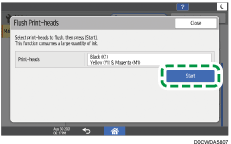
 Select the color of the head you want to flush, and then press [OK][Start].
 Press [Exit].
To check the results of head flushing, print the test pattern.
 Press [Home] (
 ) after completing the operation.