
Loading Paper into the Paper Input Location

- When replacing paper or removing jammed paper, make sure not to trap or injure your fingers.
- There is a paper cutter inside the machine. Do not touch areas other than those specified in this manual when replacing or replenishing the roll paper, removing misfed paper, or cleaning the platen. Touching these areas can result in injury.
- When lifting up or lowering the paper input location cover, be careful not to trap or injure your fingers.
- When opening or closing the front cover, do not put your fingers over the folding parts of the covers. Doing so may result in your fingers becoming trapped or injured.
- A paper roll may be as heavy as 14 kg (30.9 lb.). Hold the paper roll horizontally with both hands or with two or more people together. If you hold the paper roll vertically or with one hand, the paper roll may fall and cause an injury.
- When replacing paper rolls, do not touch the spool near the gear. Doing so may cause your hands to get dirty. If your hands get dirty, wash the affected area thoroughly with soap and water.

You cannot load paper in the following situations:
When printing
During maintenance or other operations
When covers are open
In Low Power mode or Sleep mode
If paper is jammed
If a service call message is displayed
For paper types and sizes that can be loaded in the paper input locations and paper bypass location, see below.
When copying onto custom size paper, see Specifying Custom Sizes to specify the paper size.
Loading Paper Roll into the Paper Input Location
This section explains how to load a paper roll into the paper input location.

Bring the paper holder flush against the paper edge to fasten the paper.
Insert the paper holder flange securely.
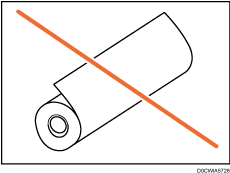
Make sure not to load a paper roll in the opposite direction. If you feed a paper roll in the opposite direction, the paper roll may come loose or be damaged.
Before loading the paper roll into the paper input location, remove any paper that is in the paper bypass location.
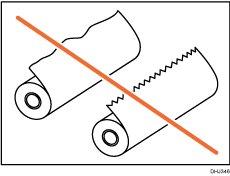
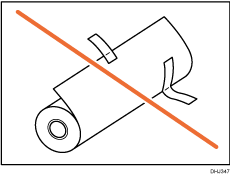
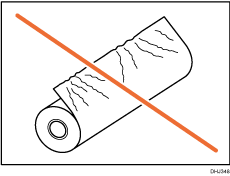
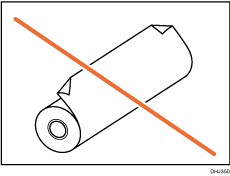
When the paper roll is in one of the following conditions, you cannot use it. Cut off the edge of the paper with scissors before loading it.
The leading edge is damaged
Adhesive tape, glue or paste is sticking to it
The paper is wrinkled
The corners are folded
The paper curls away from the paper roll
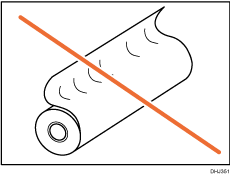
The edge is dented
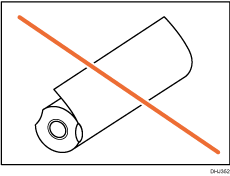
The paper has holes in it
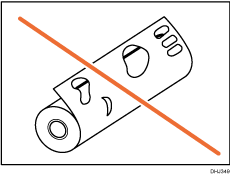
The paper is torn
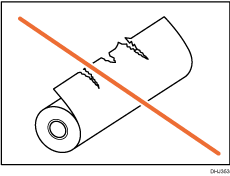
The paper is loose
If you cut off the paper edges of a paper roll that is installed in the paper input location, be careful not to cut the cloth part of the output basket.
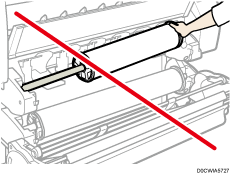
When removing paper rolls from the paper input locations, lift the flanges on either side of the paper roll before removing them. Do not lift one side only. This could damage the machine.
Do not squeeze the flange into the paper roll when the end face of the paper roll is not aligned to the paper core or when a small quantity of paper is left. If the flange is squeezed too tightly against the paper roll, the edge of the paper may crease or wrinkle.
To cut paper edges with scissors, cut the paper vertically to the feed direction, so that the paper edges can be pulled into the machine.
The paper roll may not be fed automatically due to the condition of the paper roll, such as when the edge of the paper sticks or if the paper curls. In these cases, feed the paper manually by following the instructions on the screen.
Load the paper roll when the power of the machine is on.
Check that the output basket is in basic mode before loading a paper roll. For details, see Setting the Output Basket.
The paper roll is heavy and may need to be lifted by two people.
When replacing paper holder to other paper roll, place the paper roll on a flat surface.
Names of the parts of the paper holder
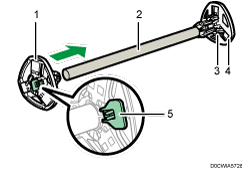
Left flange
Spool
Paper roll adjustment levers
Right flange
Lock lever
Paper roll direction
When loading the paper roll to the paper holder and machine, make sure that the edge of the paper feeds from bottom of the roll toward the back..
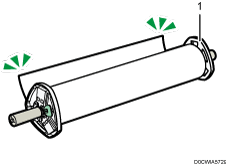
Right flange
You can load the paper roll into Paper Input Locations 1 and 2. Each paper input location is loaded in the same way. In the following example procedure, the paper roll is loaded into Paper Input Location 1.
 On the Home screen, press [Printer].
Make sure that “Ready” appears on the screen.
 Lift up the paper input location cover until it clicks.
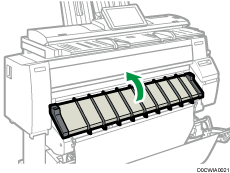
Lock the paper input location cover while it is open.
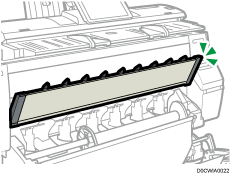
 Remove bar A, and then hook it in front of the output basket.
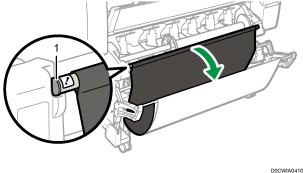
Bar A
You can see the paper input location.
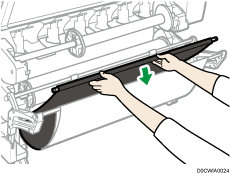
 Pull bar B forward.
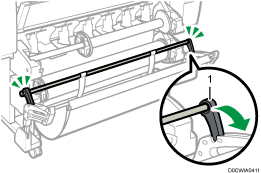
Bar B
A space opens in front of the paper input location.
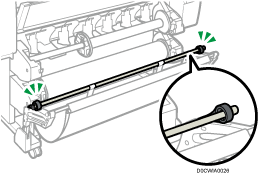
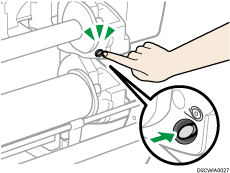
 Press down the rewind button on the right of the paper input location for one second or more.
After you release the button, the paper is rewound automatically.
If the paper is not rewound, press the button again.
If there is no paper roll loaded, proceed to Step 11.
 Hold the left and right flanges firmly, and then remove the paper roll or spool from the paper input location.
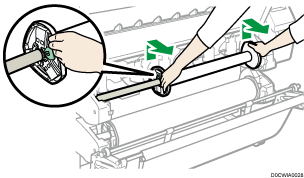
 Place the paper roll or spool on a flat surface.
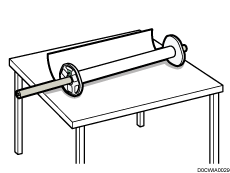
 Raise the lock lever on the left flange.
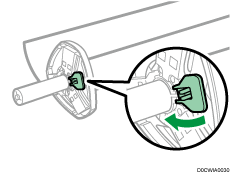
 Remove the left flange from the spool.
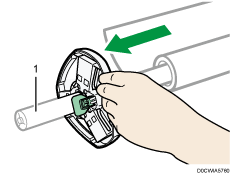
Spool
 Remove both the right flange and spool from the paper roll.
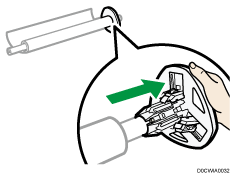
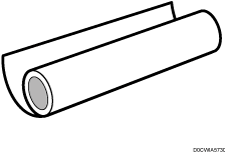
 Prepare the paper roll for replacement.
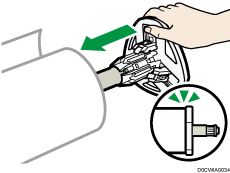
 Insert a spooling flange to touch the paper roll from the right of it.
Set the paper roll as shown in the illustration.
Place the paper roll on a flat horizontal surface, and then slowly insert the flange into the paper roll. Do not stand the paper roll upright. The flange may be damaged if you throw it down when inserting it.
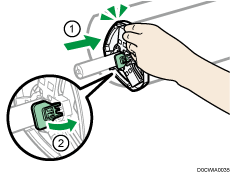
 Insert the spool into the left flange slowly so as not to damage the flange, and then lower the lock lever on the left flange.
 Hold both flanges and place the paper roll on the paper input location.
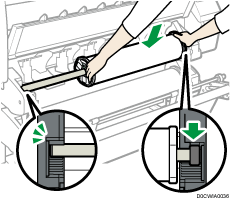
Be sure to place the spool so that its right edge is covered by the black shutter.
Load the paper so the edge of the paper is fed from bottom of the roll toward the back.
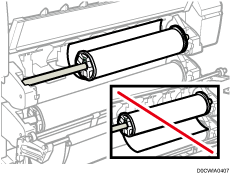
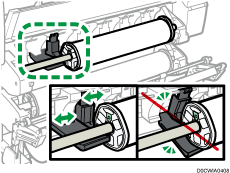
 Make sure that the flange does not touch the guide plate.
The paper roll cannot feed correctly if the flange touches the guide plate. If the flange touches the guide plate, move the guide plate to the left or right so it does not touch the flange.
 Lift bar A up and hook it.
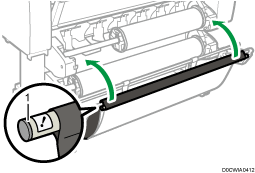
Bar A
 Lower the paper input location cover.
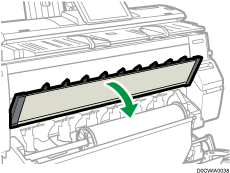
 When a message appears that confirms that bar A has returned to the correct position, press [Exit].
 Check if the settings on the screen are correct, and then press [Start Feed].
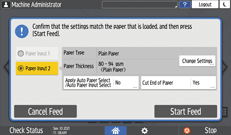
If the paper type and thickness are different from those displayed, press [Change Settings].
Select the proper items according to the paper type and thickness you want to use, and then press [OK].
If you want to cut the edge of the paper, press [Cut End of Paper], and then select [Yes].
If the paper loading settings screen does not appear, open, and then close the paper input location cover.
If the paper roll is not fed correctly and it is rewound, remove the paper roll and set it again.
 Make sure that the size of the paper that is loaded is displayed correctly on the [Printer] screen.
"Ready" appears on the screen.
When [Film: Matte] is specified for the paper type or when [Prevent Paper Abrasion] is specified, load the paper, and then specify the paper abrasion setting in [Settings]
 [System Settings][Machine][Print Action/Image Quality Adjustment][Prevent Paper Abrasion]. However, if you specify [Film: Matte] for Paper Type, the Prevent Paper Abrasion setting is automatically selected, and you cannot change it. For details about Prevent Paper Abrasion, see below.
When the settings in Step 19 are finished, the machine pulls the paper inside, and paper is output about one meter (40 inches) from the paper output location. Then the machine rewinds the paper to the prescribed position. Do not touch the output paper until the machine stops moving. If you select [Yes] in Step 19, the edge of the paper is cut off.
If you insert a roll of paper into the machine at an angle or if there is space between the paper and the flanges, the paper may not be pulled into the inside of the machine. If that happens, return to Step 2 and start again.
When loading two paper rolls into the paper input locations 1 and 2, make sure that [
 ] is displayed at the paper input location you loaded first on the "Paper Input Location" of [Check Status][Machine Information], and then load the other paper roll into the other paper input location.
When the [Touch/Notification Sound] is set to [No Sound], it will not sound if you insert paper into the paper input location. For details about [Touch/Notification Sound], see below.
When printing from a computer, see Specifying Custom Sizes.
You can specify the types of paper you load in the paper input location in advance. For details, see below.
For details about the settings for the paper thickness and types, see below.
For details about how to store the paper roll, see below.
If you load an empty spool, but you do not feed paper soon after that, press [Cancel Feed] to close the screen if the paper loading settings screen appears.
Loading Paper into the Paper Bypass Location
Use the paper bypass location to copy onto paper sizes that cannot be loaded on the paper input location.
If the paper is curled, load it so that it curls facing downward.
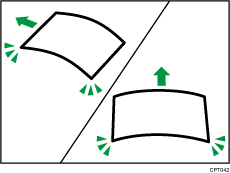
When loading paper that is longer than A1 (D)
 , place a clean cloth or sheet of paper behind the machine in advance. If the edge of the paper touches the floor and get dirty, a malfunction might occur.
The print heads light blue while printing is performed. Do not open the front cover while the print heads are lit blue. A paper jam may occur.
Do not insert multiple sheets of paper concurrently.
Do not load unsupported paper.
On the Home screen, press [Printer].
Make sure that “Ready” appears on the screen.
When the paper roll is loaded, press down the rewind button on the right of the paper input location for where the paper roll is loaded for more than one second.
After you release the button, the paper is rewound automatically.
If the paper roll is not loaded, proceed to Step 3.
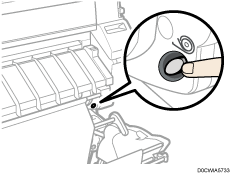
Open the front cover.
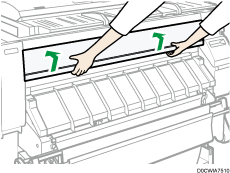
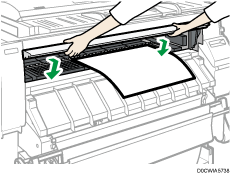
Pull up the paper holding lever on the right of the machine.
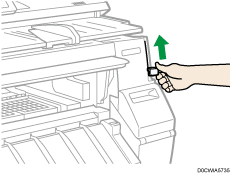
Place the paper with the printable side up and align the right side of the paper with the paper set position on the right side of the platen.
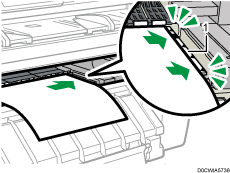
Paper set position
Insert paper under the rollers until it bumps against the back of the paper bypass location.
Insert paper straight with both hands.
The beeper sounds about two seconds after the paper bumps against the back of the paper bypass location correctly.
If it does not sound, set the paper again.
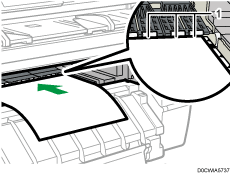
Rollers
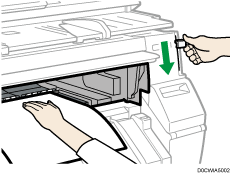
Lower the paper holding lever to fix the paper position.
Lower the paper holding lever while holding the paper with your hand.
Close the front cover.
Check if the settings on the screen are correct, and then press [Start Feed].
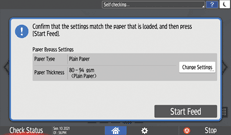
If the paper type and thickness are different from those displayed, press [Change Settings].
Select the proper items according to the paper type and thickness you want to use, and then press [OK].
Make sure that the size of the paper that is loaded is displayed correctly on the [Printer] screen.
"Ready" appears on the screen.
Do not operate the machine while “Please wait”. is displayed when the machine is turned on.
Press the rewind button to rewind the roll of paper. Rewinding it manually may cause paper jams.
When [Film: Matte] is specified for the paper type or when [Prevent Paper Abrasion] is specified, load the paper, and then specify the paper abrasion setting in [Settings]
[System Settings][Machine][Print Action/Image Quality Adjustment][Prevent Paper Abrasion]. However, if you specify [Film: Matte] for Paper Type, the Prevent Paper Abrasion setting is automatically selected, and you cannot change it. For details about Prevent Paper Abrasion, see below.Do not use paper already printed on.
Do not insert multiple sheets at one time. Doing so can result in jams and poor quality prints.
If you are printing multiple pages, insert each additional sheet after the preceding sheet is fully ejected from the machine.
If you load paper that curls severely, the edge of the paper may be caught when it is fed into the paper bypass location. Flatten the curled paper with your hands before loading the paper.
If the edge of the roll paper is ejected from the machine, load it again after copying or printing from the paper bypass location. For details about how to load the paper roll, see Loading Paper Roll into the Paper Input Location.
You can specify the types of paper you load in the paper bypass location in advance. For details, see below.
When [Touch/Notification Sound] is set to [No Sound], the beeper does not sound when paper bumps against the back of the paper bypass location. For details about [Touch/Notification Sound], see below.
When copying from the paper bypass location, see below.
When printing from a computer, See Specifying Regular Sizes.
Be careful that the cables in the back of the machine do not catch on the paper.
Specifying Regular Sizes
Press [Settings] on the Home screen.
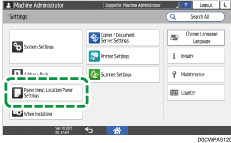
Press [Paper Input Location/Paper Settings].
Press [Paper Size/Paper Type][Paper Size/Paper Type].
Press one paper input location to set.

Press [Paper Size].
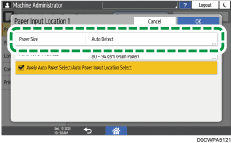
To specify for the paper bypass location, press [Paper Size: Printer].
Choose one paper size from the list shown, and then press [OK].
Press [OK].
After completing the configuration, press [Home] ( ).
).
To use paper that can be detected automatically after using paper that cannot be detected automatically, restore the setting of Auto Detect. To restore the setting of Auto Detect, load the paper again, operate steps 1 to 6, select [Auto Detect], and then press [OK].
Specifying Custom Sizes
With the printer function, you can print on a custom size paper roll. This section explains how to specify the paper size from the control panel of the machine.
If you load a regular size paper roll, the machine detects the paper size automatically.
Specifying a custom size roll of paper
When using RP-GL/2 or RTIFF as a printer language, you can specify a custom size roll of paper from the control panel as follows:
[Settings]
[Printer Settings] [Emulation(EM)] [Custom Size: Paper Input Location 1] or [Custom Size: Paper Input Location 2]Paper sizes that can be specified are 279–914 mm (11.0–36.0 inches) horizontally and 210-33000 mm (8.3-1299.3 inches).
When using RTIFF as a printer language, the machine can detect the size of a custom size roll of paper by default.
Press [Settings] on the Home screen.
Press [Printer Settings] [Emulation(EM)].
Select the paper input location ([Custom Size: Paper Input Location 1] or [Custom Size: Paper Input Location 2]) in which you want to load the custom size paper.
Press the value in the "A" or "B" field, and then enter the new value.
Specify the values within the range of numbers inside "< >", and then press [Done].
Press [OK].
After completing the configuration, press [Home] ().
Specifying a custom size paper for the paper bypass location
Press [Settings] on the Home screen.
Press [Paper Input Location/Paper Settings].
Press [Paper Size/Paper Type][Paper Size/Paper Type].
Press [Paper Bypass Location].
Press [Paper Size: Printer].
Press [Custom] from the list shown.
Press the value in the "A" or "B" field, and then enter the new value.
Specify the values within the range of numbers inside "< >", and then press [Done].
Press [OK] three times.
After completing the configuration, press [Home] ().
Specifying Paper Type and Thickness Settings
If the print settings and the loaded paper that are used for a print job do not match, a mismatch error occurs.
Check and specify the paper settings before you start printing.
On the printer driver
Check the settings of paper input location and paper type on the printer driver and make sure the settings match the loaded paper.
On the control panel
Press [Settings] on the Home screen.
Press [Paper Input Location/Paper Settings].
Press [Paper Size/Paper Type][Paper Size/Paper Type].
Press one paper input location to set.
Press [Paper Type/Thickness].
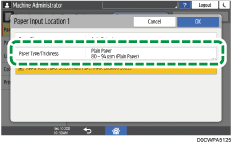
Choose one paper type and paper thickness from the list shown, and then press [OK].
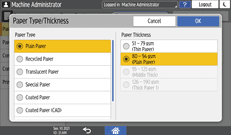
Press [OK].
After completing the configuration, press [Home] ().