Setting the Output Basket

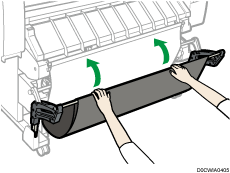
Open the output basket before you start printing.
Hold the bars with both hands. If you hold the bars with only one hand, you might drop the bars.
If the machine is installed near an air conditioner or heater, the delivered paper might not be stacked properly due to the air from the air conditioner or heater.
Printing photos or other images that use a lot of ink may make the paper frail so that it does not stack properly.
Do not touch output paper until printing is complete. Doing so may cause it to misfeed and result in a malfunction.
Do not obstruct the paper output location or put anything in the output basket. Doing so may cause it to misfeed and result in a malfunction.
If the paper curls or is charged with static electricity, the output paper may remain at the paper output location. If this happens, remove the trailing edge of the paper from the paper output location. If you leave the trailing edge of the paper there and continue to print, the paper may jam or the paper may be cut incorrectly.
Prints are delivered to the output basket. Remove the prints one at a time from the output basket.
Setting Up the Output Basket in Basic Mode
For printing, the basket can be set up in the basic mode.
 Make sure the output basket is closed, and then pull it out.
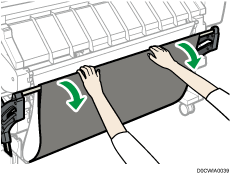
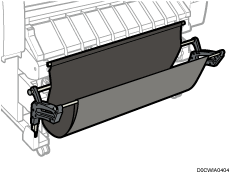
Make sure the output basket is open before you start printing.
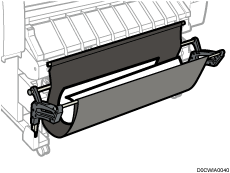
Printed paper is output as shown in the illustration.
Close the output basket
Push the output basket towards the machine.