
Using the Paper Bypass Location to Copy
Use the paper bypass location to copy onto the paper described below.
Paper of a size that cannot be loaded in Paper Input Location 1 or 2
Cut paper such as A4 size
Special Paper or Thick Paper 2 of Coated Paper
For details about the size and type of paper that can be loaded in the paper bypass location, see the following section:
Recommended Paper Sizes and Types
Press [Check Status] on the Home screen to check that the copy function is available in advance.
 Press [Copy] on the Home screen.
 Place the paper into the paper bypass location with the copying side face up.
Loading Paper into the Paper Bypass Location
When referring to the operating instructions above, replace "[Printer]" to "[Copy]".
The paper settings screen is displayed.
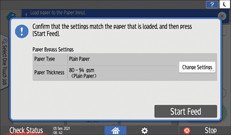
When using paper that is identified automatically, the paper type and size need not be specified. Confirm the displayed settings, and press [Start Feed] if no change is required. Proceed to Step 6.
To change the displayed settings, proceed to the next step.
 Press [Change Settings].
 Select a paper type, and then press [OK].
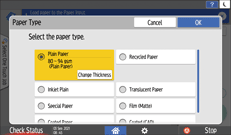
To change the paper thickness, press [Change Thickness], and then specify the paper weight.
 Confirm the settings on the paper settings screen, and then press [Start Feed].
 Press the paper input location select key, and then press paper bypass location.
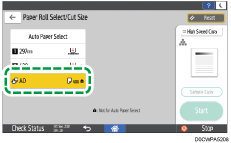
 Press [Regular Size] or [Custom Size], and then press [Next].
 Select a paper size, and then press [Next].
When you press [Regular Size] in step 7, select a paper size.
When you press [Custom Size] in step 7, enter the paper size.
 Press [OK].
 Place the original.
Basic Procedure for Copying Documents
The original is fed into the machine automatically, and copying starts. If the original is not fed automatically, press [Start].