
Adjustment
Auto Adjust Head Position
If printing produces misaligned verticals or blurred colors, printing the test pattern will re-calibrate the machine. The test pattern differs depending on the print quality.

Printing the test pattern consumes ink. Perform this function only when necessary.
Perform no other operations while the test pattern is printing.
An error will occur and test patterns will not print if:
There is a misfeed.
One of the machine's covers is open.
The machine is performing maintenance operations.
The machine has run out of ink.
The machine has run out of paper.
The ink collector unit is full.
An adjustment sensor failure occurred while performing an adjustment.
 Press [Settings] on the Home screen.
 Press [Maintenance]
 [Auto Adjust Head Position].
 Select the paper input location for the head position you want to adjust.
 Check the settings for preventing paper abrasion, paper type, and paper thickness.
Adjustment results vary depending on the Prevent Paper Abrasion mode's status. If you perform an adjustment while Prevent Paper Abrasion mode is enabled and do not want to print using this mode, cancel Prevent Paper Abrasion mode, and then perform the adjustment again.
Check the settings of paper type and paper thickness in [Paper Type/Thickness] under [Settings]
[Paper Input Location/Paper Settings][Paper Size/Paper Type].
 Press [Print Quality] to select the write mode.
 Press [OK].
 Press [Adjustment][OK].
 Press [Exit].
If Auto Adjust Head Position has failed, perform Manual Adjust Head Position.
 Press [Home] (
 ) after completing the operation.

Auto Adjust Head Position cannot be performed when "Paper Type" is set to [Film: Matte]. Perform Manual Adjust Head Position.
Auto Adjust Head Position cannot be performed for the paper bypass location. Perform Manual Adjust Head Position.
For details about Prevent Paper Abrasion mode, see Checking Whether the Print-heads Scratch the Paper.
For details about Manual Adjust Head Position, see Manual Adjust Head Position.
Manual Adjust Head Position
If auto adjust head position has failed, or if you feel the print quality is not improved by auto adjustment, adjust the head position manually.
To check the print results of the test pattern, proceed to Step 8.
Printing the test pattern consumes ink. Perform this function only when necessary.
Perform no other operations while the test pattern is printing.
An error will occur and test patterns will not print if:
There is a misfeed.
One of the machine's covers is open.
The machine is performing maintenance operations.
The machine has run out of ink.
The machine has run out of paper.
The ink collector unit is full.
Press [Settings] on the Home screen.
Press [Maintenance][Manual Adjust Head Position].
Select the paper input location for the head position you want to adjust.
Check the settings for preventing paper abrasion, paper type, and paper thickness.
Adjustment results vary depending on the Prevent Paper Abrasion mode's status. If you perform an adjustment while Prevent Paper Abrasion mode is enabled and do not want to print using this mode, cancel Prevent Paper Abrasion mode, and then perform the adjustment again.
Check the settings of paper type and paper thickness in [Paper Type/Thickness] under [Settings]
[Paper Input Location/Paper Settings][Paper Size/Paper Type].
Press [Print Quality] to select the write mode.
Press [Start Printing][Start].
Press [Exit].
Check the optimal adjustment value based on the print results of the test pattern.
The optimal adjustment value is the number above the square pattern that has the faintest color closest to gray and aligned verticals on both sides. For example, if the value in column "A" is "-2", the adjustment value of "A" is "-2".
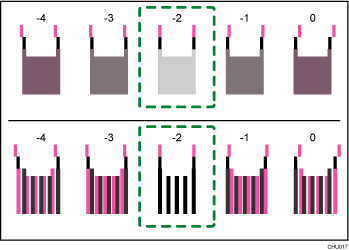
Combined two-color lines form squares, and depending on line overlapping, (white) spaces between the lines are painted and look darker. Sometimes the colors of the lines are identical.
For this illustration, the adjustment value is "-2". Checking adjustment values for each item is required.
If you cannot determine the adjustment value, select the square that is between the straightest lines.
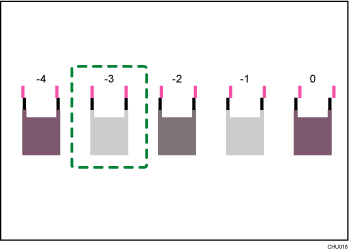
Each vertical line is made of an upper part and lower part. If the print head is not properly positioned, the vertical line will be displayed as two disconnected lines, so that the line looks misaligned.
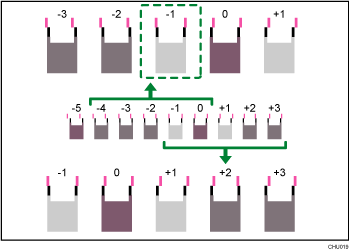
If you still cannot determine the adjustment value, locate the square that is between adjacent squares whose lines form symmetry. Adjacent squares can be one or two places either side (at positions ±1 or ±2).
This illustration indicates an adjustment value that is set to "-1".
Press [Enter Adjustment Values].
 Enter the adjustment value with [
 ] [
] [ ], and then press [OK].
Enter the adjustment values of each item such as "A", "B", etc. The items differ depending on the writing mode you want to adjust.
 Press [Adjustment][OK][Exit].
To check the results of adjustment, print the test pattern again.
 Press [Home] () after completing the operation.
For details about Prevent Paper Abrasion mode, see Checking Whether the Print-heads Scratch the Paper.
Adjust Print Position
This function prints the test sheet for adjusting the print start position of paper on a paper input location basis.
To check the print results of the test sheet, proceed to Step 5.
Printing the test sheet consumes ink. Perform this function only when necessary.
Adjustment results vary depending on the Prevent Paper Abrasion mode's status. If you perform an adjustment while Prevent Paper Abrasion mode is enabled and do not want to print using this mode, cancel Prevent Paper Abrasion mode, and then perform the adjustment again.
Perform no other operations while the test sheet is printing.
An error will occur and test sheets will not print if:
There is a misfeed.
One of the machine's covers is open.
The machine is performing maintenance operations.
The machine has run out of ink.
The machine has run out of paper.
The ink collector unit is full.
Press [Settings] on the Home screen.
Press [Maintenance][Adjust Print Position].
Press [Print Test Sheet] for the paper input location of the print position you want to adjust.
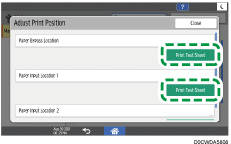
Press [Start].
Check the optimal adjustment value based on the print results of the test sheet.
Measure the margins between the center of the printed lines and the paper edges.
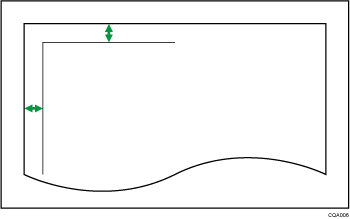
Adjust so that the margins are 5 mm (0.20 inches). For example, if the center of the horizontal line is printed 4 mm (0.16 inches) from the top edge of the sheet, the adjustment value of "Top Margin" is "1.0 mm (0.04 inches)".
In the same manner, if the center of the vertical line is printed 8 mm (0.32 inches) from the left edge of the sheet, the adjustment value of "Left Margin" is "-3.0 mm (-0.12 inches)".
Press the paper input location of the print position you want to adjust.
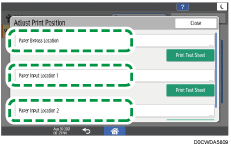
Enter the adjustment values, and then press [OK].
Press [
 ] and [
 ] to enter the adjustment value of "Top Margin".
Press [
 ] and [
 ] to enter the adjustment value of "Left Margin".
Press [Close].
To check the results of adjustment, print the test sheet again.
Press [Home] () after completing the operation.
For details about Prevent Paper Abrasion mode, see Checking Whether the Print-heads Scratch the Paper.
Adjust Paper Feed
This function prints the test sheet for adjusting paper feed if misalignment of horizontals or image surface irregularities occurs.
To check the print results of the test sheet, proceed to Step 6.
Printing the test sheet consumes ink. Perform this function only when necessary.
Adjustment results vary depending on the Prevent Paper Abrasion mode's status. If you perform an adjustment while Prevent Paper Abrasion mode is enabled and do not want to print using this mode, cancel Prevent Paper Abrasion mode, and then perform the adjustment again.
Perform no other operations while the test sheet is printing.
An error will occur and test sheets will not print if:
There is a misfeed.
One of the machine's covers is open.
The machine is performing maintenance operations.
The machine has run out of ink.
The machine has run out of paper.
The ink collector unit is full.
Press [Settings] on the Home screen.
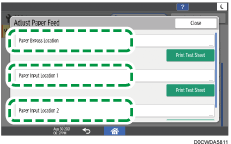
Press [Maintenance][Adjust Paper Feed].
Press [Print Test Sheet] for the paper input location of the paper feed you want to adjust.
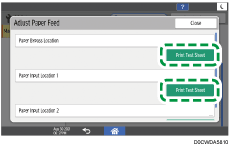
Press [Start].
Press [Exit].
Check the optimal adjustment value based on the print results of the test sheet.
The optimal adjustment value is the number next to the square pattern that has the faintest color closest to gray and aligned horizontals on both sides. If the value on the left of the pattern is "+2", the adjustment value is "+2".
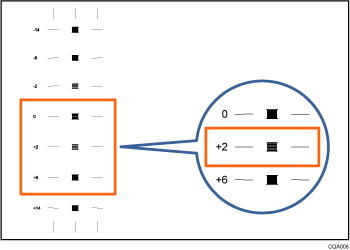
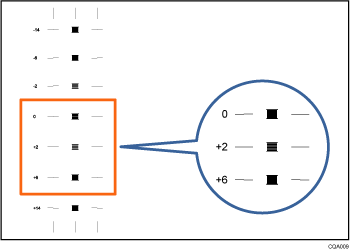
If the horizontal lines on the both sides of the faintest square are misaligned, determine an adjustment value based on a pattern that is above or below, whose horizontals are misaligned in the opposite direction. For example, "+2" square is the faintest and the horizontals on both sides of "+6" are in the opposite direction to "+2", so the adjustment value is between "+3" and "+5" depending on the degree of misalignment. After completing the adjustment, adjust the paper feed again to check if the optimal adjustment value is set.
Press the paper input location of the paper feed you want to adjust.
Enter the adjustment value with [] [], and then press [OK].
Press [Close].
To check the results of adjustment, print the test sheet again.
Press [Home] () after completing the operation.
For details about Prevent Paper Abrasion mode, see Checking Whether the Print-heads Scratch the Paper.
Cut Paper
This function cuts a paper roll at the specified length from the paper's leading edge.
Perform no other operations while a paper roll is being cut.
An error will occur and cutting paper will not be possible if:
One of the machine's covers is open.
The machine is performing maintenance operations.
The machine has run out of paper.
The ink collector unit is full.
Press [Settings] on the Home screen.
Press [Maintenance][Cut Paper].
Select the paper input location and length to cut paper, and then press [Start].
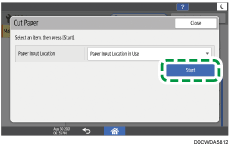
The cutting length is set to [Short] when you select [Paper Input Location in Use].
Press [Close].
Press [Home] () after completing the operation.
For details about how to cut a paper roll while removing jammed paper, see When Paper or an Original Is Jammed.