
Adjusting the Print Position When Copying
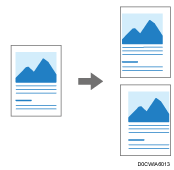
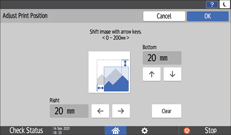
Use this function to move (shift) the copy image up, down, left, or right to create a margin. You can also shift in a combination of up/down and right/left.
[ ] (Top), [
 ] (Bottom)
Shifts towards the leading or trailing edge of the paper.
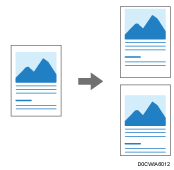
[ ] (Left), [
 ] (Right)
Shifts towards the left or right of the paper.
 Press [Copy] on the Home screen.
 Press [Adjust Print Position] on the Copy screen.
 Specify the right and bottom position, and the press [OK].
 Place the original.
Basic Procedure for Copying Documents
The original is fed into the machine automatically, and copying starts. If the original is not fed automatically, press [Start].

When using Stamp and Adjust Print Position together, the stamp position does not move.
If you specify the margin too long for the original, parts of the image might not be copied.
You can change the default values of Adjust Print Position in [Adjust Print Position] of [Copier / Document Server Settings].
You can specify the Adjust Print Position function when the original size is A0 (E) or smaller.