
Copying with Margins
When [Synchro Cut] is selected, you can create a margin on the copy's leading and trailing edge (Margin).
This function is useful for punching and gluing.
Top Margin
Add a margin to the leading edge at the top of the copy.
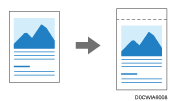
Bottom Margin
Add a margin to the trailing edge at the bottom of the copy.
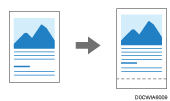

When you use the paper that loaded into the paper bypass location, you cannot use the Margin function.
 Press [Copy] on the Home screen.
 Press [Margin] on the Copy screen.
If the key is not displayed, select it from [Edit].
 Specify the top and bottom margin, and then press [OK].
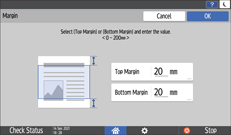
[Synchro Cut] is automatically selected.
 Place the original.
Basic Procedure for Copying Documents
The original is fed into the machine automatically, and copying starts. If the original is not fed automatically, press [Start].
The length of a copy is a combined length of an original and its margins. The length of an original is automatically specified in the Synchro Cut mode.
If you specify the margin too long for the original, parts of the image might not be copied.
You can change the settings for Margin under [Margin Adjustment Priority].
You can specify this function when the original length is 15 m (590.5 inches) or smaller.