Using the Bypass Tray to Copy
Use the bypass tray to copy onto the paper described below.
Paper of a size that cannot be loaded in the paper tray
Special paper such as label paper (adhesive labels)
For details about the size, type, and weight of paper that can be loaded in the bypass tray, see the following section:
Recommended Paper Sizes and Types

You cannot perform Duplex Copy onto the following paper types. If Duplex Copy is specified, press [1 sided→2 sided] or [2 sided→2 sided] on the Copy screen to cancel the setting.
Label paper (adhesive labels)
Envelopes
Thick Paper 3:163~216g/m2 (Approx. 90 lb. Index–80 lb. Cover)
Press [Copy] on the Home screen.
Place the paper into the bypass tray with the copying side face down.
Loading Paper into the Bypass Tray
The "Bypass Tray Paper Settings" screen is displayed.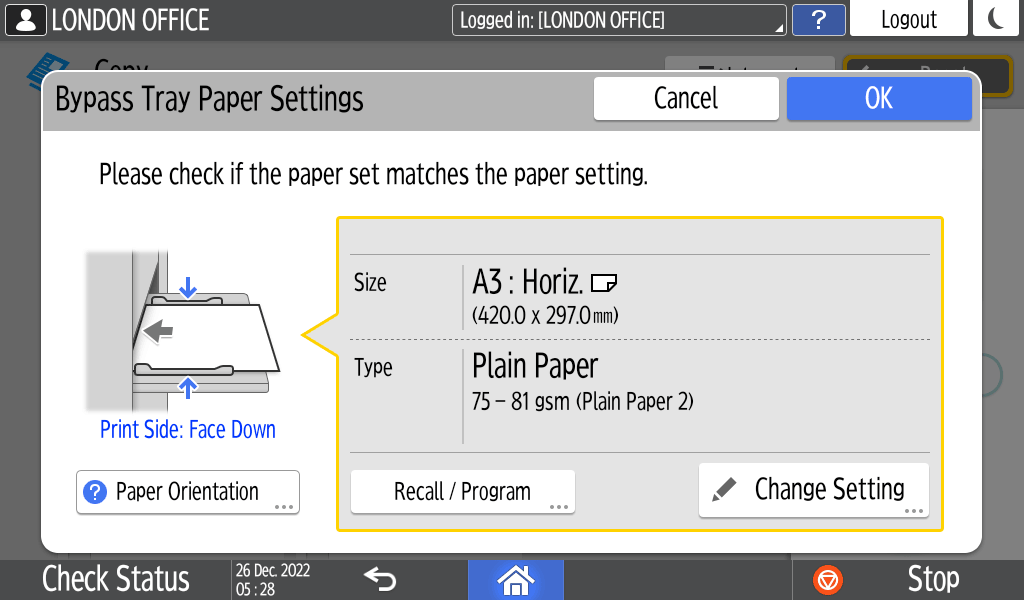
To change the displayed settings, proceed to the next step.Press [Change Setting].
Select a paper type, and then proceed to the next screen.
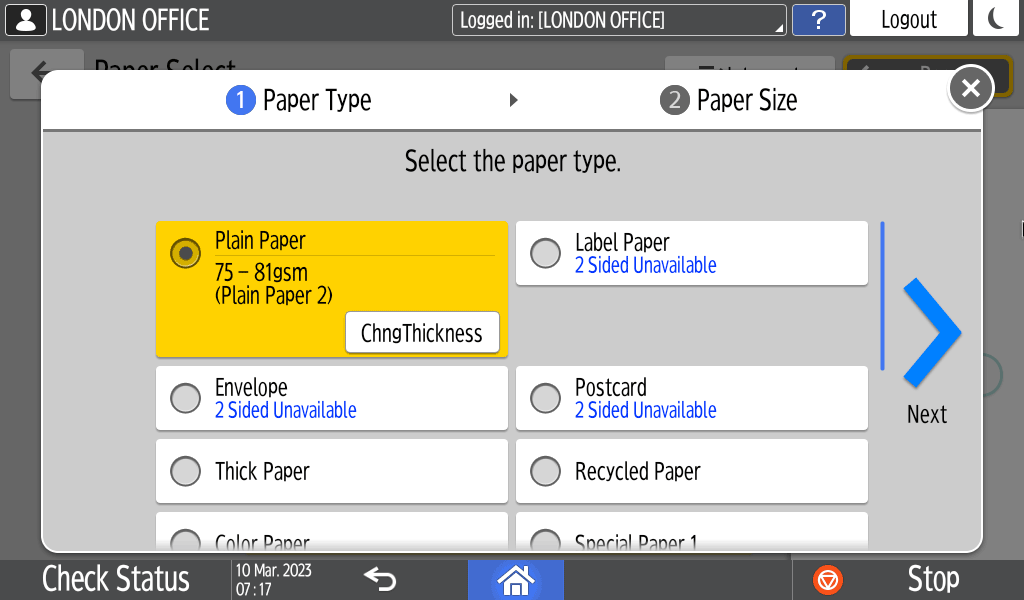
To change the paper thickness, press [ChngThickness], and then specify the paper weight.Select a paper size and orientation, and then press [OK].
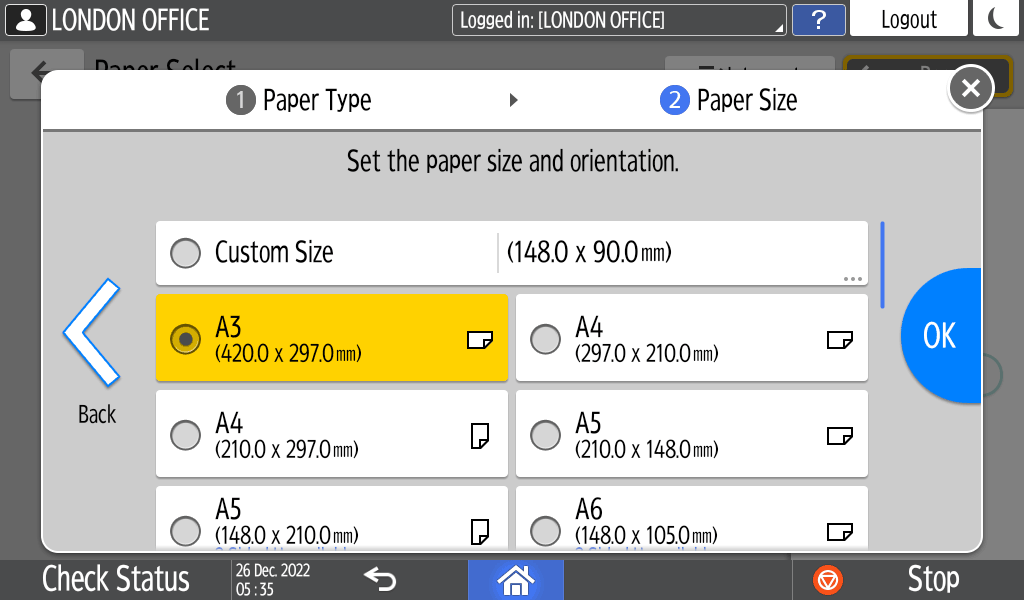
When you select [Custom Size], enter the paper size.Confirm the settings on the "Bypass Tray Paper Settings" screen, and then press [OK].
When you press [Recall / Program] on the "Bypass Tray Paper Settings" screen, you can register the type and size of the paper set in the bypass tray or recall the registered settings.Place the original.
Basic Procedure for Copying DocumentsPress [Start].