
Sending/Storing Scanned Data
Scan an original and send the scanned data to an e-mail address or shared folder on a computer, or save the data on a USB flash memory device or SD card.
You can also operate the machine from a computer to scan an original and obtain the scanned data in an application running on the computer.
Send Email and Send to Folder
Specify an e-mail address or a folder on the control panel to send the scanned data.
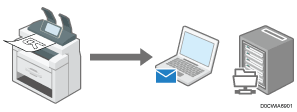
Send e-mail
Specify an e-mail address to send the scanned document.
Send to Folder
Specify the folder for storing the scanned document. By specifying a shared folder to save the scanned data, you can browse the document also from other computers.
Saving the Scanned Data in an External Storage Media
Use [Print/Scan (Memory Storage Device)] to save the scanned data on a USB flash memory device or SD card. This feature is useful when you want to quickly save the scanned data in a storage media at hand.
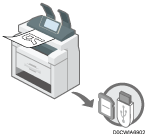
Saving a Scanned Original on a USB Flash Memory Device or SD Card
Using the scanned data more effectively
You can perform image processing on the scanned data to improve its visibility, or specify a file format or name for easier management of the data.
Changing the scan settings suitable for the original
Specify the scan settings such as the color mode (black-and-white or full color), resolution, and size to scan an original.
Erasing borders
Erase the image from a specified width around the document when the document is scanned.
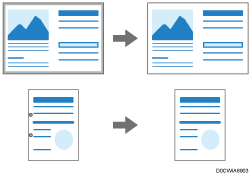
Saving the scanned data in a suitable file format
Specify the file format in which to save the data from PDF, TIFF, and JPEG, depending on the purpose of the data. You can use different file format such as PDF for saving meeting materials or TIFF or JPEG for creating an image. You can also specify the file name to manage the data more easily.
Specifying the File Type or File Name When Scanning a Document
Create a searchable PDF
You can embed the text information in the scanned document (process it by OCR) to allow copying and pasting or searching for text in the document.