
Storing Documents in Document Server
You can store documents scanned by the machine in the document server.
You can also store them using the printer driver.
Storing Documents to Print in the Machine

Documents stored in the document server are deleted after three days (72 hours) in the factory-default configuration. You can change the period until documents are deleted or specify not to delete documents automatically in [Auto Delete File in Document Server].
Changing the Storage Period of Document Server or Specifying an Indefinite Period
 On the Home screen, press [Document Server].
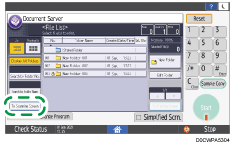
 On the document server screen, press [To Scanning Screen].
 Specify the folder to store documents, the document name, and other settings.
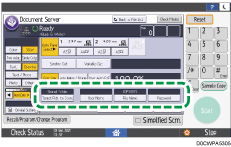
Target Fldr. to Store: Select the "Shared Folder" created in the factory default configuration or a user folder created by a user to store the document. To select a user folder, create it in advance. If you select a password-protected folder, enter the password, and then press [OK].
User Name: Specify the user name displayed as the owner of the document. Select a user from the address book or enter the name. Depending on the user authentication settings, [Access Privileges] is displayed. For details about access privileges settings, see Specifying Access Privileges for Documents Stored in Document Server.
File Name: Specify the name of the scanned document. If you do not specify the file name, a name such as "COPY0001" or "COPY0002" is assigned automatically.
Password: Specify the password required for printing the document. You can specify a number of 4 to 8 digits as the password.
 Specify the scanning conditions such as color mode or scanning size.
 Place the original.
Place the original in the same way as in the Copy function.
Basic Procedure for Copying Documents
The original feeds into the machine automatically. If [Press Start Key] is selected for [Feed Start Method] in [System Settings], scanning starts when you press [Start]. For details, see the following section:
Continue scanning if there are multiple originals.
 Press [Finish Scanning] after all documents are scanned.

You can specify whether to allow other users to read or edit the stored document.
To prevent documents from being deleted automatically, set [Auto Delete File in Document Server] to [Off], and then store the documents.
Even if you change the settings to [Specify Days] or [Specify Hours] after documents have been stored with [Auto Delete File in Document Server] set to [Off], the documents will not be deleted automatically. Only the documents stored after a setting change are deleted automatically.