
Accessing Documents in Document Server from a Web Browser
When using Web Image Monitor, you can display or download the documents stored in the document server from a computer.

To download documents that have been stored to your computer using the document server function or the printer driver, you must install the file format converter on the machine in advance.
 Start the Web browser on the computer.
 Enter "http://(IP address of the machine) or (host name)/" in the address bar of the Web browser.
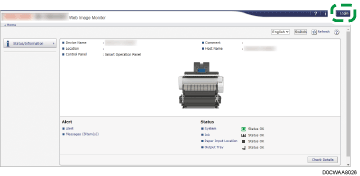
 On the top page of Web Image Monitor, click [Login].
 Enter the login user name and password, and then click [Login].
To download the document, log in as a user other than the administrator.
 Click [Document Server] on [Print Job/Stored File].
 Click the folder containing the desired document.
If the folder is password protected, enter the password and click [OK].
 Display or download the stored document.
Press
 (Display Thumbnails),
  (Display Icons), or
  (Display Details) to change the type of display.
Click the
 icon to display the details about the document.
To download the document, select a file format on the File Details screen, and then click [Download]. You can also download the document by clicking a file format name such as [PDF] or [TIFF] on the document list.
To download a color document stored from the document server function or printer driver, click [On] for [Black & White Conversion] on the File Details screen to convert the document to monochrome before downloading it.
To specify the multi-page TIFF format for a document stored from the document server function or printer driver, store it as a black and white document in advance.
 After displaying or downloading the document, click [Logout] and close Web Image Monitor.