
Combining and Copying a Multi-page Original onto a Single Sheet of Paper
You can copy multiple sheets in an original to save paper.
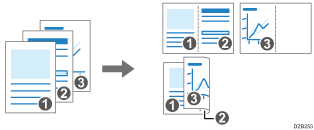
The arrangement of copied pages and copy ratio varies depending on the original orientation and combined pages.
Original Orientation | Combine 2 pages | Combine 4 pages | Combine 8 pages |
|---|---|---|---|
 |  |  |  |
 |  |  |  |

When you use the paper that loaded into the paper bypass location, you cannot use the Combine function.
 Press [Copy] on the Home screen.

 On the Copy screen, press [Combine].
If the key is not displayed, select it from [Combine].
 Specify the original orientation and number of pages to combine on one side of a sheet.
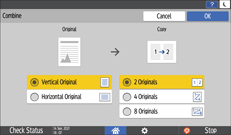
 Press [OK].
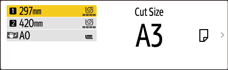
 Press the paper input location select key, and then select the paper input location and a preset cut size.
 Press [Original Orientation], and then specify the original orientation.

If the key is not displayed, select it from [Original Setting].
 Place an original.
Basic Procedure for Copying Documents
The original is fed into the machine automatically, and copying starts. If the original is not fed automatically, press [Start].
Press [Finish Scn] after scanning all of the originals if necessary according to the number of originals.
The minimum copy ratio in the Combine function is 25%. For example, if you combine 4 pages of A2 (C) size original onto A3 (11 × 17) size paper, the copy ratio becomes less than 25% and parts of the image might not be copied.
You can configure the following settings in [Settings]
 [Copier / Document Server Settings][Combine]:
[Copy Order in Combine]: The order of combined images
[Separation Line in Combine]: The separation line between combined pages
You can configure the following settings in [Settings]
[Copier / Document Server Settings][Edit / Stamp][Erase]:[Erase Original Shadow in Combine]: Determine whether to erase the boundary margin around each original to maintain the margin