Duplex Copying
You can copy two 1-sided pages or one 2-sided page onto the front and back sides of a single sheet of paper.
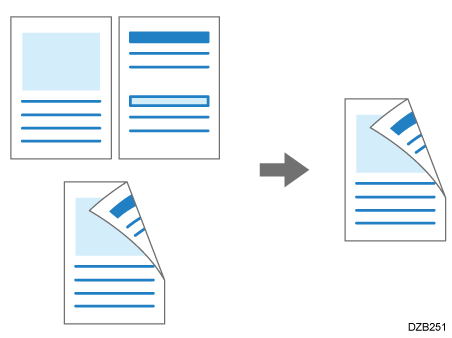
When you scan the original with the ADF, the size of the original that can be copied differs from that of the 1-sided copy.
Recommended Original Size and Weight
For details about the sizes, orientations, and weights of paper that can be used in the duplex function, see the following section:
Specifications for the Main Unit
Press [Copy] on the Home screen.
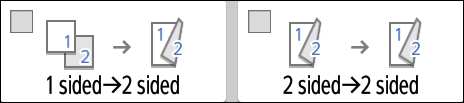
Press [1 sided→2 sided] or [2 sided→2 sided] on the Copy screen.
Duplex Copying with the Settings Other Than Those Displayed on the Keys
Press [2 Sided/Combine].
Specify the original side and print side settings.
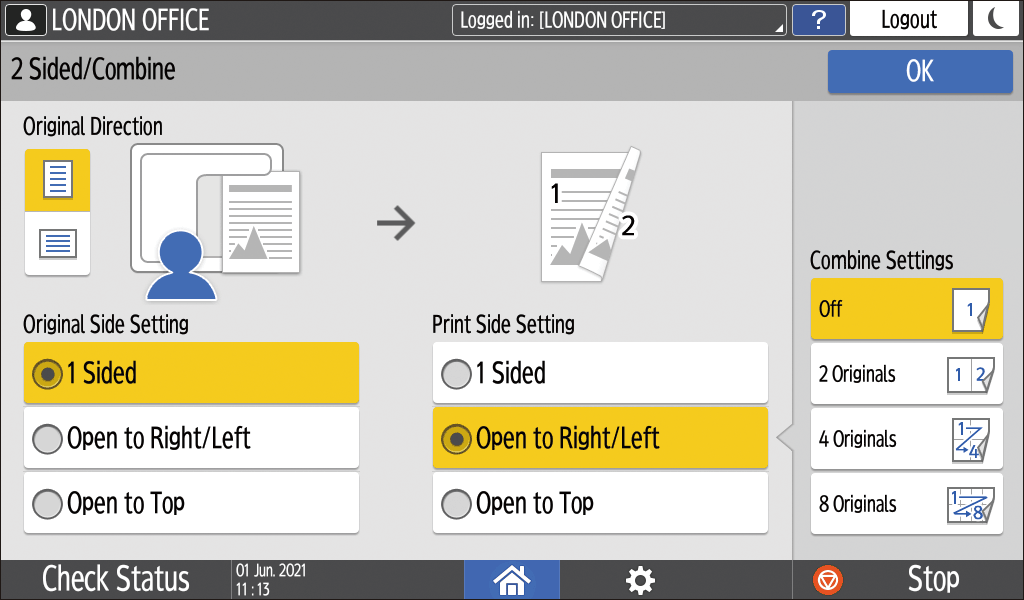
Original Direction: Specify the orientation to place the originals.
Original Side Setting: Specify the condition of the originals to copy (1 sided/2 sided (Page Opening Direction)).
Print Side Setting: Select the finish from [Open to Right/Left] or [Open to Top].
Press [OK].
Place the original.
Basic Procedure for Copying DocumentsPress [Start].
When placing the originals on the exposure glass, press [Finish Scn] after scanning all of the originals if necessary according to the setting contents and number of originals.

- You cannot perform Duplex Copy onto the following paper types:
Label paper (adhesive labels)
Envelopes
Thick Paper 3:163~216g/m2 (Approx. 90 lb. Index–80 lb. Cover)
You can change the setting contents of the two-sided copy key on the Copy screen.
Use the [Series] function to copy the front and back sides of a two-sided original onto one side of a sheet page by page.