
Application/Widget List
Widgets are simple applications used to perform a function on the Home screen. By using a widget, you can view the information of an application on the Home screen and execute specific functions on the Home screen without starting the application screen.
There are three types of applications that you can use on the machine as described below.
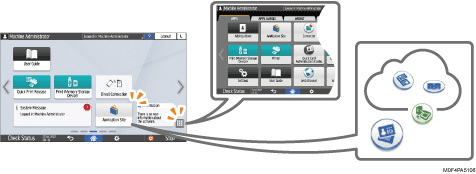
Applications Displayed on the Home Screen
The main factory installed applications are displayed.
You can customize the type and display position of the icons to display.
Adding a Frequently Used Application or Widget to the Home Screen
Applications launched on the Application List screen
To display the Application List screen, press the Application list icon (
 ) on the Home screen.
All factory-installed applications are displayed.
You can add application icons on the Home screen.
Adding a Frequently Used Application or Widget to the Home Screen
Applications downloaded from the application site and installed
You can download an application from the application site and add it.
Applications/Widgets Displayed on the Home Screen
Icon | Name | Description |
|---|---|---|
 | Quick Print Release | Display the list of files stored in the machine and select and print a file easily. Printing Documents Stored in the Printer from the Control Panel |
 | Print (Memory Storage Device) | Print the data stored on the external media on the machine. |
 | Direct Connection Widget | Configure the direct connection settings. |
 | System Message Widget | Widget to display system messages. Press to display the message list screen. |
 | Application Site | Add, update, or delete an application of the machine from the application site. |
 | Information Widget | This is a widget to display new information and update information on the applications and firmware. Tap to display the information screen. |
 | User Guide | Display the operation manual of the machine. |
 | Address Book | Register the user (authentication information). |
 | Settings | Display the Settings screen of the machine. |
 | Printer | Confirm the job of the Printer function and confirm and respond to errors. |
 | Change Language Widget | Switch the language displayed on the screen. |
- | Embedded Software Architecture Application | If an application that supports the "Embedded Software Architecture" platform is installed, the icon unique to the application is displayed. |
Applications/Widgets That Can Be Added to the Home Screen from the Application List
Icon | Name | Description |
|---|---|---|
 | Web Browser | Browse a Web page. |
 | Web Browser NX | The Web application for the cloud service, Integrated Cloud Environment, is enabled. Integrated Cloud Environment (ICE) |
 | Quick Card Authentication Config. | Configure the settings for logging in using the IC card. |
 | Connector | Connect the machine and a mobile device via Wi-Fi Direct to use the machine from a mobile device. |
 | Supply Information Widget | Display the remaining amount of ink. |
 | Stop Widget | Stop all print jobs. |
 | Date and Time Widget | Display the date and time. |
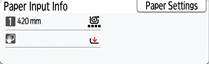 | Paper Input/Rmng Paper Widget | Widget to display the remaining amount of paper and setting information for each paper input location. Press [Paper Settings] to display the Paper Input Location/Paper Settings screen. |
 | Connector Widget | Widget to display the QR code to connect a mobile device to the machine using the RICOH Smart Device Connector. |
 | Printer (Classic) | Use the Printer (Classic) function. |
Applications That Can Be Downloaded from the Application Site
You can download an application from the application site, and add it.
The type of applications that can be downloaded depends on the model and time.