
Printing from a USB Flash Memory Device or SD Card Directly
You can connect a memory storage device to the media slot of the machine and print the files stored on it. Use this to print external data easily.

- Keep SD cards and USB flash memory devices out of reach of children. If a child accidentally swallows an SD card or USB flash memory device, consult a doctor immediately.

USB flash memory device and SD cards are supported for direct printing. However, certain types of USB flash memory device and SD cards cannot be used.
The machine cannot print a document over 1 GB.
You can select up to 100 files within 1 GB total.
If the print job of PDF file is canceled, execute printing from a PDF viewer such as Acrobat Reader while using the printer driver.
Printable File Formats
File format | Details |
|---|---|
JPEG files | Exif version 1.0 or later |
TIFF files | Uncompressed TIFF files TIFF files compressed using the MH, MR, or MMR method |
PDF files | PDF version 1.7 (Acrobat 8.0 compatible) or earlier*1 |
XPS files | Possible for all XPS files |
*1 The machine does not support the following functions: Crypt Filter, DeviceN Color Space (more than eight components), watermark note, optional contents (version 1.6), AcroForm
The PDF file of a custom size may not be printed.
Printing from a Memory Storage Device
 On the Home screen, press [Print (Memory Storage Device)]
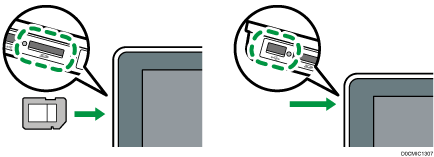
 Insert a memory storage device in the media slot on the side of the control panel.
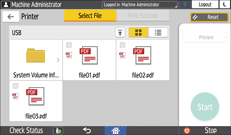
 Press [USB] or [SD Card].
 Select the file to print.
Files in the external media are displayed as icons or thumbnail images.
 Press [Print Settings] to specify the settings of Finishing as necessary.
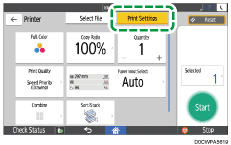
Full Color: Select whether to print in color. The machine may print a document that appears to be black-and-white in color printing mode. To print a document in full black-and-white, select [Black and White].
Copy Ratio: Select whether to print in the original size or to reduce or enlarge to match the paper size.
Quantity: Enter the print quantity.
Print Quality: You can select to prioritize either the print quality or print speed.
Paper Input Select: Select the paper input location.
Combine: Select whether to combine multiple pages into a sheet.
Sort/Stack: Select whether to print in ordered sets or in a batch page by page.
 Press [Start] to start printing.