
Editing the Subject and Message When Sending the Scanned Document by E-mail
You can specify the subject and message in the e-mail to send from the machine so that the recipient can find the corresponding e-mail message in the e-mail client application.
The subject becomes "the-host-name-of-the-machine" when you do not specify a subject.
Specify whether to enter the message manually or select from fixed phrases. You can also send an e-mail without a message.
You can register frequently used texts as fixed phrases. Register the fixed phrase in advance. Refer to the following for the registration method.
 Press [Scanner] on the Home screen.
 Select [Scan to Email] on the scanner screen.
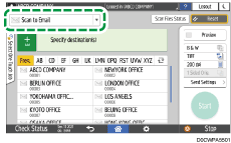
 Press [Send Settings] on the scanner screen.

 Press [Sender] and specify the sender.
 Press [Subject] to enter the subject.

 Press [Text] and specify the message.
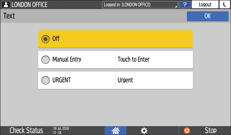
Off: An e-mail without a message is sent.
Manual Entry: Enter the message manually.
Standard message: Select the message to include in the e-mail from the registered fixed phrases.
 Configure the scan settings according to the purpose of the scanned data.
Scanning an Original with Suitable Quality and Density
Specifying the File Type or File Name When Scanning a Document
 Specify the destination on the scanner screen.
 Place the original. If scanning does not start automatically, press [Start].

You can change the default subject from the host name of the machine to any text string. Configure the setting in [Scanner Settings]
 [Sending Settings][Email (Subject/Text)][Default Email Subject].