
Displaying a Preview Before Sending the Scanned Document
You can display a preview of the scanned document on the screen before sending to check that it scanned correctly.
 Press [Scanner] on the Home screen.
 Select [Scan to Email] or [Scan to Folder] on the scanner screen.
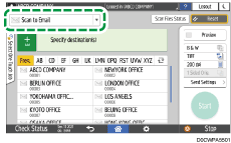
 Press [Send Settings] on the scanner screen.

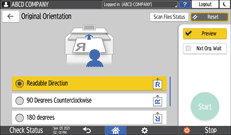
 When a setting other than [Auto Detect] is specified in [Scan Size], press [Original Orientation] and select the orientation of the original.
 Select the [Preview] check box.
 Specify the scan settings according to the purpose of the scanned data.
Scanning an Original with Suitable Quality and Density
Specifying the File Type or File Name When Scanning a Document
 To send the scanned document to an e-mail address, press [Sender] and then specify the sender.
 Specify the destination on the scanner screen.
 Place the original. If scanning does not start automatically, press [Start].
 Check the preview.
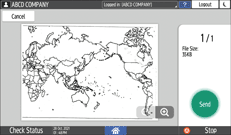
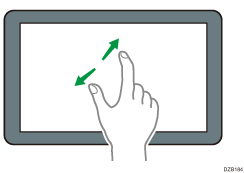
Pinch-out: Zooming in on the screen
Touch the screen with two fingers and spread them apart. You can also enlarge the displayed image by tapping the screen twice quickly. To return to the full screen display, tap the screen twice quickly again.
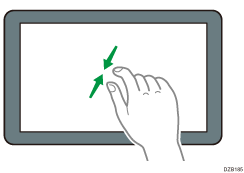
Pinch-in: Zooming out on the screen
Touch the screen with two fingers and bring them together.
 Check the preview and press [Send] if you are satisfied.

Preview is not available when [PDF (JPEG 2000)] is specified as the file format.