
Scanning an Original in a Custom Size
Use the following procedure to scan an original in a non-standard size.
You can use the following two methods:
Have the machine detect the length automatically
Specify the length and width
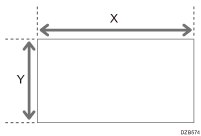
 Using a ruler, measure the size of the original.
Only measure X if you are going to have the machine detect the length automatically. Measure X and Y if you are going to specify both the length and width.
 Press [Scanner] on the Home screen.
 Press [Send Settings] on the scanner screen.

 Press [Scan Size]
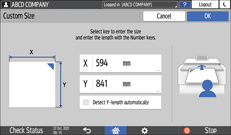
 [Custom Size].
 Enter the value(s) that you measured in Step 1.
To have the machine detect the length automatically, enter the value of X and press [Detect Y-length automatically]. To specify both the length and width, enter the values of X and Y.
 Specify the scan settings according to the purpose of the scanned data.
Scanning an Original with Suitable Quality and Density
Specifying the File Type or File Name When Scanning a Document
 To send the scanned document to an e-mail address, press [Sender] and then specify the sender.
 Specify the destination on the scanner screen.
 Place the original. If scanning does not start automatically, press [Start].