
Printing Documents in Document Server
You can print the documents stored in the document server with the same settings, paper size, color mode, and other settings specified when the documents were scanned. You can also change the print settings or specify a page to print.

You can also print a document in the document server using Web Image Monitor.
Printing a Document with the Settings Specified When Scanned

When printing two or more documents at a time, the print settings specified for the first document are applied to all the remaining documents.
Some of the selected documents may not be printed due to the difference in the size or resolution.
 On the Home screen, press [Document Server].
 On the document server screen, select the desired folder.
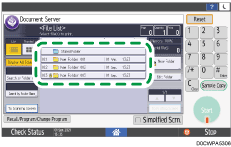
Press [Search by Folder No.] or [Search by Folder Name] to search for a folder.
If you select a password–protected folder, enter the password, and then press [OK].
 Select the document to print.

Press [User Name] or [File Name] on the left side of the screen to search for a document.
If the document is password protected, enter the password and press [OK].
To print two or more copies, select a document, and then use the number keys to enter the number of copies.
To print multiple documents at once, select the documents to print in the printing order. You can select up to 30 documents.
After selecting the documents, you can confirm the selected documents by pressing [Order] to list them in the printing order.
You can switch between the list and thumbnail displays by pressing
 or
or  .
.When selecting two or more documents, select the documents that are stored from the same function. For example, you cannot select documents stored from the document server function and from the printer driver at the same time.
 Press [Start].
When a document is larger than A2 (C), only a portion of the document specified in [Preview Area Settings] can be displayed as thumbnail images.
To stop printing, press [Stop]
 [Cancel Printing].
Changing the Print Settings to Print a Document
When you select two or more documents to change the print settings, the first document keeps the changed contents after printing. The second document and later documents do not keep the changed contents and instead keep the settings of when they were stored.
On the Home screen, press [Document Server].
On the document server screen, select the desired folder.
Press [Search by Folder No.] or [Search by Folder Name] to search for a folder.
If you select a password-protected folder, enter the password, and then press [OK].
Select the document to print.
If the document is password protected, enter the password and press [OK].
Press [To Printing Screen].
 Change the print settings.
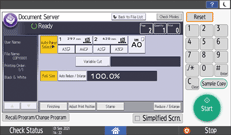
To print two or more copies, enter the quantity using the number keys.
When specifying Sort or Rotate Sort, you can make a partial print as a test and proceed to print the rest of the quantity by pressing [Sample Copy].
Press [Back to File List] to return to the screen for selecting documents.
 Press [Start].
You can change the number of sets during printing. This function can be used only when the Sort function is selected in the printing conditions. To change the quantity while printing is in progress, press [Stop], enter the quantity, and then press [Resume Printing]. The quantity you can enter differs depending on when you press [Stop].
You can enlarge or reduce documents that are stored in black and white mode from the document server function. The file format converter is required to print the stored documents by enlarging or reducing them.
If documents were stored from the printer driver, you cannot print them with the Stamp, Reduce/Enlarge, Adjust Print Position, or Rotate Sort functions.
Specifying a Page to Print
On the Home screen, press [Document Server].
On the document server screen, select the desired folder.
Press [Search by Folder No.] or [Search by Folder Name] to search for a folder.
If you select a password-protected folder, enter the password, and then press [OK].
Select the document to print and press [Print Specified Page].
If the document is password protected, enter the password and press [OK].
To print two or more copies, select a document, and then use the number keys to enter the number of copies.
Specify the page to print.
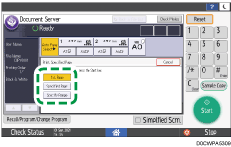
1st Page: Select this to print the first page only. When you selected two or more documents, the first page of each document is printed.
Specified Page: Select this to print the specified page.
Specify Range: Enter the page printing starts in [Start Number] and the page printing ends in [End Number].
Press [Start].