
Erasing the Border
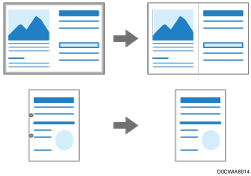
You can erase the edges (borders) of the original to a specified width, such as when copying a drawing or original with punch holes.
 Press [Copy] on the Home screen.

 Press [Erase Border] on the Copy screen.
If the key is not found, select it from [Edit].
 Enter the width of the border to erase, and then press [OK].
To erase the top, bottom, left, and right borders at the same width, check [Input by same width].
 Press [Original Orientation] and then specify the original orientation.

If the key is not displayed, select it from [Original Setting].
 Place the original.
Basic Procedure for Copying Documents
The original is fed into the machine automatically, and copying starts. If the original is not fed automatically, press [Start].

You can change the value displayed in Step 3 to the frequently used value in [Erase Border] of [Copier / Document Server Settings].
You can specify the Erase Border function when the original length is A0 (E) or smaller.