Registering/Changing/Deleting IP-Fax Destinations in the Address Book
By registering the destinations to which you frequently send the IP-fax together with the send conditions on the address book, you can easily send faxes.
Press [Address Book] on the Home screen.

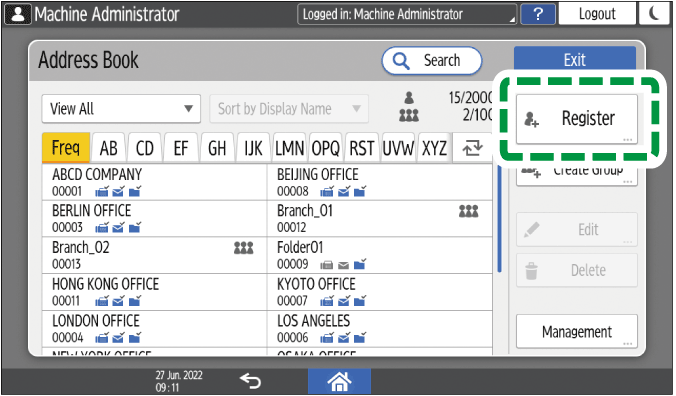
Press [Register] on the Address Book screen.
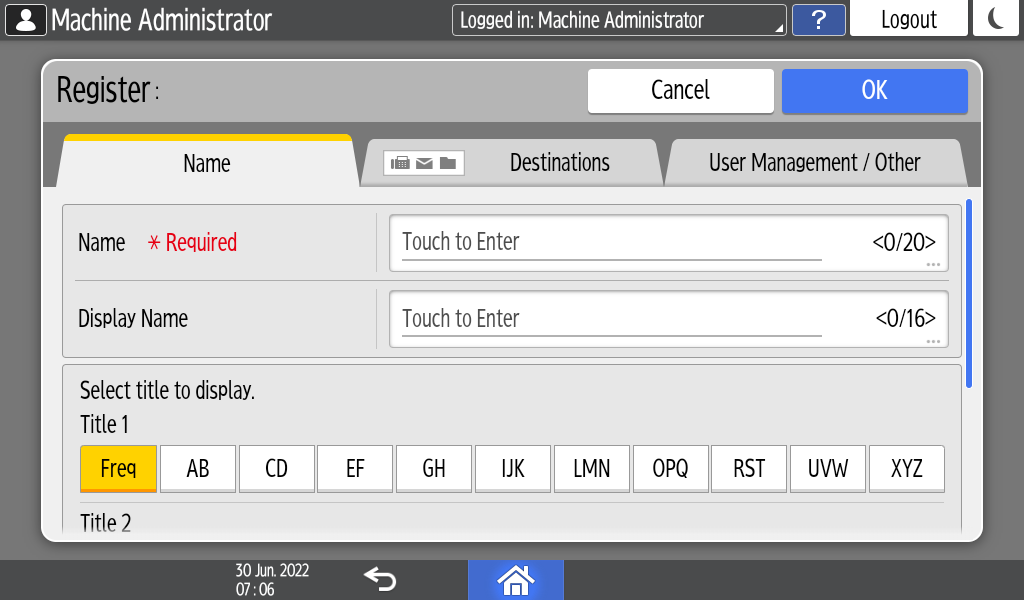
Enter the information of the destination on the [Name] tab, and then select a title to classify it.
Press [Destinations] tab
 [Fax].
Specify the IP-fax destinations and send conditions.
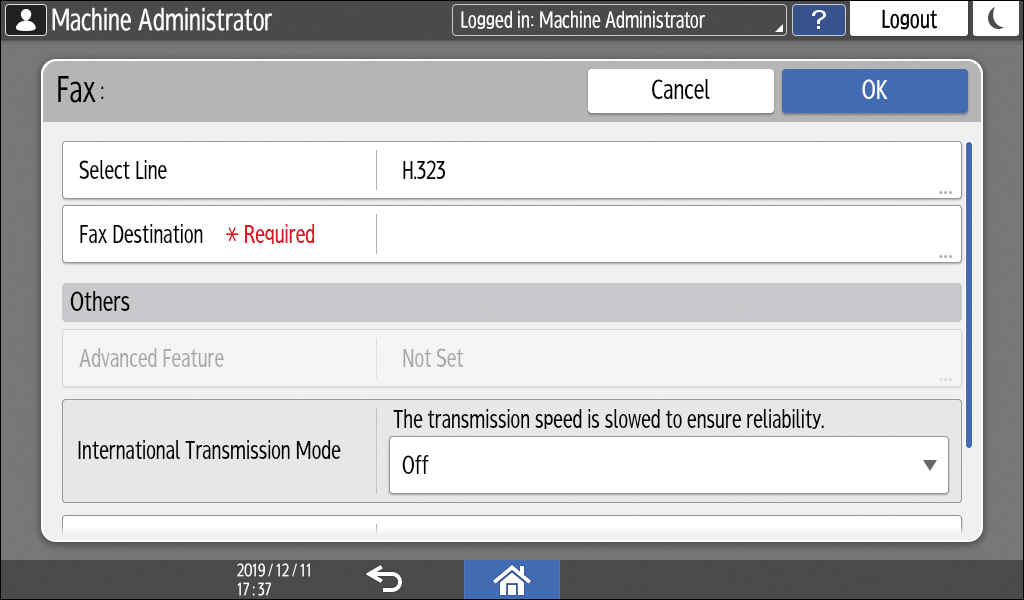
Select Line: Select the protocol to use from [H.323] or [SIP]. Consult the administrator of the network as to which one to select.
Fax Destination: Enter the IP-fax destination. Specify the IP address, Host name, and Own Fax No. depending on the network environment.
Sending Documents by IP-FaxInternational Transmission Mode: Specify whether to reduce errors occurring when sending abroad.
Fax Header: Select the name of the sender printed on the reception sheet of the destination. Register the fax header in advance.
Printing the Destination Name, Fax Header, and Standard Message on the Fax Received at the DestinationLabel Insertion: Specify the name (title + name) and fixed phrase printed on the reception sheet of the destination.
Printing the Destination Name, Fax Header, and Standard Message on the Fax Received at the Destination
Press the [User Management / Other] tab as necessary, and specify the settings.
User Management: Enter the authentication information to login and use the machine.
Add to Group: Select a group to which this address belongs as necessary. Register the group in advance.
Registering/Changing/Deleting Groups in the Address BookDisplay Priority: When the destinations are sorted in the order of priority, a destination with higher priority is displayed prior to that with lower priority. The destinations with the same priority are displayed in the order of registration.
Destination Protection: Select this check box to require entering of the protection code to select the destination.
Using the Protection Function to Prevent the Misuse of Addresses
Press [OK].
After completing the procedure, press [Home] (
 ).
).When a message prompting you to back up the address book appears on the screen, press [Go to Backup] to back up the address book.
If a message prompting you to contact the administrator to back up the address book appears on the screen, ask the administrator to back up the address book.
If you select [Close], you can close the address book without backing up and go back to the Home screen.
If you delete the destination used for the personal box, file transmission will fail. Exclude the destination from the personal box before deleting it.
Receiving Faxes to Personal Boxes
Press [Address Book] on the Home screen.
Select the destination to change/delete on the Address Book screen.
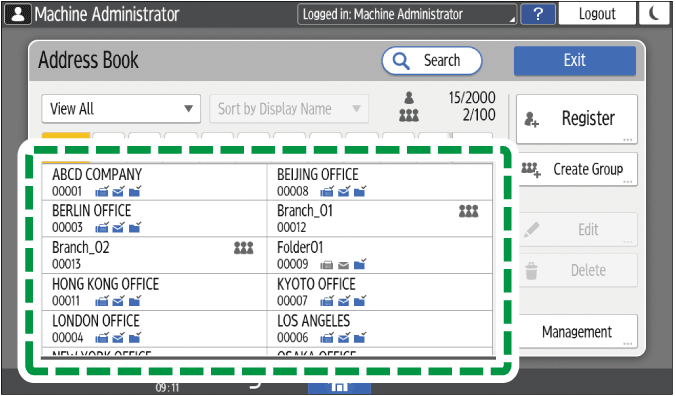
You can delete multiple destinations at one time.Press [Edit] or [Delete] to change or delete the destination information.
When changing/deleting is complete, press [Home] (
).When a message prompting you to back up the address book appears on the screen, press [Go to Backup] to back up the address book.
If a message prompting you to contact the administrator to back up the address book appears on the screen, ask the administrator to back up the address book.
If you select [Close], you can close the address book without backing up and go back to the Home screen.