Registering Destinations in the Address Book from the Fax Screen
You can register a fax destination in the address book on the fax screen without opening the Settings screen. You can also register a destination that has been entered manually or from the transmission history.

You can also register a destination by pressing [Address Book] on the Home screen.
Registering/Changing/Deleting Fax Numbers in the Address Book
Registering/Changing/Deleting E-mail Addresses in the Address Book
Registering/Changing/Deleting IP-Fax Destinations in the Address Book
Press [Fax] on the Home screen.

Press
 on the fax screen and select [Add/Edit Address Book].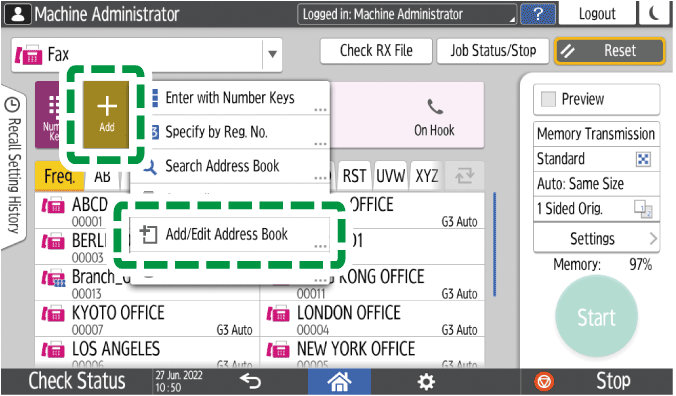
The address book screen is displayed.Press [Register].
Enter the information of the destination and select the title to classify the destination.
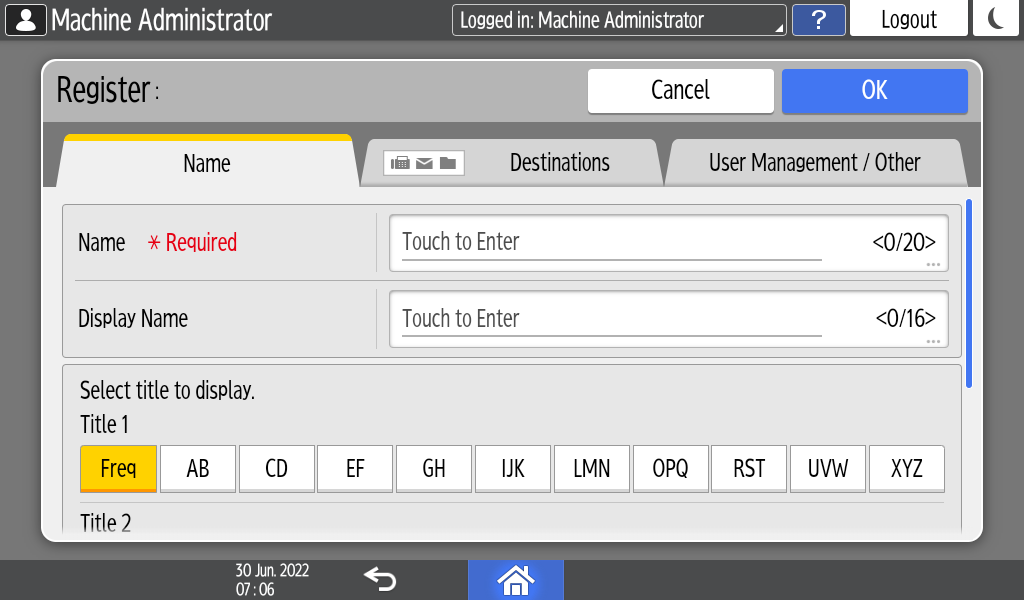
Select the [Destinations] tab and then press "Fax" or "Email Address".
To register a fax or IP-Fax destination or an Internet Fax destination, press [Not Registered] under "Fax" or "Email Address" respectively.Specify the fax number, IP address, e-mail address, and other information.
Press [OK].
Press [Home] (
 ) after specifying the settings.
When a message prompting you to back up the address book appears on the screen, press [Go to Backup] to back up the address book.
If a message prompting you to contact the administrator to back up the address book appears on the screen, ask the administrator to back up the address book.
If you select [Close], you can close the address book without backing up and go back to the Fax screen.
Making a Backup or Restoring the Address Book
To edit a destination that has already been registered in the address book, press [Edit] in Step3, and then select the destination to change on the address book screen. See Changing/Deleting the Registered Data Such as Fax Number.
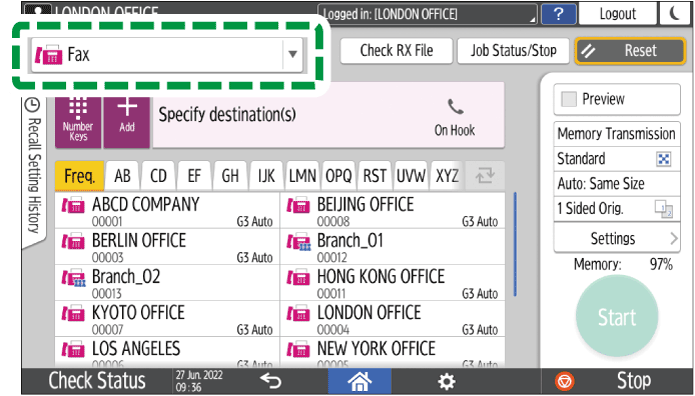
Press [Fax] on the Home screen.
Select [Fax] or [Internet Fax] on the fax screen.
Place the original in the ADF or on the exposure glass.
Setting an Original to Send by Fax on the ScannerPress [Settings] and then specify the scan settings.
You can specify four commonly used settings, such as resolutions, that you can set from the shortcut keys without opening the [Settings] screen.
Sending a Fax at the Image Quality Suitable for the OriginalSpecify the destination.
When entering manually
Press
, select [Enter with Number Keys] or [Enter Using Keyboard], and then enter the destination.
You can also enter the destination manually by pressing .
.
To enter the IP-Fax address manually, select [IP-Fax H.323] or [IP-Fax SIP] in [Line] and then enter the destination.Press
 .
.Specify the destination that was entered manually and press [Reg. to Add. Book].
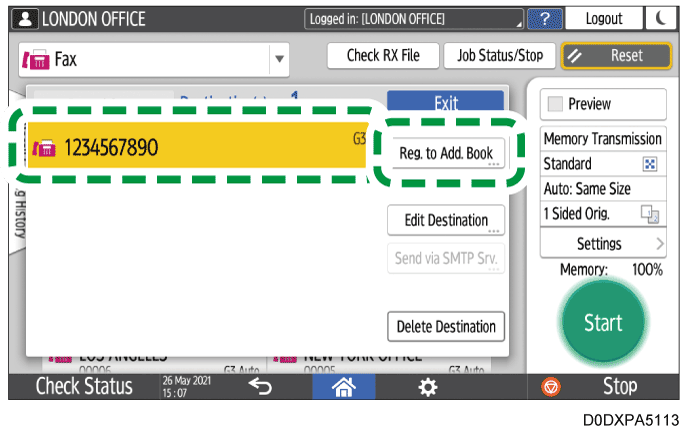
Enter the additional information such as [Name].
When selecting from transmission
Press
and specify [Select from History].Select a destination from the transmission history and press [Register].
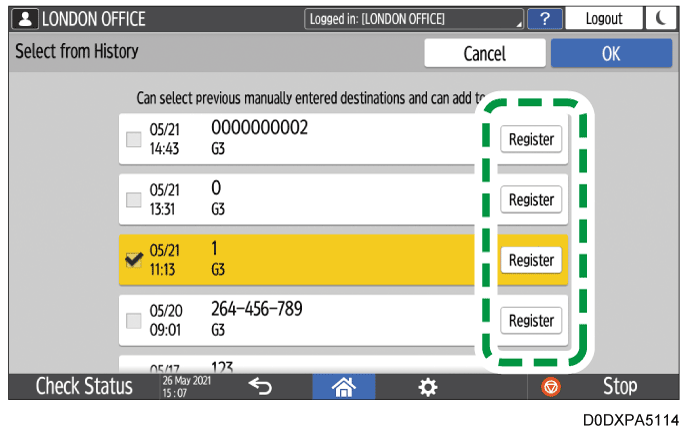
Enter the additional information such as [Name].
Press [OK] after registering the information, and then press [Start].