
Inserting Slip Sheets Between Pages When Copying
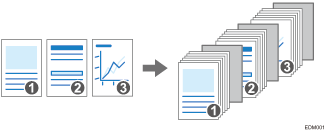
You can insert a sheet of paper at the turn of a page when copying an original comprising multiple pages at one time (Slip Sheet).

This function is available on machines implemented with RICOH Always Current Technology v1.1 or later.
The procedure is described using the [Classic] screen type of [Settings] as an example. When you are using the [Standard] screen type, specify the settings in the screen below.
[Tray/Paper Settings]
 [Common Settings/Others]
The names of the setting items may differ on the setting screen for [Classic] and [Standard] screen types.
Settings Menu Compatibility List (Classic to Standard Settings)
 Press [Settings] on the Hone screen.
 Press [Tray Paper Settings][Slip Sheet Tray], and specify the tray to feed slip sheets.
As the paper to use for slip sheets, load paper of the same size and orientation as the paper to copy.
 Press [OK].
 Press Home (
 ) after specifying the settings.
 Press [Copy] on the Home screen.
 Press [Slip Sheet] on the Copy screen.

If you cannot find the key, select the item from [Finishing].
 Specify whether to also copy on the slip sheets, and then press [OK].
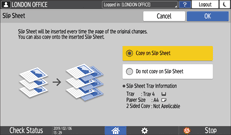
You can also copy onto the paper to be inserted as slip sheets. Slip sheets are not counted with the number of copies made in the Copier function when you are not copying onto them.
 Press [Paper Select], and then select the tray loaded with the paper to use for copying.
 Place an original on the machine, and then press [Start].