Information Boxes
You can program a document into an Information Box for others to pick up.
Use the Information Box function to set up the machine as a document server.
Program a document into an Information Box for others to pick up. When a request is made by another party, the SEP Code they specify is matched against the SEP Codes programmed in that Information Box. If a code matches the document stored in the Information Box the document is sent to the other party automatically.
Other parties can receive these documents whenever they request them.
For details about how to store a document in the Information Box, see Storing Documents in Information Boxes.
For other parties to be able to retrieve a document programmed in an Information Box, you need to inform the SEP Code assigned to that Information Box.
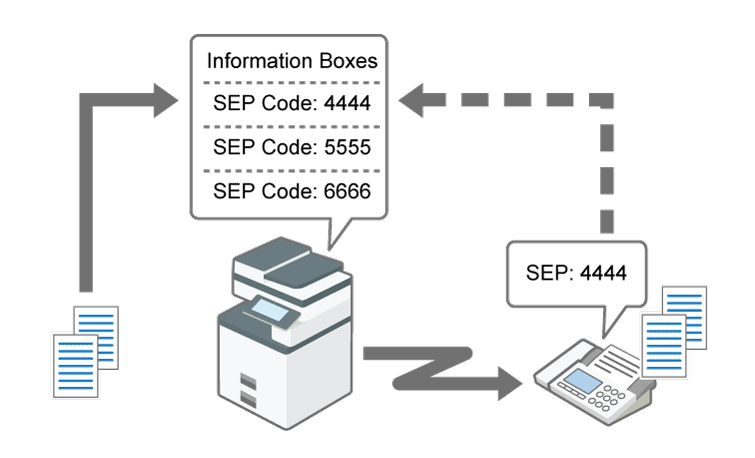
To use an Information Box, register an Information Box and specify the SEP code.
Press [Settings] on the Home screen.

Press [Fax Settings] on the Settings screen.

Press [Reception Settings]
 [Box Setting] [Register/Change/Delete Box].
Press [Register].
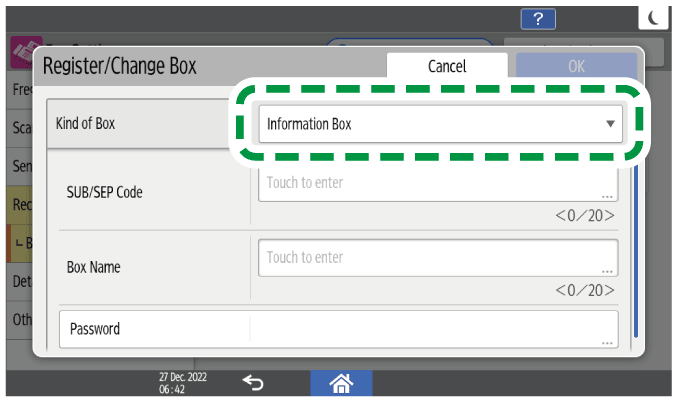
Select [Information Box], and then specify the SUB/SEP code, box name, password, and forwarding distribution destination of the box.
-
SUB/SEP Code: Specification is mandatory. You can enter up to 20 single-byte characters including 0-9, #, *, and space. Do not enter a space as the first digit.
Box Name: Specification is mandatory. You can enter up to 20 characters including numbers and symbols.
Password: Specify when restricting access to the Personal Box. You can use the same characters as the SUB code. A key mark (
 ) is displayed in front of the box name when you register a password.
Press [OK].
Press [Home] (
 ) after specifying the settings.

For the maximum total number of Personal Boxes, Information Boxes, and Transfer Boxes that can be registered, see List of Maximum Values for Each Setting Item.
You cannot set the same box code on two different boxes.
Transmission or programming may not be allowed if there is not enough free memory left. The amount of free memory left differs depending on the optional equipment installed.
To view the list of Boxes that are Information Boxes, press [Fax Settings]
[Reception Settings] [Box Setting] [Box Setting: Print List] to print the Box List. The list is useful when notifying the sender of the SUB code.
One Information Box stores one file.
Press [Fax] on the Home screen.
Press
 , and then select [Information Box].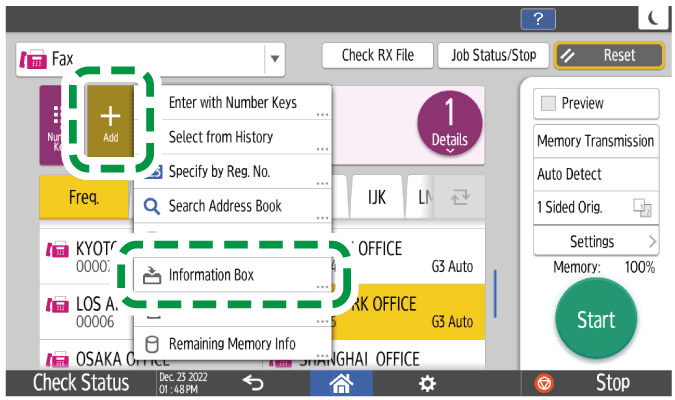
Place the original in the Auto Document Feeder (ADF) or on the exposure glass.
Setting an Original to Send by Fax on the ScannerPress [Settings], and then specify the scan settings.
Sending a Fax at the Image Quality Suitable for the Original
Select the box for the document being registered, and then press [OK].
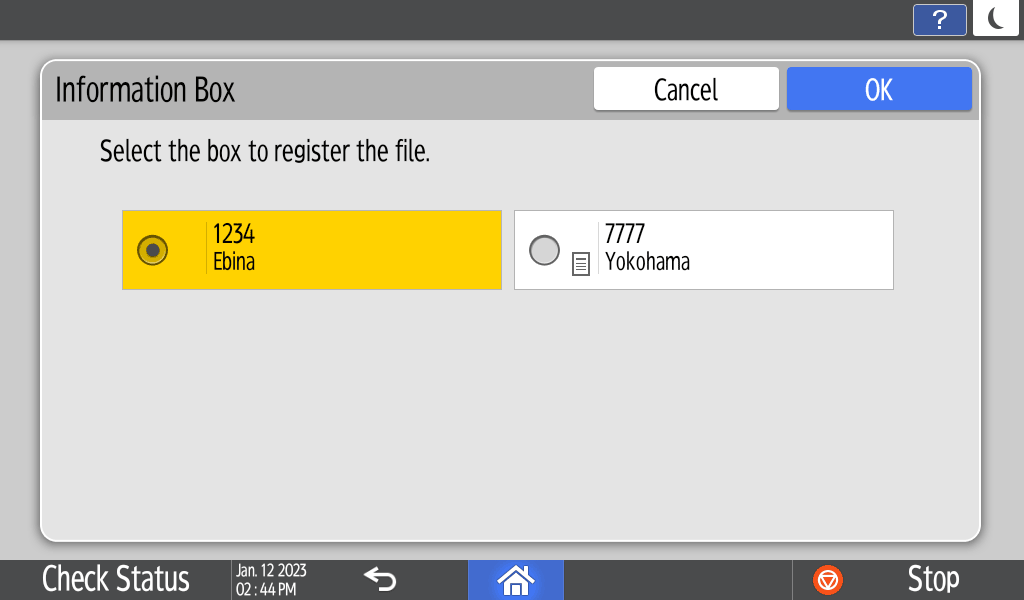
When there are pre-programmed files, a file mark appears to the left of the box name.
A message appears if you select a box with a file stored in it. Press [Program] when changing the file. The stored original file is overwritten.If the folder is password protected, enter the password and press [OK].
Press [Start].
The stored file is not deleted automatically. If you want to delete a stored file, see Deleting Information Box Documents.
Press [Fax] on the Home screen.
Press [Check RX File] on the fax screen.
Press [Information Box Print/Erase File].
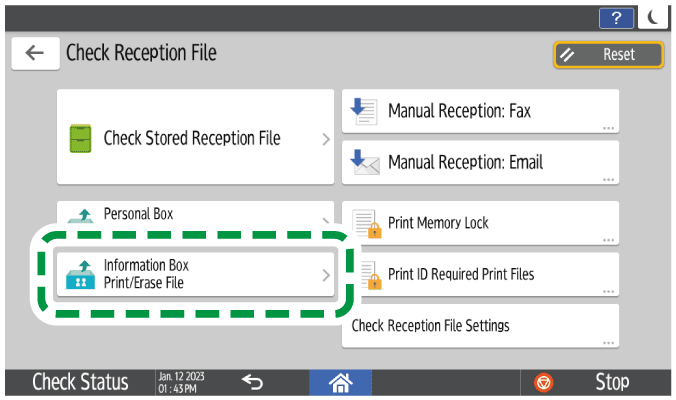
Select the box for the documents in the Information Box being printed and then press [Print File].
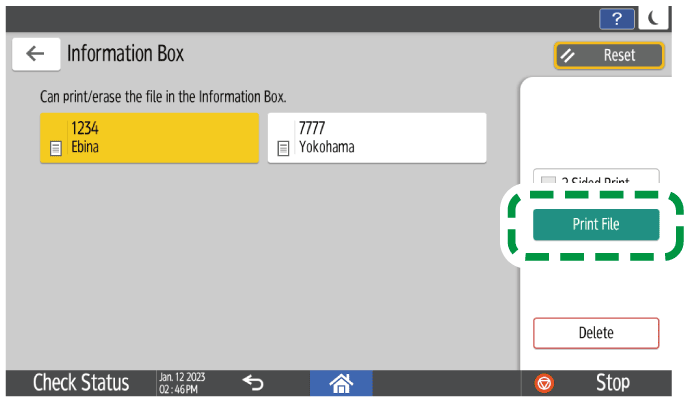
Press [Print File] on the confirmation screen.
Press [Fax] on the Home screen.
Press [Check RX File] on the fax screen.
Press [Information Box Print/Erase File].
Select the box for the documents in the Information Box being deleted and then press [Delete].
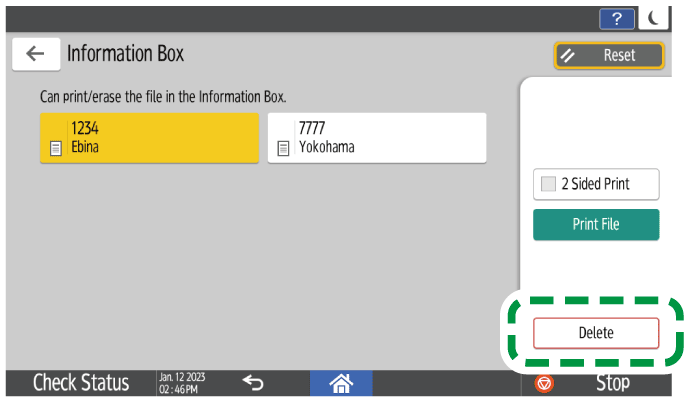
Press [Delete] on the confirmation screen.