Setting an Original to Send by Fax on the Scanner
Set a fax original in the auto document feeder (ADF) or on the exposure glass, and specify the scan settings such as 2-sided scanning and the original orientation.
When you are using the ADF to scan an original, the machine emits a beeping sound and displays a message to notify the user if the first page of the scanned original is mostly blank. This feature allows can prevent you from setting the original facing down by mistake.
If the original you want to scan includes a page of a book or a sheet in a size that cannot be set in the ADF, first, scan the page or sheet using the exposure glass, next, scan the rest of the original using the ADF, and then send them all together.
Refer to Recommended Original Size and Weight for original sizes that can be loaded, and Placing an Original on the Exposure Glass and Placing an Original in the Auto Document Feeder (ADF)for loading methods.

When sending a fax, the image output at the other end depends on the size and orientation of paper used in the receiver's machine. If the receiver does not use paper of the same size and orientation as that of the original, the fax image may be reduced in size, trimmed at both edges, or divided across two or more sheets. When sending an important original, ask the receiver about the size and orientation of the paper in their machine.
If an original jams, press [Stop], and then carefully remove the original.
When using the Cloud Fax function, you can send A4 originals. Originals larger than A4 are reduced to A4.
If you are scanning an original of a size that cannot be automatically detected, or scanning only a part from an original, specify the scan size.
Sizes Detectable with Auto Paper Select
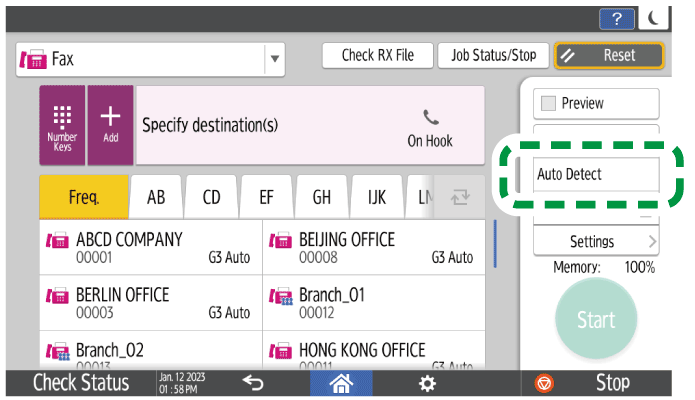
Press [Settings] on the fax screen.
Press [Scan Size] and then configure the Auto Detect or scan size settings.
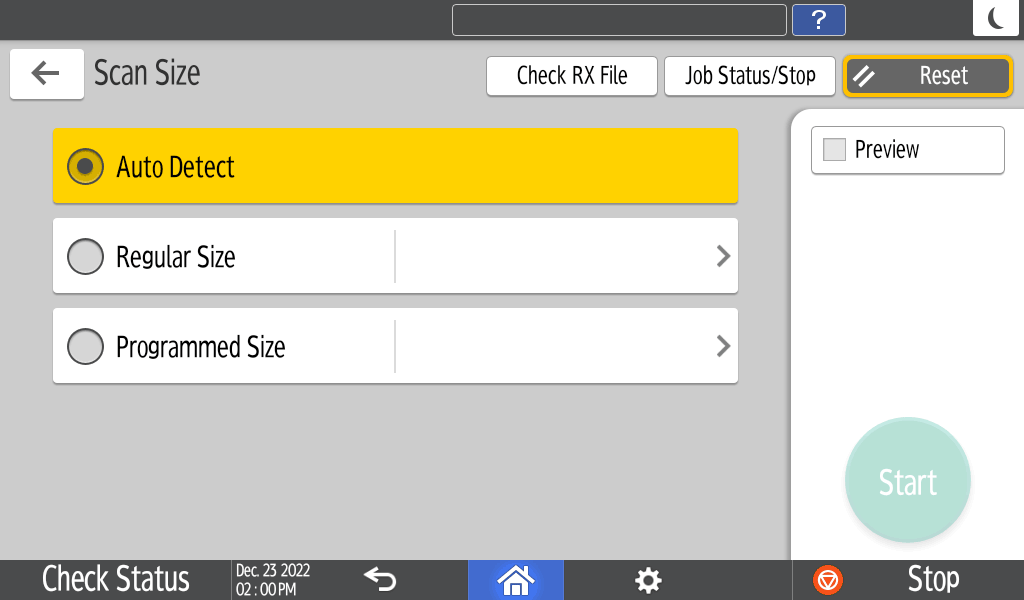
Auto Detect
Scans all pages in the same width (vertical length) as the first page even when the original consists of pages in different widths.
Regular Size
Scans all pages in the specified standard size, regardless of the actual size of the original pages.
Programmed Size
Scans all pages in the preset size, regardless of the actual size of the original pages. It is useful to register the custom sizes you frequently use.
Sending a Custom Size Original by Fax
Specifying the scan size setting is complete.
When scanning an original that exceeds 356 mm (14 inches) in width, set the original in the ADF, and specify [Programmed Size] in [Scan Size].
Use Memory Transmission when sending an original that is larger than 356 mm (14 inches) in width. When you are using Immediate Transmission, a transmission may fail depending on the resolution and destination settings.
If the size of the paper specified for printing received pages at the destination is smaller than that of the original, the page will be scaled to fit the paper.
The dimensions of the sent image and the image printed at the destination may vary slightly.
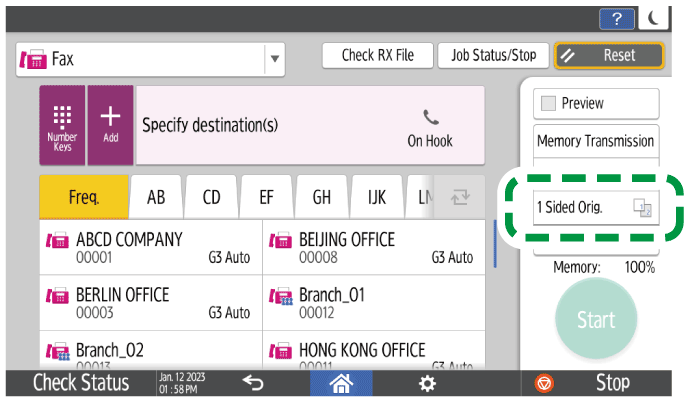
You can also select Scan Size from the fax screen. Press an item on the screen to select it.
To scan both sides of the original automatically, set the original in the Auto Document Feeder (ADF) and specify 2-sided scanning. Specify the page opening orientation and the orientation the original is set so that the pages received at the destination have the proper vertical orientation. Both sides of the original cannot be automatically scanned when using Immediate Transmission.
Press [Settings] on the fax screen.
Specify the page opening orientation and the orientation the original is set.
Set the original in the orientation that matches its opening orientation, and specify the original orientation and page opening orientation.Original
Setting
Orientation in the ADF
Opening orientation
Original Orientation
Page opening orientation (Original Settings)
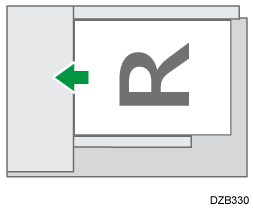
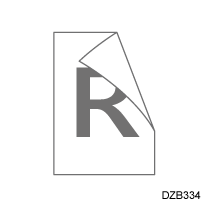
90 Degrees Counterclockwise
2 Sided: Open to Right/Left
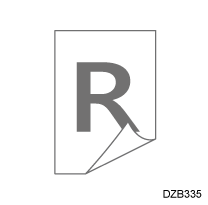
90 Degrees Counterclockwise
2 Sided: Open to Top
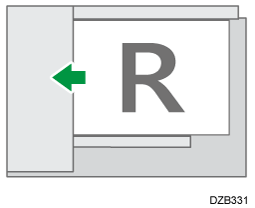
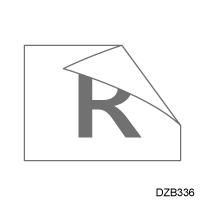
Readable Direction
2 Sided: Open to Right/Left
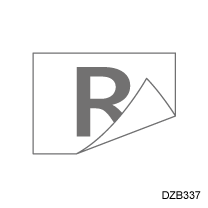
Readable Direction
2 Sided: Open to Top
-
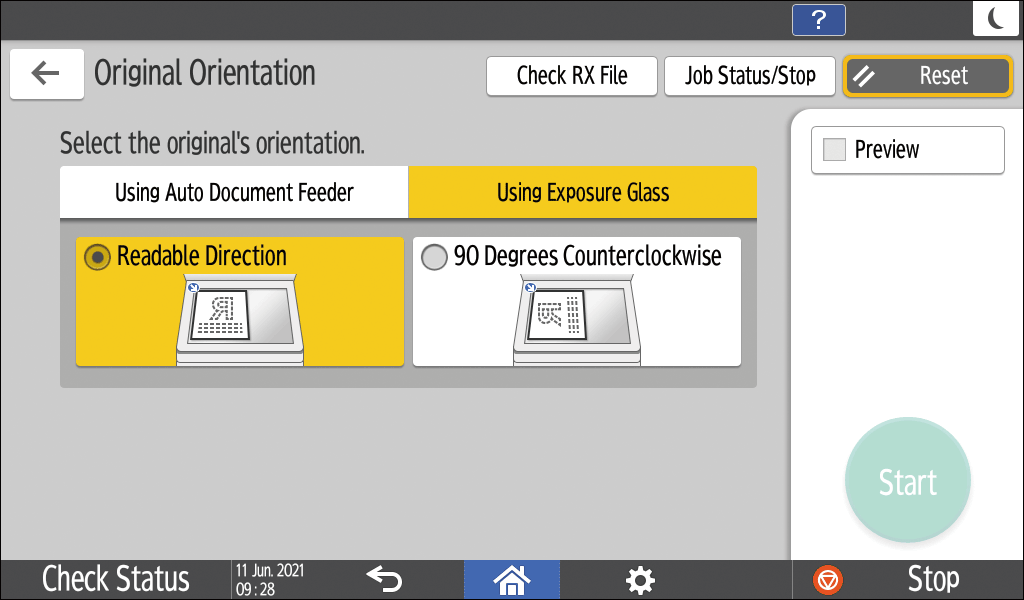
Press [Original Orientation], and select the orientation of the original set in the exposure glass or ADF.
Press [Original Settings], and select the opening orientation.
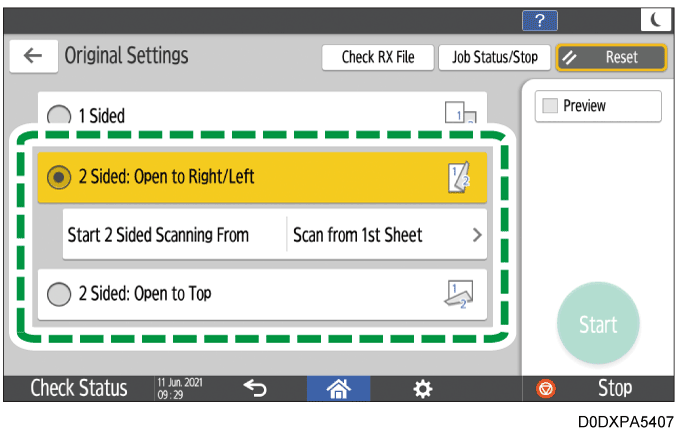
When scanning a cover sheet or front cover of a book, select [Scan from 2nd Sheet] in [Start 2 Sided Scanning From] to scan only one side of the first sheet.
Specifying the scan settings for a two-sided original is complete.
You can also select Original Settings from the fax screen. Press an item on the screen to select it.