Specifying a Folder
To send the data of a scanned original to a shared folder on a computer, create the shared folder on the computer in advance and register the destination folder in the address book.
Scanning Documents and Sending the Scanned Data to a Folder
Press [Fax] on the Home screen.
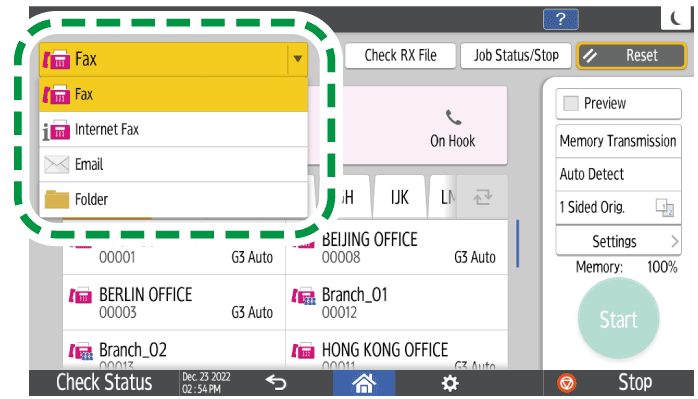
Select [Folder] on the fax screen.
Place the original in the Auto Document Feeder (ADF) or on the exposure glass.
Setting an Original to Send by Fax on the ScannerPress [Settings], and then specify the scan settings.
Sending a Fax at the Image Quality Suitable for the OriginalPress
 , select [Specify by Reg. No.] or [Search Address Book] and then specify the shared folder that is registered in the address book.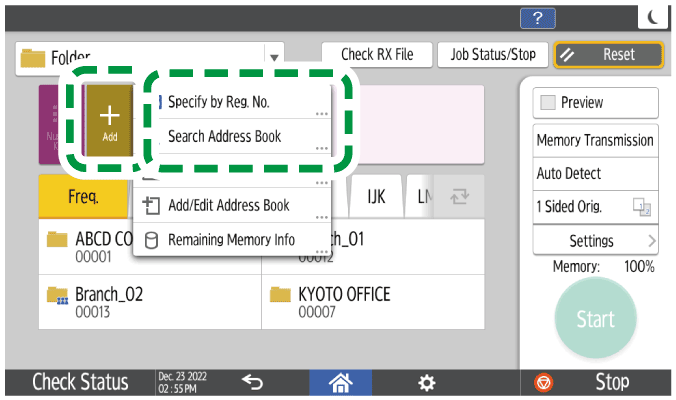
You can also select the destination using the address book displayed on the fax screen.
To specify the destination again, press
 .
.
To cancel the specified destination (deleting from the specified destination), press the destination of the selected address.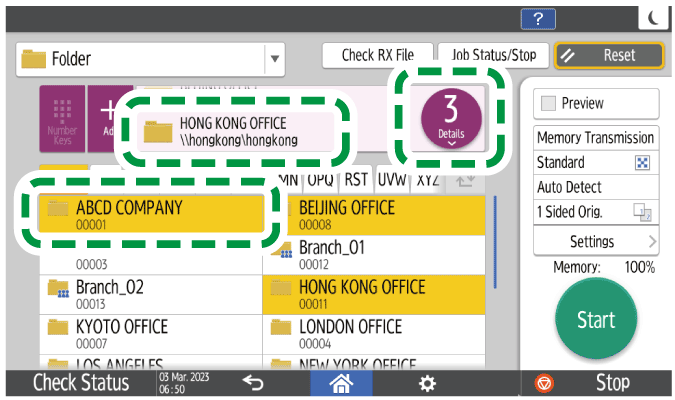
Press [Start].
After scanning the originals, you can check and operate the originals waiting to be sent that are stored in the memory until the transmission is complete.

If any of the machine's security functions are enabled, select the destination from the registered folder only when you send files by Scan to Folder.
If the firewall of an antivirus program is active, you may not be able to specify a shared folder on the computer as a folder destination. If this is the case, see the antivirus program's Help.
If Windows firewall is active and you cannot specify a shared folder on the computer as a folder destination, the machine may be able to communicate with the computer by changing the exceptions of the Windows firewall. For details, see Windows Help.
After scan files are sent, the destination and file name fields will be automatically cleared. If you want to preserve the information in these fields, contact your local dealer.
When the specified destination is updated using the Central Management function, the spooled documents are sent to the destination after updating.