How to Use the Copy Screen
You can select from one of two types for the Copy screen:
See How to Use the Copy Screen (Standard) or How to Use the Copy Screen (No Scrolling Screen) for how to use functions, such as Recommended Settings.
Standard View
The basic functions that are used frequently are displayed with big keys. Scroll down the screen to see the keys used to configure the functions for finishing or editing.
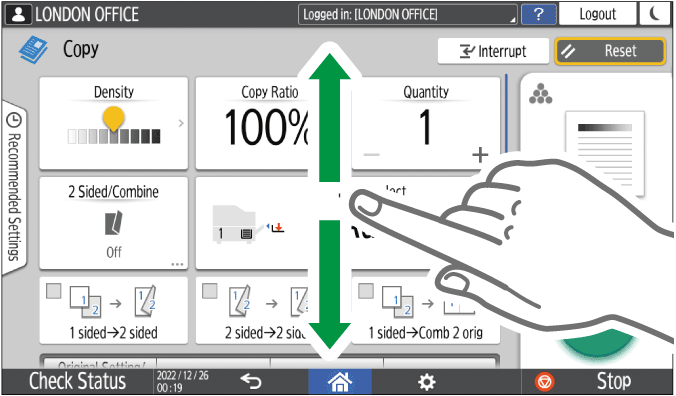
Full View
You can see all the function keys on a single screen. You do not need to scroll through the screens to select a function.
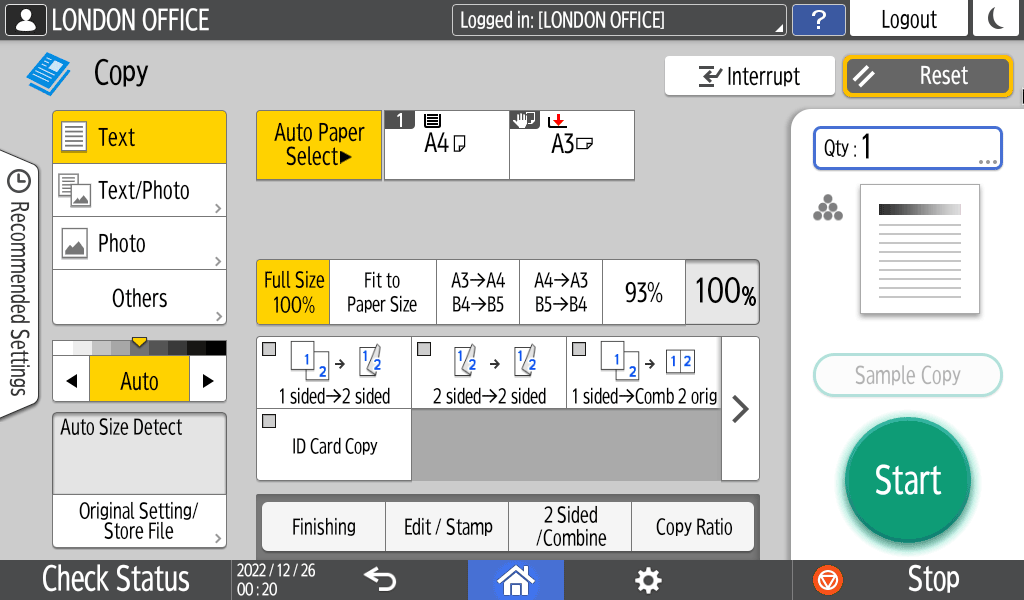
To switch the screen type, press [Menu] (
 )
)  [Screen Settings] [Switch Screen Type] on the Copy screen.
You can use the same functions on either screen.
When the administrator has configured user authentication and User's Own Customization is enabled, each login user can change the screen type.
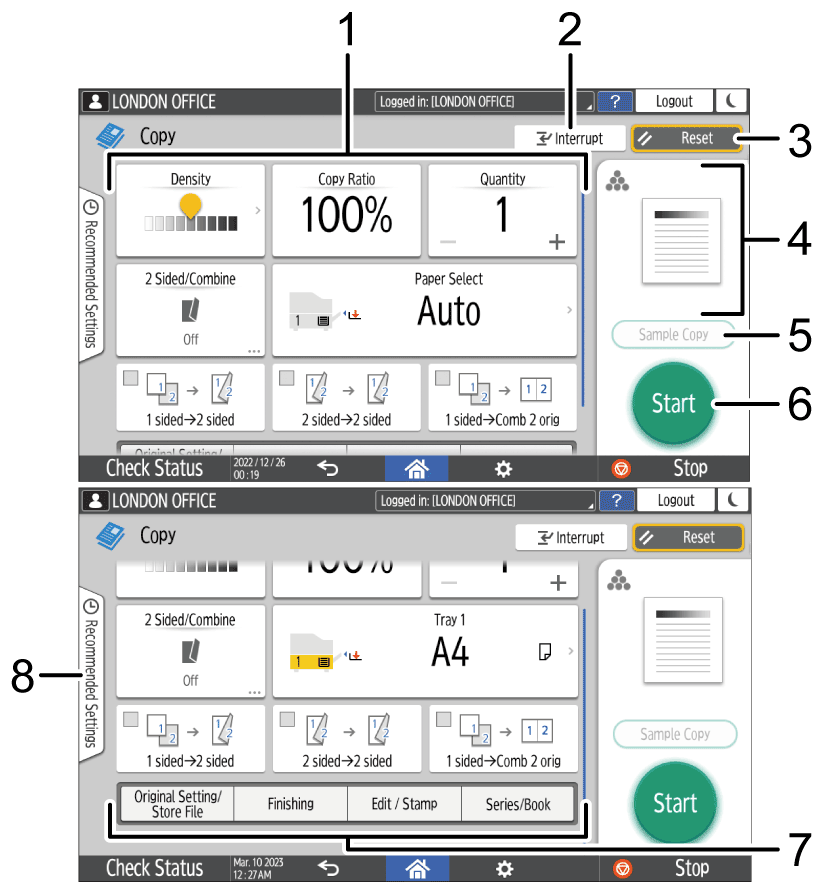
Copy function keys
Press a key to select the function to assign to the key. Flick up and down on the screen to display the keys out of the visible area. The keys with assigned functions are displayed in yellow or with in the upper left corner. Depending on the assigned function, the display of the key changes according to the specified setting.
[Interrupt]
Interrupt a copy job in progress to copy a different original.[Reset]
Reset the settings configured on the Copy screen.Preview of the current setting status
Displays an image representing the settings configured on the Copy screen. Press the image to display the list of the settings.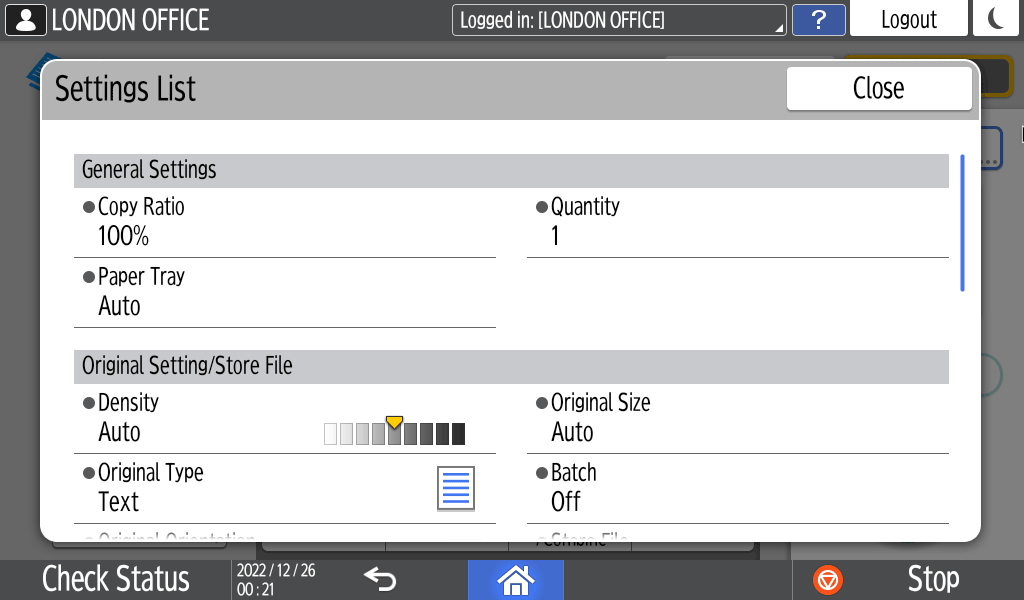
[Sample Copy]
Press to make a partial copy as a test before proceeding to copy the rest of the original.Making a Partial Copy as a Test and Copying the Rest of the Original
[Start]
Press to perform copying.Other keys for Copy function
Press to select the functions whose keys are out of the visible area of the screen. The key of the function that is currently configured is displayed with in the upper left corner. By pressing [Original Setting/Store File] [Store File], you can store the data scanned using the copy function.[Recommended Settings]
You can see the preset settings in the machine.
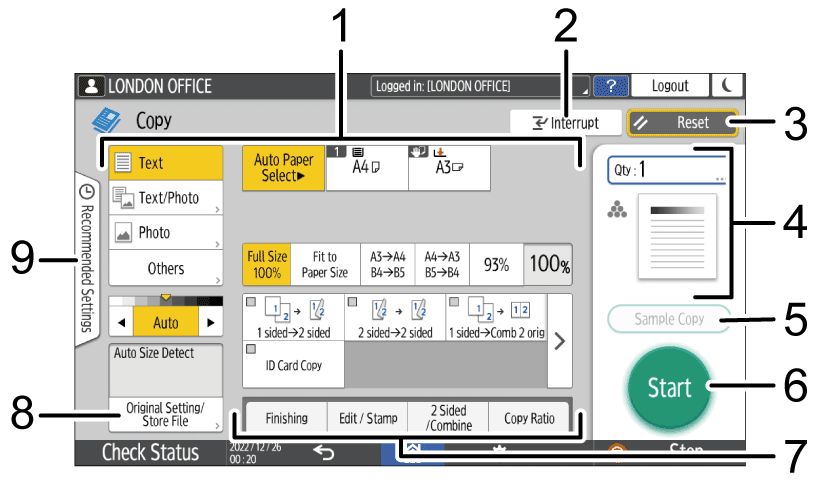
Copy function keys
Press a key to select the function to assign to the key. The keys with assigned functions are displayed in yellow.
To see the display area in the illustration below, press or flick to the left or right.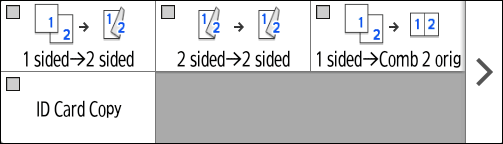
[Interrupt]
Interrupt a copy job in progress to copy a different original.[Reset]
Reset the settings configured on the Copy screen.Preview of the current setting status
Displays an image representing the quantity and the settings configured on the Copy screen. Press [Qty] to display the number keys. Press the image to display the list of the settings.[Sample Copy]
Press to make a partial copy as a test before proceeding to copy the rest of the original.Making a Partial Copy as a Test and Copying the Rest of the Original
[Start]
Press to perform copying.Other keys for Copy function
Press to select the functions whose keys are out of the visible area of the screen. The key of the function that is currently configured is displayed with in the upper left corner.[Original Setting/Store File]
Press to configure the settings, such as the original type and original orientation. Also, from [Store File], you can store the data scanned using the copy function.[Recommended Settings]
You can see the preset settings in the machine.