Installing the SSD Option

Before beginning work, ground yourself by touching something metal to discharge any static electricity. Static electricity can damage the memory expansion units.
Do not subject the memory expansion unit to physical shocks.
Before using the new SSD option, you must configure settings in the printer driver.
Check the contents of the package.
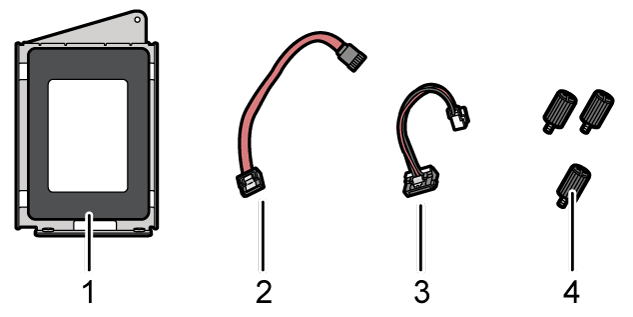
1. SSD option
2. Flat cable
3. Power cord
4. Screws (3)Turn the machine off and unplug the power cord.
Remove the screws securing the controller board, and then remove the rear cover.
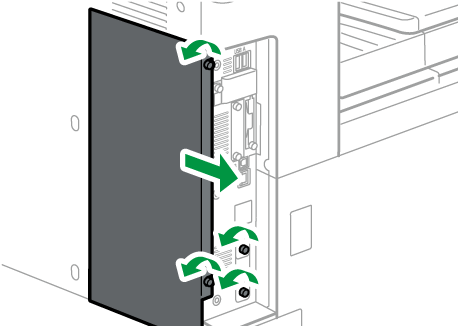
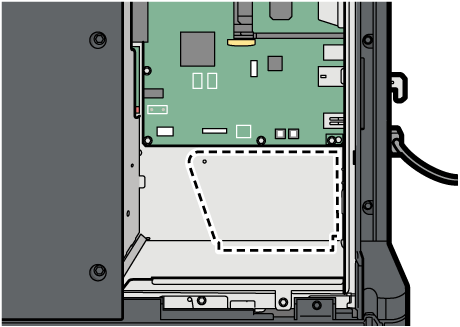
The removed screws will be used to secure the controller board again later.Install the SSD option in the indicated position.
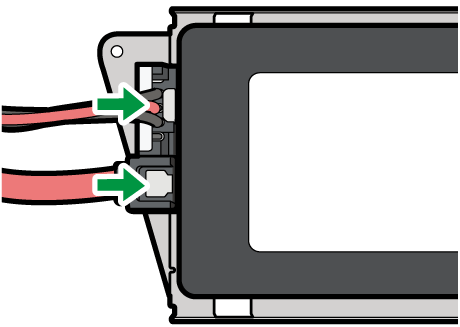
Connect the flat cable and power cord to the SSD option.
Hook the mounting indents on the SSD option onto the tabs on the controller board panel.
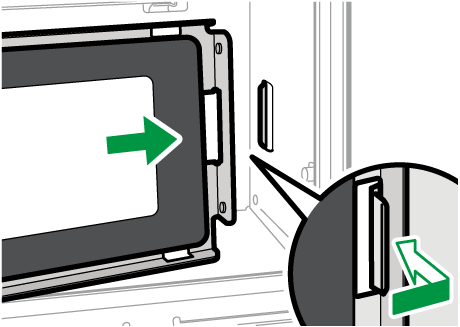
Use two screws to fasten the SSD option to the controller board panel.
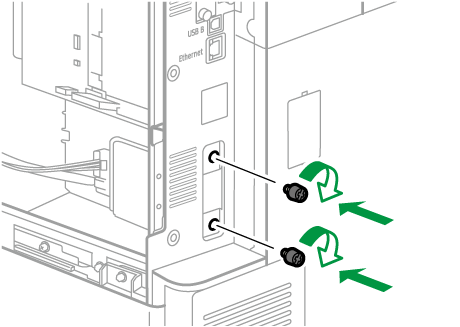
Fasten the SSD option to the controller board with the remaining screw.
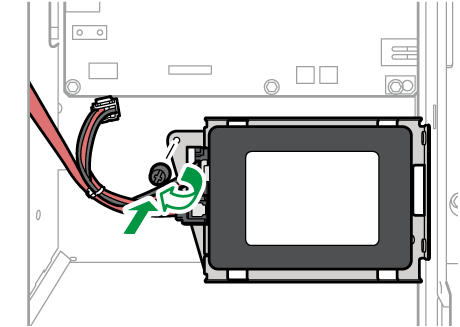
Connect the flat cable and power cord to the controller board.
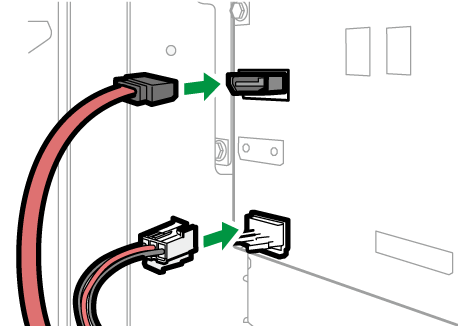
Replace the rear cover and fasten the controller board to the machine using the screws.

Plug in the power cord, and then turn on the machine.
When you switch the power on, a message is displayed indicating that the SSD option will be formatted.Print the configuration page to confirm the installation.
If it is correctly installed, "Internal storage" will appear for "Device Connection" on the configuration page.

For details about printing the configuration page, see Printing the Configuration Page.
If the SSD option was not installed properly, repeat the procedure from the beginning. If it cannot be installed correctly even after reattempting installation, contact your sales or service representative.
To use the installed SSD option, configure the machine options in "Accessories" in the printer driver. For information about opening "Accessories", see Specifying the Option Configuration or Paper Settings Manually.