
Registering/Changing/Deleting User Codes
By registering user codes in the Address Book, you can confirm print volume on a personal basis.
 Disable user authentication or specify User Code authentication.
 Log in to the machine as the user administrator on the control panel.
 On the Home screen, press [Address Book].
 On the Address Book screen, select a user, and then press [Edit].
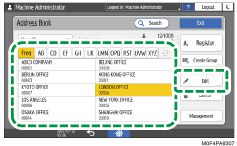
 Press the [User Management / Others] tab
  [User Management].
 Enter a user code for User Code.
When changing a user code, delete the existing user code and enter a new user code.
When deleting a user code, delete the existing user code and proceed to Step 8.
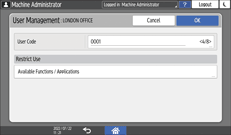
 Press [Available Functions / Applications] under Restrict Use, and then select the functions to make available to the user.
 Press [OK] several times until the Address Book screen is displayed.
 Press [Exit].
 When the confirmation dialog box is displayed, press [Close], and then log out of the machine.
To back up the changed contents, press [Go to Backup].

Deleting a user code clears the respective print volume as well.