
Making a Backup or Restoring the Address Book
You can save the backup data of the address book and restore it when required.

If administrator authentication is specified, use the user administrator account to create a backup of or restore the address book.
To prevent eavesdropping of the data, encrypt the address book data before making a backup.
The data registered or changed after the backup was created will be lost when you restore the address book.
Backing Up/Restoring the Address Book Using Control Panel
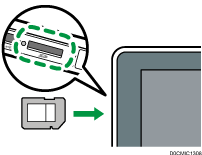
 Insert an SD card into the media slot in the upper left part of the control panel.
 Press [Address Book] on the Home screen.
 Press [Management] on the Address Book screen.
 Press [Back Up/Restore Address Book], and then backup or restore the address book.
To Backup
Press [Back up]
 [Start Backup] to store the address book data.
Use the following procedure to encrypt the address book data:
Select [Specify] in "Encryption Key".
Enter an encryption key using up to 32 single-byte alphanumeric characters.
Re-enter the encryption key in "Confirm Encryption Key".
Press [Start Backup].
Be careful not to forget the encryption key entered here. You are required to enter it again when restoring the data.
To Restore
Press [Restore]
[Start Restore] to start the restoration process.Use the following procedure to restore the encrypted data of the address book:
Select [Specify] in "Encryption Key".
Enter the encryption key specified when creating the backup.
Press [Start Restore].
 After backup or restoring, press [OK].
Backing Up/Restoring the Address Book Using Web Image Monitor
Start the Web browser.
Enter "http://(IP address of the machine) or (host name)/" in the address bar of the Web browser.
On the top page of Web Image Monitor, click [Login].
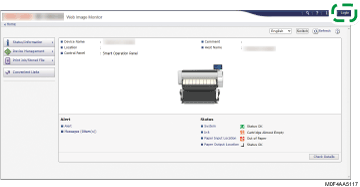
Enter the login user name and password of the administrator, and then click [Login].
Click [Address Book] from the [Device Management] menu.
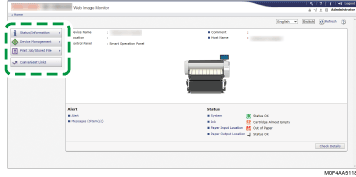
 On the [Address List] screen, click [Maintenance].
 Backup or restore the address book.
To backup
Click [Backup] and specify the location to store the address book data, and the "Devicename_addr.udf" file is stored.
To encrypt the address book data, enter an encryption key using up to 32 single-byte alphanumeric characters, and then click [Backup]. Be careful not to forget the encryption key entered here. You are required to enter it again when restoring the data.
To restore
Click [Restore] and select the backup data of the address book to start the restoration process.
To restore the encrypted data of the address book, enter the encryption key specified when creating the backup, and then click [Restore].
 After backup or restoring, click [Logout], and then close Web Image Monitor.