
Sorting Printed Sheets by Individual Copies
While printing a document with multiple pages to make multiple printed sets, the machine assembles the printed sheets as sets in sequential order (Collate).
Type | Result |
|---|---|
Collate | 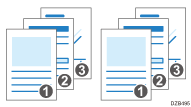 |
Specifying Collate (Windows)
Configure the settings on the [Finishing] tab.
 Open a document to print on the computer, and display the setting screen of the printer driver from the print menu in the application.
 Specify Document Size, Paper Type, Orientation and other settings.
 On the [Finishing] tab, specify the Collate method.
Configure the following setting:
Collate: Select [Printer Collate] in normal use to adopt the Collate setting of the printer driver. To use the Collate setting specified in the print dialog box of the application, select [Same as Application].
Click the detail settings button to select the collate type.
 After completing the configuration, click [OK] to print.
Specifying Collate (macOS)
Configure the settings in the [Paper Handling] menu.
Open a document to print on the computer, and display the setting screen of the printer driver from the print menu in the application.
Specify Paper Size, Orientation, Paper Type, and other settings.
On the [Paper Handling] menu, select [Collate pages].
Cancel the collate setting in the application.
After completing the configuration, click [Print] to print.