
Basic Procedure for Printing Documents
Specify the printer driver and configure the Document Size, Paper Type, and other settings to print a document.

If you send a print job via USB 2.0 while the machine is in Low Power mode or Sleep mode, an error message may appear after the print job is completed. In this case, check whether the document was printed.
Printing a Document in Windows
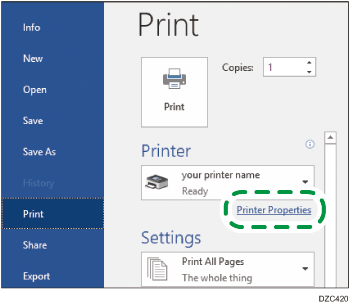
 Open a document to print on the computer, and display the setting screen of the printer driver from the print menu in the application.
The procedure to display a document varies depending on the applications.
For example in Microsoft Word/Excel, click [Print] on the [File] menu, select the device to use, and then click [Printer Properties].
 Specify the Document Size, Paper Type, Paper Input Location, and other settings.
You can configure the basic settings just by using the [Basic] tab.
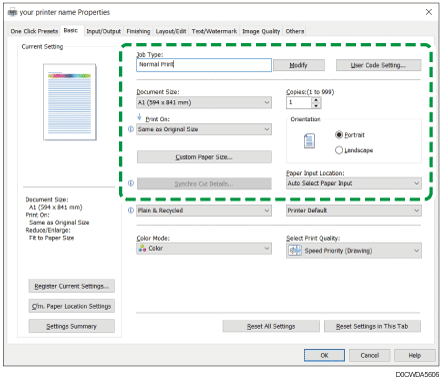
Job Type: Select [Normal Print] to execute printing immediately.
You can make a partial print as a test and proceed to print the rest of the document (Sample Print).
Making a Partial Print as a Test and Printing the Rest of the Document
You can store documents in the machine (Locked Print, Hold Print, or Stored Print).
Document Size: Select the size of the document to print.
Print On: Select the size of the paper to print on.
Copies: Enter the print quantity.
Orientation: Specify the orientation of the document. Select Portrait or Landscape.
Paper Input Location: Select the paper input location loaded with the paper to use. When you select [Auto Select Paper Input], a suitable paper input location is selected automatically according to the specified [Print On] and [Paper Type].
If you do not want to use particular paper input locations when [Auto Select Paper Input] is specified, set the machine so it does not automatically select those paper input locations.
To prevent the machine from selecting other paper input locations automatically, disable paper input location switching.
Paper Type: Select the type of paper to use.
Color Mode: Select the print color.
You can print in universal color by using the following settings:
[Image Quality] tab
 [Barrier-free Color Management:][On]
You can configure some advanced settings using the [Input/Output] to [Image Quality] tabs.
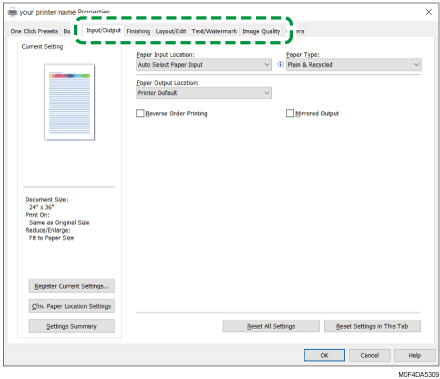
The caution icon ( ) indicates that there are disabled items. Click the icon to check the cause.
To set each function in details, click the detail settings button ( ).
).
 After completing the configuration, click [OK] to print.

On the [Devices and Printers] screen, right-click the printer icon of the machine, and then click [Printing preferences] to change the default values of the printer settings.
When you use the driver distributed from the print server, [Standard settings] specified in the print server are displayed as the default.
Printing a Document in macOS
In the following example procedure, macOS 12.2 is used. The procedure may vary for different versions.
Open a document to print on the computer, and click [Print] on the [File] menu.
Select the printer you use from [Printer:].
Specify Paper Size, Orientation, and other settings.
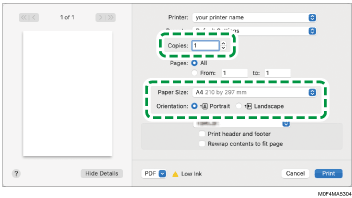
Copies: Enter the print quantity.
Paper Size: Select the size of the document to print.
Orientation: Specify the orientation of the document. Select [Portrait] or [Landscape].
 Select a category from the pop-up menu, and then specify the paper input location and paper type.
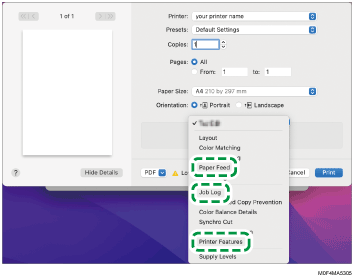
Paper Feed
All Pages From: Select the paper input location loaded with the paper to use. When you select [Auto Select], a suitable paper input location is selected automatically according to the specified paper size and paper type.
When the paper of the specified size is not loaded on the machine, printing is performed following the settings of the machine.
Job Log
Job Type: Select [Normal Print] to execute printing immediately.
You can make a partial print as a test and proceed to print the rest of the document (Sample Print).
Making a Partial Print as a Test and Printing the Rest of the Document
You can store documents in the machine (Locked Print, Hold Print, or Stored Print).
Printer Features
Select a category in "Feature Sets", and then specify the setting items.
Basic
Color Mode: Select the print color.
Paper
Paper Type: Select the type of paper to use.
 After completing the configuration, click [Print] to print.
Changing a default values of the printer settings (Windows)
Display the [Devices and Printers] screen.
Windows 11
On the [Start] menu, click [All apps]
[Windows Tools] [Control Panel].Click [View devices and printers].
Windows 10 (version 1703 or later), Windows Server 2019/2022
On the [Start] menu, click [Windows System]
[Control Panel].Click [View devices and printers].
Windows 10 (before version 1703), Windows Server 2016
Right-click [Start], and then click [Control Panel].
Click [View devices and printers].
Windows 8.1, Windows Server 2012/2012 R2
On the Charm Bar, click [Settings]
[Control Panel].Click [View devices and printers].
Right-click the printer icon, and then click [Printer properties].
Change the print settings such as Color Mode or Combine to register in default values.
Click [Apply].