
Registering Groups in the Address Book
You can register users as a group.

Up to 500 users can be registered in a group.
Creating a Group
 Press [Address Book] on the Home screen.
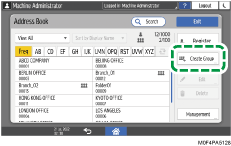
 Press [Create Group] on the Address Book screen.
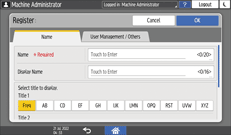
 Enter the information of the group on the [Name] tab, and then select a title to classify it.
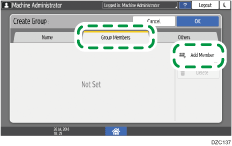
 Press [Group Members] tab
  [Add Member].
 Select the members to register in a group, and then press [OK].
 Press the [Others] tab as necessary, and specify the settings.
Registration Destination Group: Press to register this group to another group.
Display Priority: When the users are sorted in the order of priority, a user with higher priority is displayed prior to the one with lower priority. The users with the same priority are displayed in the order of registration.
Access Privileges for Destination: Press to set permission for users or groups to access this group.
 Press [OK].
 After completing the procedure, press [Home] (
 ).
).
 When a message prompting you to back up the address book appears on the screen, press [Go to Backup] to back up the address book.
If a message prompting you to contact the administrator to back up the address book appears on the screen, ask the administrator to back up the address book.
If you select [Close], you can close the address book without backing up and go back to the Home screen.

When you register a new user, you can specify the group.
Registering a Group to Another Group
You can register another group to the group in addition to users. For example, you can register a company as a primary group, and multiple sections as the secondary group.
Press [Address Book] on the Home screen.
Select a group to register (secondary group) on the Address Book screen, and then press [Edit].
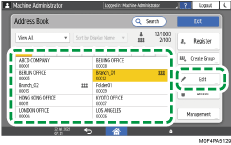
Press the [Others] tab [Registration Destination Group].
Press [Select Group].
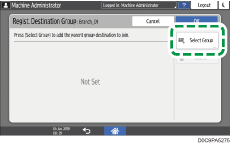
Select a group (primary group), and then press [OK].
Press [OK][OK].
After completing the registration, press [Home] ().
When a message prompting you to back up the address book appears on the screen, press [Go to Backup] to back up the address book.
If a message prompting you to contact the administrator to back up the address book appears on the screen, ask the administrator to back up the address book.
If you select [Close], you can close the address book without backing up and go back to the Home screen.
Changing/Deleting the Data Registered to the Group
Press [Address Book] on the Home screen.
Select the group to change or delete on the Address Book screen.
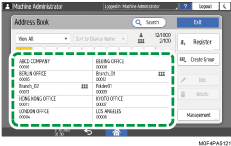
Press [Edit] or [Delete] to change or delete the group information.
When changing or deleting is complete, press [Home] ().
When a message prompting you to back up the address book appears on the screen, press [Go to Backup] to back up the address book.
If a message prompting you to contact the administrator to back up the address book appears on the screen, ask the administrator to back up the address book.
If you select [Close], you can close the address book without backing up and go back to the Home screen.
Confirming Users Registered to the Group
Press [Address Book] on the Home screen.
Select the group whose registered users you want to confirm, and then press [Edit].
Press the [Group Members] tab.
The registered members are displayed.
When confirming is complete, press [Cancel][Home] ().