
Items Specified by Printing Options
filetype
Specify the Printer Language to be used for printing.
Format
filetype=Printer Language name
Or
fil=Printer Language name
Value and behavior
Substitute the three-letter abbreviation of the printer language name for "Printer Language name". To switch to RTIFF, specify "RTF". The default values of the RPGL Menu are applied.
Explanation
The Printer Language selected using the control panel is used for printing, unless this printing option is specified. If RTIFF is not selected, output files may not be printed normally. If "Auto" is selected in [Printer Settings]
 [System][Emulation][Printer Language], the machine automatically switches its printer language to RTIFF when it receives a correct TIFF file.
tray
Specify the paper input location to be used for printing.
Format
tray=paper input location number
Value and behavior
Specify a paper input location number. Paper is fed from the paper input location of the specified number.
Setting | Selected paper input location |
|---|---|
1 | Paper Input Location 1: Regular size portrait ( |
2 | Paper Input Location 1: Regular size landscape ( |
3 | Paper Input Location 1: Custom size paper |
4 | Paper Input Location 2: Regular size portrait ( |
5 | Paper Input Location 2: Regular size landscape ( |
6 | Paper Input Location 2: Custom size paper |
T | Paper bypass location |
Explanation
If the paper input location specified here is loaded with paper that cannot be used on this machine, or with paper of a size and/or type that is not supported by RTIFF, this printing option is ignored, and paper is fed from the paper input location indicated on the control panel of the machine.
If this printing option is specified, the settings for RTIFF Menu "1. Select Paper Input Location", "2. Paper Size", "U. Auto Paper Select", and "V. Auto Paper Select: Margin Tolerance" configured on the control panel of the machine are ignored.
If either the "paper" or "autopaper" printing option is specified at the same time as "tray", the "tray" printing option is ignored.
If Rotate Sort is specified in the PJL or its relevant printing option, the paper may be fed from a different paper input location than the location you have selected.

If Auto Paper Input Switching is enabled, paper may be fed from a different paper input location than the location you have selected. In order to print on paper fed from a certain paper input location, select either "Auto" or "Off" in "4. Auto Paper Input Switching" on the RTIFF Menu, or specify the "noautotray" printing option.
Setting values 4, 5, and 6 can be selected only when the optional Paper Input Location 2 is attached.
paper
Specify the paper input location by the paper size, orientation, and/or paper type of the paper loaded in the location.
Format
paper=paper
paper=paper/paper type 1/paper type 2/.../paper type n
Use a slash "/" to separate the values.
Value and behavior
Specify the paper size, orientation ("paper"), and/or paper type ("paper type 1", "paper type 2"... "paper type n") that you want to use. The paper input location that is loaded with paper matching the criteria you specified is selected.
Value | Behavior |
|---|---|
a0r | Paper is fed from the A0 portrait ( |
a1 | Paper is fed from the A1 landscape ( |
a1r | Paper is fed from the A1 portrait ( |
a2 | Paper is fed from the A2 landscape ( |
a2r | Paper is fed from the A2 portrait ( |
a3 | Paper is fed from the A3 landscape ( |
a3r | Paper is fed from the A3 portrait ( |
a4 | Paper is fed from the A4 landscape ( |
b1r | Paper is fed from the B1 JIS (Japanese Industrial Standard) portrait ( |
b2 | Paper is fed from the B2 JIS landscape ( |
b2r | Paper is fed from the B2 JIS portrait ( |
b3 | Paper is fed from the B3 JIS landscape ( |
b3r | Paper is fed from the B3 JIS portrait ( |
b4 | Paper is fed from the B4 JIS landscape ( |
ac | Paper is fed from the 17 × 22 landscape ( |
acr | Paper is fed from the 17 × 22 portrait ( |
lt | Paper is fed from the 81/2 × 11 landscape ( |
dl | Paper is fed from the 11 × 17 landscape ( |
dlr | Paper is fed from the 11 × 17 portrait ( |
lg | Paper is fed from the 81/2 × 14 landscape ( |
12x18 | Paper is fed from the 12 × 18 landscape ( |
12x18r | Paper is fed from the 12 × 18 portrait ( |
9x12 | Paper is fed from the 9 × 12 landscape ( |
36x48r | Paper is fed from the 36 × 48 portrait ( |
34x44r | Paper is fed from the 34 × 44 portrait ( |
30x42r | Paper is fed from the 30 × 42 portrait ( |
24x36 | Paper is fed from the 24 × 36 landscape ( |
24x36r | Paper is fed from the 24 × 36 portrait ( |
22x34 | Paper is fed from the 22 × 34 landscape ( |
22x34r | Paper is fed from the 22 × 34 portrait ( |
21x30 | Paper is fed from the 21 × 30 landscape ( |
18x24 | Paper is fed from the 18 × 24 landscape ( |
18x24r | Paper is fed from the 18 × 24 portrait ( |
15x20r | Paper is fed from the 15 × 20r portrait ( |
free | Paper is fed from the custom-sized paper input location. |
Specified value | Behavior |
|---|---|
plain | Paper is fed from the Plain Paper input location. |
thin | Paper is fed from the Thin Paper input location. |
middlethick | Paper is fed from the Middle Thick input location. |
thick | Paper is fed from the Thick Paper 1 input location. |
thick2 | Paper is fed from the Thick Paper 2 input location. |
recycled | Paper is fed from the Recycled Paper input location. |
inkjetplain | Paper is fed from the Inkjet Plain input location. |
special | Paper is fed from the Special Paper input location. |
matfilm | Paper is fed from the Film (Matte) input location. |
cadcoated | Paper is fed from the Coated (CAD) input location. |
coated | Paper is fed from the Coated Paper input location. |
translucent | Paper is fed from the Translucent Paper (vellum) input location. |
Explanation
When you specify "paper type 1", "paper type 2", or "paper type n", paper is fed from a paper input location that is loaded with the paper of the matching size, orientation, and type. If no paper type is specified, paper is fed from a paper input loaded with either "Plain Paper" or "Recycled Paper".
If no paper input location that is loaded with the paper of the size, orientation, and type specified in this printing option is available, paper is fed from the paper input location indicated on the control panel of the machine.
Some paper input locations may not be selected.
When you specify this printing option, the "tray" printing option and the settings for "1. Select Paper Input Location", "2. Paper Size", "U. Auto Paper Select", and "V. Auto Paper Select: Margin Tolerance" in the RTIFF Menu that have been specified on the control panel of the machine are ignored.
When you specify the "autopaper" and "paper" printing options at the same time, the "paper" printing option is ignored.
When Auto Paper Input Switching is enabled, paper may be fed from a paper input location different from the specified paper input location. In order to specify a paper input location, select either "Auto" or "Off" in "4. Auto Paper Input Switching" on the RTIFF Menu, or specify the "noautotray" printing option.
autotray, noautotray
Specify whether to automatically switch to another paper input location when the paper input location currently selected runs out of paper.
The paper input location is automatically switched to a paper input that is loaded with paper of the same size and type.
Format
autotray
noautotray
Value and behavior
Printing option name | Behavior |
|---|---|
autotray | The paper input location is switched automatically. |
noautotray | The paper input location is not switched automatically. |
Explanation
When you specify this printing option, the setting for "4. Auto Paper Input Switching" on the RTIFF Menu is ignored.
portrait, landscape
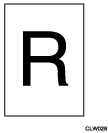
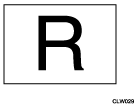
Specify the orientation in which to print images.
Format
portrait
landscape
Value and behavior
Output result of "portrait":
Output result of "landscape":
Explanation
If you specify either of these printing options, the settings for "5. Orientation" on the RTIFF Menu are ignored.
If "On" is selected for "U. Auto Paper Select" and neither the "tray" nor "paper" printing options are specified, these printing options are ignored.
If you specify the "autopaper" printing option, this printing option is ignored.
If opposite orientation print is specified by PJL or its relevant printing option, the images on the paper may be rotated by 180 degrees when printed.
600dpi
Specify the resolution to use for printing.
Format
600dpi
Value and behavior
Printing option name | Behavior |
|---|---|
600dpi | Images are printed at 600 dpi. |
copies
Specify the number of copies to print. Each page is printed in the number of copies specified by this printing option.
Format
copies=print quantity
Value and behavior
Specify an integer value between 1 and 999.
Explanation
If you specify the "copies" printing option, the number of copies specified on the control panel of the machine is ignored.
mag
Specify the ratio of reduction or enlargement to apply to images to be printed. The aspect ratio of the image remains unchanged, even when the image is reduced or enlarged.
Format
mag=reproduction ratio
mag=paper 1.paper 2
Use "." to separate the values.
Value and behavior
Specify the "reproduction ratio" within the range of 0.002 to 500 in increments of 0.01%. Images are enlarged if the specified value is larger than "1.0", and reduced if the value is smaller than "1.0".
Specify two paper sizes, "paper 1" and "paper 2". The image of "paper 1" size is reduced or enlarged to "paper 2" size. The specifiable values and their corresponding paper sizes are as follows:
Value
Paper size
a0
A0
a1
A1
a2
A2
a3
A3
a4
A4
b1
B1 JIS
b2
B2 JIS
b3
B3 JIS
b4
B4 JIS
Explanation
If either of the "xmag", "ymag", "fit", "nofit", "tifffit", "notifffit", or "autoreduce" printing options are specified, or if "J. Reduce/Enlarge Ratio: Horizontal", "K. Reduce/Enlarge Ratio: Vertical", "P. Auto Reduce/Enlarge to Printable Area", "T. Auto Reduce/Enlarge to Scanned Image Size", or "b. Auto Reduce" has been configured on the RTIFF Menu, images are enlarged or reduced in the reproduction ratio calculated by multiplying the ratio specified in those printing options or settings by the ratio specified by this printing option.
If this printing option is specified, the setting for "8. Reproduction Ratio" is ignored.
The setting specified by "b. Auto Reduce" or the "autoreduce" printing option is given priority over the setting specified in "P. Auto Reduce/Enlarge to Printable Area" on the RTIFF Menu or by the "fit" printing option.
leftspace
Specify the width of the left margin.
Format
leftspace=distance
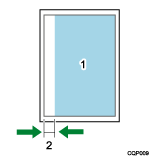
Printable area
Left margin (leftspace)
Value and behavior
Specify the distance from the left edge of the printable area to the area where the printing starts on paper within the range of ±30 cm using an integer or decimal with its unit appended at the end. Note that there may be some discrepancy in the actual printing.
The distance can be specified in mm, inch (1 inch = approximately 25.4 mm), pt (points), or dot (number of dots) units, unless the specified value exceeds the above-mentioned range. For example, if you want to set the left margin 25 mm from the left edge of the printable area, enter the printing option as follows:
leftspace=25 mm
When no unit is appended at the end of the value, the machine calculates the area assuming that the unit of the specified value is "cm".
Explanation
When this printing option is specified, the actual margin is calculated by adding this value and the value specified for "9. Left Margin" on the RTIFF Menu.
rightspace
Specify the width of the right margin.
Format
rightspace=distance
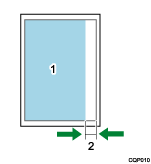
Printable area
Right margin (rightspace)
Value and behavior
Specify the distance from the right edge of the printable area to the area where printing ends on paper within the range of ±30 cm using an integer or decimal with its unit appended at the end. Note that there may be some discrepancy in the actual printing.
The distance can be specified in mm, inch (1 inch = approximately 25.4 mm), pt (points) or dot (number of dots) units, unless the specified value exceeds the above-mentioned range. For example, if you want to set the right margin 25 mm from the right edge of the printable area, enter the printing option as follows:
rightspace=25 mm
When no unit is appended at the end of the value, the machine calculates the area assuming the unit of the specified value is "cm".
Explanation
When this printing option is specified, the actual margin is calculated by adding this value and the value specified for "A. Right Margin" on the RTIFF Menu.
If you specify "rightspace" and Centering is enabled, the image is positioned in the center of the area derived by subtracting the specified dimension from the paper width. The left side of the images may be trimmed if the print range does not fit on the paper.
topspace
Specify the height of the top margin.
Format
topspace=distance
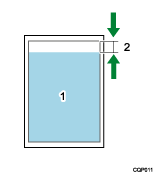
Printable area
Top margin (topspace)
Value and behavior
Specify the distance from the top edge of the printable area to the area where printing starts on paper within the range of ±30 cm using an integer or decimal with its unit appended at the end. Note that there may be some discrepancies in the actual printing.
The distance can be specified in mm, inch (1 inch = approximately 25.4 mm), pt (point) or dot (number of dots) units, unless the specified value exceeds the above-mentioned range. For example, if you want to set the top margin 25 mm from the top edge of the printable area, enter the printing option to specify 25 mm as follows:
topspace=25 mm
When no unit is appended at the end of the value, the machine calculates the area assuming the unit of the specified value is "cm".
Explanation
When this printing option is specified, the actual margin is calculated by adding this value and the value specified for "B. Top Margin" on the RTIFF Menu.
bottomspace
Specify the height of the bottom margin.
Format
bottomspace=distance
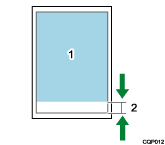
Printable area
Bottom margin (bottomspace)
Value and behavior
Specify the distance from the bottom edge of the printable area to the area where printing ends within the range ±30 cm using an integer or decimal with its unit appended at the end. Note that there may be some discrepancy in the actual printing.
The distance can be specified in mm, inch (1 inch = approximately 25.4 mm), pt (points) or dot (number of dots) units, unless the specified value exceeds the above-mentioned range. For example, if you want to set the bottom margin 25 mm from the bottom edge of the printable area, enter the printing option as follows:
bottomspace=25 mm
When no unit is appended at the end of the value, the machine calculates the area assuming the unit of the specified value is "cm".
Explanation
When this printing option is specified, the actual margin is calculated by adding this value and the value specified for "C. Bottom Margin" on the RTIFF Menu.
xoffset
Specify the distance to move (offset) the print position in the horizontal direction.
Format
xoffset=distance
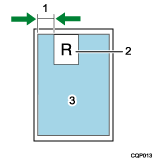
X offset (xoffset)
Image
Printable area
Value and behavior
Specify the distance using an integer or decimal within the range of ±100 cm with its unit appended at the end. A negative value moves the print position to the left, and a positive value moves the position to the right.
The distance can be specified in mm, inch (1 inch = approximately 25.4 mm), pt (points) or dot (number or dots) units, unless the specified value exceeds the above-mentioned range. For example, if you want to set the horizontal offset distance to 25 mm, enter the printing option as follows:
xoffset=25 mm
When no unit is appended at the end of the value, the machine calculates the area assuming the unit of the specified value is "cm".
Explanation
When this printing option is specified, the actual distance by which the images are moved on paper is calculated by adding this value and the value specified for "D. X Offset" on the RTIFF Menu.
If the "O. Centering" setting on the RTIFF Menu is specified, or either the "center" or "nocenter" printing option is specified, the print position moves in the horizontal direction according to the value specified for the setting and the value specified for this printing option.
yoffset
Specify the distance to move (offset) the print position in the vertical direction.
Format
yoffset=distance
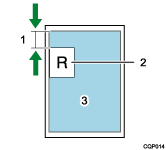
Y offset (yoffset)
Image
Printable area
Value and behavior
Specify the distance using an integer or decimal within the range of ±100 cm with its unit appended at the end. A negative value moves the print position upward, and a positive value moves the position downward.
The distance can be specified in mm, inch (1 inch = approximately 25.4 mm), pt (points) or dot (number of dots) units, unless the specified value exceeds the above-mentioned range. For example, if you want to set the vertical offset distance to 25 mm, enter the printing option as follows:
yoffset=25 mm
When no unit is appended at the end of the value, the machine calculates the area assuming the unit of the specified value is "cm."
Explanation
When this printing option is specified, the actual distance in which the image is moved on paper is calculated by adding this value and the value specified for "E. Y Offset" on the RTIFF Menu.
If the "O. Centering" setting on the RTIFF Menu is configured, or either the "center" or "nocenter" printing option is specified, the print position moves in the horizontal direction according to the value specified for the setting and the value specified for this printing option.
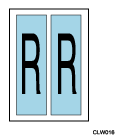
multicols
Specify the number of images to combine horizontally (number of columns) on a single sheet of paper.
Format
multicols=number of images
Value and behavior
Specify the number of columns as an integer within the range of 1-10.
Explanation
In order to specify the number of images to combine vertically (number of rows), use the "multirows" printing option or the "I. Multiple Pages Per Sheet: No. of Rows" setting on the RTIFF Menu.
If multiple-image printing is specified, images are printed even if the number of images received is less than the specified number, when either of the following occurs:
An ESC sequence command such as the Printer Language switch command is received.
When the machine is connected via a network and an "EOF" is received.
When this printing option is specified, the setting for "H. Multipages per Sheet: No. of Columns" on the RTIFF Menu is ignored.
If "On" is selected for "U. Auto Paper Select" on the RTIFF Menu and neither the "tray" nor "paper" printing option is specified, this printing option is ignored.
If the "autopaper" printing option is specified, this printing option is ignored.
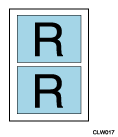
multirows
Specify the number of images to combine vertically (number of rows) on a single sheet of paper.
Format
multirows=number of images
Value and behavior
Specify the number of rows as an integer within the range of 1-10.
Explanation
In order to specify the number of images to combine horizontally (number of columns), use the "multicols" printing option or the "H. Multipages per Sheet: No. of Columns" setting on the RTIFF Menu.
If multiple-image printing is specified, images are printed even if the number of images received is less than the specified number when either of the following occurs:
An ESC sequence command such as the Printer Language switch command is received.
When the machine is connected via a network and an "EOF" is received.
When this printing option is specified, the setting for "I. Multipages per Sheet: No. of Rows" on the RTIFF Menu is ignored.
If "On" is selected for "U. Auto Paper Select" on the RTIFF Menu and neither the "tray" nor "paper" printing option is specified, this printing option is ignored.
If the "autopaper" printing option is specified, this printing option is ignored.
xmag
Specify the reproduction ratio in the horizontal direction. Images are enlarged or reduced horizontally at the specified ratio when printing.
Format
xmag=reproduction ratio
Value and behavior
Enter an integer or decimal within the range of 0.002 to 500 to specify the "reproduction ratio". Images are enlarged if the specified value is larger than "1.0", and reduced if the value is smaller than "1.0".
Explanation
If either of the "mag", "fit", "nofit", "tifffit", "notifffit", or "autoreduce" printing options are specified or either of "8. Reproduction Ratio", "P. Auto Reduce/Enlarge to Printable Area", "T. Auto Reduce/Enlarge to Scanned Image Size", or "b. Auto Reduce" has been configured on the RTIFF Menu, images are enlarged or reduced in the ratio calculated by multiplying the ratio specified in those settings or printing options by the ratio specified by this printing option.
When this printing option is specified, the setting for "J. Reduce/Enlarge Ratio: Horizontal" on the RTIFF Menu is ignored.
The setting specified in "b. Auto Reduce" or by the "autoreduce" printing option has priority over the setting specified in "P. Auto Reduce/Enlarge to Printable Area" on the RTIFF Menu or by the "fit" printing option.
ymag
Specify the reproduction ratio in the vertical direction. Images are enlarged or reduced vertically at the specified ratio when printing.
Format
ymag=reproduction ratio
Value and behavior
Enter an integer or decimal within the range of 0.002 to 500 to specify the "reproduction ratio". Images are enlarged if the specified value is larger than "1.0", and reduced if the value is smaller than "1.0".
Explanation
If either of the "mag", "fit", "nofit", "tifffit", "notifffit", or "autoreduce" printing options are specified, or if either of "8. Reproduction Ratio", "P. Auto Reduce/Enlarge to Printable Area", "T. Auto Reduce/Enlarge to Scanned Image Size", or "b. Auto Reduce" have been configured on the RTIFF Menu, images are enlarged or reduced in the ratio calculated by multiplying the ratio specified in those settings or printing options by the ratio specified by this printing option.
When this printing option is specified, the setting for "K. Reduce/Enlarge Ratio: Vertical" on the RTIFF Menu is ignored.
The setting specified in "b. Auto Reduce" or the "autoreduce" printing option has priority over the setting specified in "P. Auto Reduce/Enlarge to Printable Area" on the RTIFF Menu or by the "fit" printing option.
negative, positive
Specify whether or not to invert tones (black and white) of images when printing.
Format
negative
positive
Value and behavior
Printing option name | Behavior |
|---|---|
negative | Inverts tones (black and white) of images when printing. |
positive | Prints images normally. |
Explanation
If either of these printing options is specified, the setting for "L. Positive/Negative" on the RTIFF Menu is ignored.
These printing options are ignored when "Color" is selected in "f. Color / Black & White" on the RTIFF Menu, or if the "colormode" printing option is specified.
brightness
Specify the brightness to print multi-level images (gray scale).
Format
brightness=value
Value and behavior
Enter an integer or decimal within the range of 0.01 to 999 to specify the "brightness". The printed images appear brighter (whitish) overall when a value greater than "1.0" is specified, and darker (blackish) when a value less than "1.0" is specified.
Explanation
If "0.01" is specified, images are completely black.
If "999" is specified, images are completely white.
This printing option is ignored when printing two-level images (black and white only).
If this printing option is specified, the setting in "M. Brightness" on the RTIFF Menu is ignored.
This printing option may be invalid on some color data.
contrast
Specify the contrast to print multi-level images (gray scale).
Format
contrast=value
Specified value and behavior
Enter an integer or decimal within the range of 0.01 to 999 to specify the "contrast". The difference in appearance between the lightest and the darkest spots in the printed image increases when a value greater than "1.0" is specified, and decreases when a value less than "1.0" is specified.
Explanation
If "0.01" is specified, images are completely neutral gray.
If "999" is specified, images are completely white.
This printing option is ignored when printing two-level images (black and white only).
If this printing option is specified, the setting in "N. Gray Scale Contrast" on the RTIFF Menu is ignored.
This printing option may be invalid on some color data.
center, nocenter
Specify whether or not to position the image in the center of the printable area when printing.
Format
center
nocenter
Value and behavior
Printing option name | Behavior |
|---|---|
center | Prints the image in the center. |
nocenter | Prints the image from the top left corner of the printable area. |
Explanation
Even when "center" is specified, the position of the image printed on the paper moves by the amount specified by the "xoffset" or "yoffset" or by the amount configured in "D. X Offset" or "E. Y Offset" on the RTIFF Menu, if those printing options or settings have been configured.
The printable area is determined by the margin settings, the "multicols" and/or "multirows" printing options, and the settings for "H. Multipages per Sheet: No. of Columns" or "I. Multipages per Sheet: No. of Rows" on the RTIFF Menu.
If the "center" or "nocenter" printing option is specified, the setting for "O. Centering" on the RTIFF Menu is ignored.
fit, nofit
Specify whether or not to automatically reduce or enlarge the received image to match the printable area. The aspect ratio of the image remains unchanged.
Format
fit
nofit
Value and behavior
Printing option name | Behavior |
|---|---|
fit | Reduces or enlarges the image to match the printable area. |
nofit | Prints the image at full size. |
Explanation
If either of the "mag", "xmag", "ymag", "tifffit", or "notifffit" printing options are specified, or either of "8. Reproduction Ratio", "J. Reduce/Enlarge Ratio: Horizontal", "K. Reduce/Enlarge Ratio: Vertical", or "T. Auto Reduce/Enlarge to Scanned Image Size" has been configured on the RTIFF Menu, images are enlarged or reduced in the ratio that is calculated by multiplying the ratio specified in those options or settings by the ratio derived for this option, even if the "fit" printing option is specified.
The printable area is determined by the margin settings, the "multicols" or "multirows" printing option, and the settings for "H. Multipages per Sheet: No. of Columns" or "I. Multipages per Sheet: No. of Rows" on the RTIFF Menu.
If the "fit" or "nofit" printing option is specified, the setting for "P. Auto Reduce/Enlarge to Printable Area" on the RTIFF Menu is ignored.
If the "autoreduce" printing option is specified, or if any value other than "Off" is selected in "b. Auto Reduce" on the RTIFF Menu, this printing option is ignored.
tifffit, notifffit
Specify whether or not to automatically reduce or enlarge the received image to print it at the real size.
Format
tifffit
notifffit
Value and behavior
Printing option name | Behavior |
|---|---|
tifffit | Prints the image at the real size. |
notifffit | Prints the image at full size. |
Explanation
The reduce/enlarge ratio can be calculated from the horizontal and vertical resolution information in the tag of the TIFF data and the printing resolution. For example, when printing TIFF data, which has the horizontal resolution of 200 dpi and vertical resolution of 400 dpi specified in its tag, on the machine at a resolution of 600 dpi, the image size is enlarged 3.0 times (600/200) horizontally and 1.5 times (600/400) vertically when printed.
The images in multipage TIFF data are reduced/enlarged based on the resolution information of each page.
If either of the "mag", "xmag", "ymag", "fit", "nofit", or "autoreduce" printing options are specified, or if either of "8. Reproduction Ratio", "J. Reduce/Enlarge Ratio: Horizontal", "K. Reduce/Enlarge Ratio: Vertical", "P. Auto Reduce/Enlarge to Printable Area" or "b. Auto Reduce" has been configured on the RTIFF Menu, the image is reduced/enlarged at the ratio calculated by multiplying the reproduction ratio specified in those settings or options by the ratio derived to print the image at the real size specified by this printing option, even if the "tifffit" printing option is specified.
If the received TIFF data or page does not contain the resolution information tag, those printing options are ignored.
When either of these printing options is specified, the setting for "T. Auto Reduce/Enlarge to Scanned Image Size" on the RTIFF Menu configured on the control panel is ignored.
The setting specified in "b. Auto Reduce" or by the "autoreduce" printing option has priority over the setting specified in "P. Auto Reduce/Enlarge to Printable Area" on the RTIFF Menu or by the "fit" printing option.
autopaper
Specify this printing option to automatically select the paper input location with the appropriate paper size for the input image size. Images are also rotated in the appropriate orientation when printing. If the paper size, orientation and type are specified in this printing option, the paper input location loaded with the paper that matches the specified settings is automatically selected.
Format
autopaper
autopaper=paper 1/paper 2/.../paper n
autopaper=paper type 1/paper type 2/.../paper type n
autopaper=tolerance
autopaper=freecut (nofreecut)
autopaper=speedpriority, lefpriority, sefpriority
Delimit values by using a "/".
Value and behavior
Specify the paper input locations from which to select by paper size, orientation ("paper 1", "paper 2"... "paper n"), and type ("paper type 1", "paper type 2"... "paper type n"). If no value is specified, the paper input location is selected out of all the available paper input locations. However, some paper input locations may be excluded as selection targets.
Paper size and orientation Value
Behavior
a0r
Paper is fed from the A0 portrait (
 ) paper input location.
a1
Paper is fed from the A1 landscape (
 ) paper input location.
a1r
Paper is fed from the A1 portrait (
) paper input location.a2
Paper is fed from the A2 landscape (
) paper input location.a2r
Paper is fed from the A2 portrait (
) paper input location.a3
Paper is fed from the A3 landscape (
) paper input location.a3r
Paper is fed from the A3 portrait (
) paper input location.a4
Paper is fed from the A4 landscape (
) paper input location.b1r
Paper is fed from the B1 JIS portrait (
) paper input location.b2
Paper is fed from the B2 JIS landscape (
) paper input location.b2r
Paper is fed from the B2 JIS portrait (
) paper input location.b3
Paper is fed from the B3 JIS landscape (
) paper input location.b3r
Paper is fed from the B3 JIS portrait (
) paper input location.b4
Paper is fed from the B4 JIS landscape (
) paper input location.ac
Paper is fed from the 17 × 22 landscape (
) paper input location.acr
Paper is fed from the 17 × 22 portrait (
) paper input location.lt
Paper is fed from the 81/2 × 11 landscape (
) paper input location.dl
Paper is fed from the 11 × 17 landscape (
) paper input location.dlr
Paper is fed from the 11 × 17 portrait (
) paper input location.lg
Paper is fed from the 81/2 × 14 landscape (
) paper input location.12x18
Paper is fed from the 12 × 18 landscape (
) paper input location.12x18r
Paper is fed from the 12 × 18 portrait (
) paper input location.9x12
Paper is fed from the 9 × 12 landscape (
) paper input location.36x48r
Paper is fed from the 36 × 48 portrait (
) paper input location.34x44r
Paper is fed from the 34 × 44 portrait (
) paper input location.30x42r
Paper is fed from the 30 × 42 portrait (
) paper input location.24x36
Paper is fed from the 24 × 36 landscape (
) paper input location.24x36r
Paper is fed from the 24 × 36 portrait (
) paper input location.22x34
Paper is fed from the 22 × 34 landscape (
) paper input location.22x34r
Paper is fed from the 22 × 34 portrait (
) paper input location.21x30
Paper is fed from the 21 × 30 landscape (
) paper input location.18x24
Paper is fed from the 18 × 24 landscape (
) paper input location.18x24r
Paper is fed from the 18 × 24 portrait (
) paper input location.15x20r
Paper is fed from the 15 × 20r portrait (
) paper input location.free
Paper is fed from the custom size paper input location.
Paper type Specified value
Behavior
plain
Paper is fed from the Plain Paper input location.
thin
Paper is fed from the Thin Paper input location.
middlethick
Paper is fed from the Middle Thick input location.
thick
Paper is fed from the Thick Paper 1 input location.
thick2
Paper is fed from the Thick Paper 2 input location.
recycled
Paper is fed from the Recycled Paper input location.
inkjetplain
Paper is fed from the Inkjet Plain input location.
special
Paper is fed from the Special Paper input location.
matfilm
Paper is fed from the Film (Matte) input location.
cadcoated
Paper is fed from the Coated (CAD) input location.
coated
Paper is fed from the Coated Paper input location.
translucent
Paper is fed from the Translucent Paper (vellum) input location.
Specify the tolerance in percent ("%" symbol not required) to allow for how much part of an image can extend beyond the appropriate paper size margins that are created.
If "10%" is specified as the "tolerance", the paper input location is selected assuming that the paper is large enough to allow printing of an image 10% larger in size (110% overall) than otherwise determined. If "-10%" is specified, the paper input location is selected assuming that the paper only allows printing of an image 10% smaller (90% overall). If no value is specified, a paper input location is selected based on the setting for "V. Auto Paper Select: Margin Tolerance" on the RTIFF Menu.
Explanation
If either of the "mag", "xmag", "ymag", "tifffit", "notifffit", "autoreduce", "leftspace", "rightspace", "topspace", "bottomspace", "xoffset", or "yoffset" printing options are specified, or if either of "8. Reproduction Ratio", "J. Reduce/Enlarge Ratio: Horizontal", "K. Reduce/Enlarge Ratio: Vertical", "T. Auto Reduce/Enlarge to Scanned Image Size", "b. Auto Reduce", "9. Left Margin", "A. Right Margin", "B. Top Margin", "C. Bottom Margin", "D. X Offset", or "E. Y Offset" has been configured, the paper input location is selected according to the image size that reflects these configurations and designations.
If no paper input location loaded with paper that matches the specified size, orientation and type is available, then paper is fed from the paper input location indicated on the control panel.
If values "Paper 1"–"Paper n" are specified, a paper input location is selected from those loaded with the paper matching the specified sizes and orientations. If no paper input location loaded with the paper of the specified values is available, then paper is fed from the paper input location indicated on the control panel.
If values "Paper 1"–"Paper n" are not specified, a paper input location is selected from all the available paper input locations.
If values "paper type 1"–"paper type n" are specified, a paper input location is selected from those loaded with paper matching the specified type. If no paper input location with the paper of the specified type is available, then paper is fed from the paper input location indicated on the control panel.
If no value for the paper type is specified, a paper input location is selected from those loaded with "Plain Paper" or "Recycled Paper".
If the image size is larger than the largest paper size loaded in the selected target paper input locations, the paper input location loaded with the paper of the largest size out of all paper input locations is selected.
When this printing option is specified, the "tray", "paper", "portrait", "landscape", "multicols", and "multirows" printing options and the settings for Select "1. Select Paper Input Location", "2. Paper Size", "5. Orientation", "H. Multipages per Sheet: No. of Columns", "I. Multipages per Sheet: No. of Rows", and "U. Auto Paper Select" on the RTIFF Menu are ignored.
If a tolerance value is specified in this printing option, the setting for "V. Auto Paper Select: Margin Tolerance" on the RTIFF Menu is ignored.
If opposite orientation print is specified by PJL or its relevant printing option, the images on the paper may be rotated by 180 degrees when printed.
If "On" is selected in "X. Synchro Cut" on the RTIFF Menu, or if the "autopaper" printing option is specified with the value "freecut", custom size paper input locations may be given priority over other paper input locations.
About "freecut" and "nofreecut"
By specifying either of these values in the "autopaper" printing option, you can specify whether or not to automatically identify the size of an image to be printed and print the image of any custom size on the smallest size paper that matches the image size.
Any image that does not fit in an area within ±10 mm of a regular paper size even if it is rotated is identified as a "custom size".
If "freecut" or "nofreecut" is specified in the "autopaper" printing option, the setting for "X. Synchro Cut" on the RTIFF Menu is ignored.
If "freecut" and "freesize" is specified in print option when printing from a custom size paper input location, the "freesize" specification is ignored. However, the "freesize" specification is applied if the image is printed on paper from a regular size paper input location.
If the size of the image to be printed is judged to be the same as the regular size, or if no paper input location that allows printing of the image is available, this item is ignored.
Paper input locations are searched in the following steps:
The size of an image to be printed is determined.
If the image is of a custom size, a paper input location loaded with paper of the smallest width on which the image fits is selected first.
If the length along the long side edge of the image is the same as or shorter than the width of the paper loaded in this custom size paper input location, the image is printed on the paper from this paper input location.
If the length along the short side edge of the image is the same as or shorter than the width of the paper loaded in this custom size paper input location, the image is printed on the paper from this paper input location.
If no custom size paper input location with paper matched to the image is available, this printing option is ignored, and the image is printed in the same manner as that of "U. Auto Paper Select".
If the size of a custom paper input location is changed while printing, the change made on the size is applied as the new setting for the paper input location.
About "speedprority", "lefpriority", and "sefpriority".
If "speedpriority" is specified in "autopaper", Portrait (Short Edge Feed) for vertical oriented images, Landscape (Long Edge Feed) for horizontal oriented image input locations are prioritized when input locations have different orientations for the same sized paper.
If "lefpriority" is specified in "autopaper", Landscape (Long Edge Feed) is prioritized when input locations have different orientations for the same sized paper.
If "sefpriority" is specified in "autopaper", Portrait (Short Edge Feed) is prioritized when input locations have different orientations for the same sized paper.
If any of "speedpriority", "lefpriority", or "sefpriority" is specified in "autopaper", "h. Paper Orientation Priority" setting on the RTIFF Menu is ignored.
If none of "speedpriority", "lefpriority", or "sefpriority" is specified in "autopaper", "h. Paper Orientation Priority" setting on the RTIFF Menu is used.
errorprint, noerrorprint
Specify whether or not to print an error message when an error occurs.
Format
errorprint
noerrorprint
Value and behavior
Printing option name | Behavior |
|---|---|
errorprint | Prints an error message when an error occurs. |
noerrorprint | Does not print an error message when an error occurs. |
Explanation
If "errorprint" is specified, an error message is printed when an error occurs after switching to RTIFF, or when an error occurs after the previous error message has been printed.
Even if "errorprint" is specified, no message is printed for an RTIFF reset.
Even if "noerrorprint" is specified, an error message is printed in the error field on the Settings List (RTIFF) when you print the list using the control panel or the command to print the summary.
If either of these printing options is specified, the setting for "Q. Print Error Message" on the RTIFF Menu is ignored.
For details about error messages, see Error Messages.
colormode, monomode
Specify whether to print the image in color or in black and white.
Format
colormode
monomode
Value and behavior
Printing option name | Behavior |
|---|---|
colormode | The image is printed in color. |
monomode | The image is printed in black and white. |
Explanation
If either of these printing options is specified, the setting for "f. Color / Black & White" on the RTIFF Menu is ignored.
maxarea, normalarea
Specify whether to leave margins on the paper or use the entire area of the paper to print the image.
Format
maxarea
normalarea
Value and behavior
Printing option name | Behavior |
|---|---|
maxarea | Prints the image using nearly the entire area on the paper. |
normalarea | Places a margin approximately 5 mm in width on each of the top, bottom, left and right edges of the paper, and prints the image in the area enclosed by the margins. |
Explanation
The actual print position on the paper may differ from the position you expect, even if you have specified the printable area in some cases.
When either of these printing options is specified, the setting for "S. Printable Area" on the RTIFF Menu is ignored.
printquality
Specify the print quality.
Format
printquality=print quality
Values and behavior
Value | Behavior |
|---|---|
speedpriority | Prints the image giving priority to the print speed |
standard | Prints the image using the settings to balance the image quality and print speed |
qualitypriority | Prints the image giving priority to the image quality |
speedpriorityline | Printing speed is given priority and printing is performed using the settings appropriate to CAD or tables that contain fine lines. |
Explanation
If either of these printing options are specified, the setting for "g. Print Quality" on the RTIFF Menu is ignored.
diskbuffer, memorybuffer
Specify the location in which to create the data buffer (device) to temporarily store the input data while the machine is rasterizing the TIFF data.

If "diskbuffer" is specified, do not turn off the machine while the input data is being processed. The hard disk may be damaged if the machine is turned off while the machine is processing the input data.
Format
diskbuffer
memorybuffer
Value and behavior
Printing option name | Behavior |
|---|---|
diskbuffer | Creates the data buffer on the hard disk of the machine |
memorybuffer | Creates the data buffer in the memory of the machine |
Explanation
You may be able to print a TIFF or CALS file if its printing has failed due to an error caused by the restrictions on the data stacking sequence or data size.
If "diskbuffer" is specified, some data may take longer to print.
If either of these printing options is specified, the setting for "W. Data Buffer" on the RTIFF Menu is ignored.
For restrictions on the data stacking sequence and data size, see Printable TIFF Files.
orientation
Specify how the post-processing is applied in regard to the image orientation and pixel orientation.
Format
orientation=image orientation
Value and behavior
Value | Behavior |
|---|---|
0 | Applies post-processing on an image assuming that the image orientation is the same as the pixel orientation. |
90 | Applies post-processing on an image assuming that the image orientation is rotated by 90 degrees from the pixel orientation. |
180 | Applies post-processing on an image assuming that the image orientation is rotated by 180 degrees from the pixel orientation. |
270 | Applies post-processing on an image assuming that the image orientation is rotated by 270 degrees from the pixel orientation. |
Explanation
If either of these printing options is specified, the setting for "Z. Rotation" on the RTIFF Menu is ignored.
autoreduce
You can specify whether or not to reduce image sizes larger than the paper size to match the paper. When the image size is smaller than the specified paper size, the image is printed at full size without reduction.
Format
autoreduce=paper size
autoreduce=paper size/margin correction value
autoreduce=paper size/ratio exempted
autoreduce=paper size/margin correction value/ratio exempted
Value and behavior
Specify the paper size and/or paper adjustment values to be used to determine whether or not to reduce/enlarge the image. You can also change the criteria for deciding whether to reduce the image to match the specified paper size or to print it at full size by specifying the exempted ratios.
Value | Paper size |
|---|---|
a0 | A0 |
a1 | A1 |
a2 | A2 |
a3 | A3 |
a4 | A4 |
a5 | A5 |
a6 | A6 |
b1 | B1 JIS |
b2 | B2 JIS |
b3 | B3 JIS |
b4 | B4 JIS |
b5 | B5 JIS |
b6 | B6 JIS |
ac | 17 × 22 |
pc | Postcard |
lt | 81/2 × 11 |
hl | 51/2 x 81/2 |
dl | 11 × 17 |
lg | 81/2 × 14 |
9x12 | 9 × 12 |
12x18 | 12 × 18 |
36x48 | 36 × 48 |
34x44 | 34 × 44 |
30x42 | 30 × 42 |
24x36 | 24 × 36 |
22x34 | 22 × 34 |
21x30 | 21 × 30 |
18x24 | 18 × 24 |
foolscap | 81/2 x 13 |
15x20 | 15 × 20 |
To specify the margin correction value, enter an integer or decimal within the range of ±30 cm. The value can be specified in cm, mm, inch (25.4 mm), pt (points) or dot (number of dots) units. When no unit is appended to the end of the value, the machine assumes the specified value is in "cm".
To specify the exempted ratio, enter an integer as low as -99% with its unit appended to the end of the value. If no unit is appended, the machine assumes that the margin correction value (unit: cm) is specified. If the specified value is outside the specifiable range, this printing option is ignored.
Specify only one value each for paper, margin correction value, and exempted ratio. Use a slash (/) to separate each value. If more than one specification is made in the margin correction and exempted ratio for the paper of the same size, this printing option is ignored.
Explanation
If the paper is not specified, this printing option is ignored.
If this printing option is specified, the "On" setting for "P. Auto Reduce/Enlarge to Printable Area" on the RTIFF Menu and the "fit" printing option are ignored.
If this printing option is specified, the setting for "b. Auto Reduce" on the RTIFF Menu is ignored. The setting for "b. Auto Reduce" is otherwise applied.
The paper size to accommodate the image can be adjusted by entering a margin correction value.
If a margin correction value is specified, the setting for "c. Margin Adjustment for Auto Reduce" on the RTIFF Menu is ignored. The setting for "c. Margin Adjustment for Auto Reduce" is otherwise applied.
Depending on the specified margin correction values, the image may be enlarged.
If a value specified for the margin correction value is smaller than the length of the short edge of the paper, this printing option is ignored.
If a value is specified for the exempted ratio, the setting for "d. Ratio Exempted from Auto Reduce" on the RTIFF Menu is ignored. The setting for "d. Ratio Exempted from Auto Reduce" is otherwise applied.
Whether or not to reduce the image is determined based on the size derived according to the settings for "T. Auto Reduce/Enlarge to Scanned Image Size", "8. Reproduction Ratio", "J. Reduce/Enlarge Ratio: Horizontal", or "K. Reduce/Enlarge Ratio: Vertical" on the RTIFF Menu or according to the values of the "tifffit", "mag", "xmag", or "ymag" printing options.
About the margin correction values and paper size
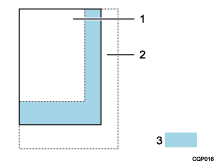
Paper size - adjust value [mm]
Paper size + adjust value [mm]
Paper size
About the exempted ratio and paper size
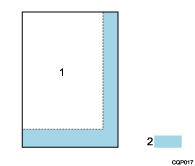
Paper size
Reduction judgment size
"Reduction judgment size" is determined by multiplying the paper size by the value specified for Ratio Exempted from Auto Reduce. The image is reduced only if it does not fit in the calculated size.
freesize
Specify dimensions for custom sizes.
Format
freesize=widthxheight
freesize=widthxheight/tr
freesize=widthxheight/tt
Value and behavior
Value | Behavior |
|---|---|
width | Specifies the width (length in the horizontal direction) of the paper in "mm". |
height | Specifies the height (length in the vertical direction) of the paper in "mm". |
/tr | Specifies the custom size paper input location. |
/tt | Specifies the custom size paper bypass location. |
Explanation
The dimensions may also be specified in mm, cm, inch (about 25.4 mm), pt (point) or dot units. In order to specify a size of 210 mm (width) and 510 mm (length), for instance, enter this printing option as follows:
freesize=210x520mm
If no unit is appended to the end of the value, the machine identifies the size assuming the value is specified in "mm".
The values specified for a custom size are not checked as to whether they are within the valid range.
If a value outside the specifiable range is specified, the paper of the size closest to the size that can be printed on is used.
If the custom size paper bypass location is specified, change the paper size of the custom size paper bypass location to a custom size.
If the specified value exceeds the maximum specifiable value, printing is performed within the maximum specifiable range.
If the currently specified paper input location is not configured for a custom size paper, specify another paper input location that is configured for a custom size.
If "On" is specified for "U. Auto Paper Select" on the RTIFF Menu, this printing option may not be applied.
If "On" is specified for "X. Synchro Cut" on the RTIFF Menu or the "autopaper" printing option is specified with "freecut", priority can be given to custom size paper input locations.
magprocess, magprocessx, magprocessy, magprocessxy
Specify how to take the effect of pixel reduction or pixel correction into account when enlarging or reducing an image. By specifying this setting, you can prevent fine lines on a printed image from disappearing.
Format
magprocess
magprocessx
magprocessy
magprocessxy
Value and behavior
Printing option name | Behavior |
|---|---|
magprocess | Reduces/enlarges an image with the effect of simple pixel reduction taken into account. |
magprocessx | Reduces/enlarges an image with the effect of image correction in the horizontal direction taken into account. |
magprocessy | Reduces/enlarges an image with the effect of image correction in the vertical direction taken into account. |
magprocessxy | Reduces/enlarges an image with the effect of image correction in vertical and horizontal directions taken into account. |
Explanation
If reduction/enlargement for image correction is specified, a different process of reduction is applied to the image, and may produce printing results different from that of simple pixel reduction.
In order to reduce or enlarge the image with a certain method of image correction applied, enter the printing option name that corresponds to the method you want to use.
These printing options have no effect when the printed image is enlarged or at full size.
Do not specify these printing options when printing image TIFF data. Doing so may produce unintended results.
If either of these printing options are specified, the setting for "e. Correct Fine Lines in Reduced Images" on the RTIFF Menu is ignored.
These printing options do not require a value specified with the option. Enter the printing option name that corresponds to the method of image correction you want to use.
imagedirection
Specify whether or not to rotate the image on paper by 180 degrees.
Format
imagedirection=reverse
imagedirection=normal
Values and behavior
Value | Behavior |
|---|---|
reverse | Rotates the images on the paper by 180 degrees when printing. |
normal | Prints the images on the paper in their original orientation. |
Explanation
If this printing option and the "emlimagedirection" printing option are specified at the same time, this printing option is ignored.
emlimagedirection
Specify whether or not to rotate the images on the paper by 180 degrees.
Format
emlimagedirection=reverse
emlimagedirection=normal
Value and behavior
Value | Behavior |
|---|---|
reverse | Rotates the images on the paper by 180 degrees. |
normal | Prints the images on the paper in their original orientation. |
emlusercode
Specify a user code.
Format
emlusercode=user code
Explanation
Specify the user code by entering an 8-digit number.
The "usercode" printing option cannot be specified when you are using a FTP client under Windows.
To specify a user code using "ftp", use capital letters as shown below:
ftp> put filename EMLUSERCODE=12345
emlqty
Specify the number of copies to which electronic sorting is applied.
Format
emlqty=sort quantity
Value and behavior
Specify an integer value within the range of 1-999.
Explanation
If any number other than "1" is specified in this printing option, the "copies" printing option, the number of copies specified on the control panel of the machine, and the number specified in a command that is embedded in the input data are ignored.
usercode
Specify a user code.
Format
usercode="user code"
Explanation
Specify the user code by entering an 8-digit number.
Enclose the user code in quotation marks (").
The "usercode" printing option cannot be specified when you are using a FTP client under Windows.
If this printing option and the "emlusercode" option are specified at the same time, this printing option is ignored.
To specify a user code using "ftp", use capital letters.
Double quotation marks are not transmitted under some operating systems, and you may need to enter an escape character such as backslash "\" (0x5c) in such cases. For example, use the following format for "ftp":
ftp> put filename USERCODE=\"12345\"
pjl
Specify "pjl" to enable the "qty".
Format
pjl=on
Explanation
In order to enable "qty", you must also specify "pjl=on". If this printing option is not specified, "qty" is ignored.
qty
Specify the number of copies to which electronic sorting is applied.
Format
qty=sort quantity
Value and operation
Specify an integer within the range of 1-999.
Explanation
In order to enable "sort quantity", you must also specify "pjl=on". The "sort quantity" option is otherwise ignored.
If you specify this printing option and "emlqty" at the same time, this printing option is ignored.
emptytray, noemptytray
You can specify if a paper input location that has run out of paper is included as the paper select target.
Format
emptytray
noemptytray
Value and behavior
Printing option | Behavior |
|---|---|
emptytray | Paper search is applied to a paper input location that has run out of paper. |
noemptytray | Paper search is not applied to a paper input location that has run out of paper. |
Explanation
If "emptytray" or "noemptytray" printing option is specified, the setting for "i. No Paper for Auto Select Paper Input" on the RTIFF Menu is ignored.