
Turning On and Off the Power
To turn the machine on and off, press the main power switch on the left side of the machine.
Turning On the Main Power

Do not press the main power switch repeatedly. When you turn the power on or off, wait at least 10 seconds after confirming that the main power indicator on the right side of the control panel has turned on or off.
 Make sure the power cord is firmly plugged into the wall outlet.
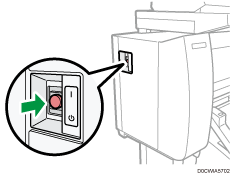
 Push the main power switch on the left side of the machine.
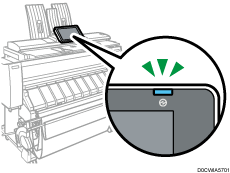
The main power indicator on the right side of the control panel turns on.

When the power is turned on, the screen may show that the machine is performing an auto restart. Do not turn off the main power while the machine is processing. It takes about 4 minutes until the machine restarts.
Turning Off the Main Power
Do not turn off the power while the machine is in operation. To turn the power off, confirm that the operation is finished.
Do not hold down the main power switch while turning off the main power. Doing so forcibly turns off the machine's power and may damage the hard disk or memory and cause malfunctions.
Do not press the main power switch repeatedly. When you turn the power on or off, wait at least 10 seconds after confirming that the main power indicator on the right side of the control panel has turned on or off.
Push the main power switch on the left side of the machine.
The main power indicator on the right side of the control panel turns off. The main power turns off automatically after the machine has shut down properly.
Energy Saving Mode
When the machine is not operated for a specified period of time, the machine enters the "Energy Saving mode" automatically. "Energy Saving mode" has two modes, "Low Power mode" and "Sleep mode", and the machine enters the Low Power mode first. In the factory default, the machine is configured to use both modes.
Low Power Mode
In this mode, the control panel display turns off and the main power indicator remains lit. If the machine is left idle for a specific time, it switches to Low Power mode.
You can change the amount of time that the machine waits before switching to Low Power mode under [Low Power Mode Timer].
If you touch the control panel in Low Power mode, the machine exits the mode and the control panel display turns on.
Sleep Mode
In this mode, the display of the control panel turns off and the main power indicator blinks slowly. Power consumption is minimized. When you do not operate the machine for a specified period of time or press [Energy Save] ( ), the machine enters Sleep mode.
You can specify the amount of time that the machine waits before entering Sleep mode under [Sleep Mode Timer].
The machine recovers from sleep mode and a screen appears when you touch the display on the control panel.
You can also set the machine to enter low power mode when you press [Energy Save] (
).The energy saving functions are disabled when an error occurs or while an operation is in progress.
The energy saving functions will not operate in the following cases:
When operations are suspended during printing
When a warning message appears
When paper is jammed
When the Data In indicator is lit or flashing
The machine does not enter Sleep mode in the following cases:
During communication with external equipment
When the hard disk is active
When the service call message appears
When the "Add Ink" message appears
When ink is being replenished
When one of the menus in the "Settings" screen is displayed
When data is being processed
When a recipient is being registered in the address list
When the sample print, locked print, hold print, or stored print screen is displayed
When the screen of a document that was stored under the printer function appears
When the internal cooling fan is active
When accessing the machine using Web Image Monitor