
Copying in Page Order or for Each Page Number
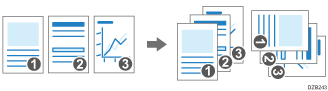
When copying two or more copies of multi-page originals, you can specify the page order as described below.
Sort
Copies in the order of the original.

Rotate Sort
Copies in the order of the original and outputs by rotating each copy set. Each copy set is output lengthwise and breadthwise alternately to identify each set.

To specify rotate sort, use two paper input locations and load the same size and type of paper in the locations in different orientations, vertically (
 ) and horizontally (
 ).If the paper cannot be set in horizontal () orientation, you cannot specify Rotate Sort. For details about the paper that can be loaded in Paper Input Location 1 or 2, see the following section:

When you use the paper that loaded into the paper bypass location, you cannot use the Rotate Sort function.
 Press [Copy] on the Home screen.

 Press [
 ] or [
 ] under [Quantity] on the Copy screen to specify the number of copies.
You can enter this using the keyboard after pressing [Quantity] or a number.
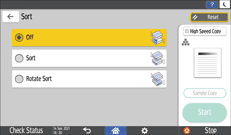
 Press [Sort] on the Copy screen.

 Select the function to specify.
 Place the original.
Basic Procedure for Copying Documents
The original is fed into the machine automatically, and copying starts. If the original is not fed automatically, press [Start]. After scanning all of the originals, press [Finish Scn] to copy the rest of the sets.
You can change the action to perform when paper or memory runs out during sorting under [Rotate Sort: Auto Paper Continue].