
Binding Copied Pages
You can use various bookbinding functions to finish the copied paper like a booklet.
Combine the functions according to the finishing style and the number of pages.

You need to attach the optional unit to the machine according to the function.
Type of Binding
Booklet
Copy four 1-sided originals or two 2-sided originals onto a single sheet of paper and fold it in half. Fold the paper in half sheet by sheet and stack the folded paper as shown below. The paper is bound in page order.
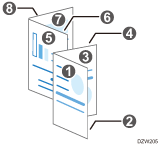
Finish the booklet by binding the stacked paper with paste or a binding strip. This function is recommended when no booklet finisher is installed or when you are binding a large number of pages.
Magazine
Copy several 1-sided originals or 2-sided originals onto a single sheet of paper. Stack all of the papers and fold them in half as shown below. The paper is bound in page order.
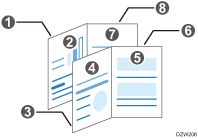
Staple the center of the paper to finish Magazine. This function is recommended when a booklet finisher is installed.
Booklet and Combine/Magazine and Combine
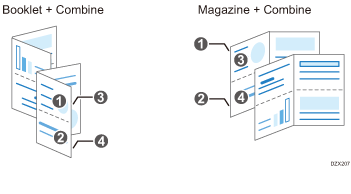
When you use the booklet or magazine function together with the combine function, you can copy multiple sheets of an original onto a single sheet of paper.
Functions Useful for Binding
Margin
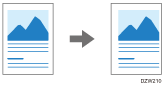
Copy an original with a margin added on one edge of the paper.
Use this function together with stapling or binding to bind the output sheets in a booklet that is easy to read.
Half Fold (Center Folding)
Fold the copied paper in half to finish it like a leaflet.
When combined with the binding or center stapling function, you can bind the output sheets to form a booklet with facing pages.
To fold the copied paper in half, the Booklet Finisher or the Internal Multi-Folding unit is required.
For details about the size and weight of paper and the number of sheets that you can fold in half, see the following section:
You cannot fold the following paper in half:
Prepunched*1
Tab Stock
Translucent Paper
Label Paper
Envelope
Letterhead*2
Cardstock*2
Coated: High Gloss*3
*1 Only for Booklet Finisher SR4160
*2 Only for Multi-Folding Unit FD4010/Multi-Folding Unit FD4020
*3 Only for Multi-Folding Unit FD4010
Booklet Copy
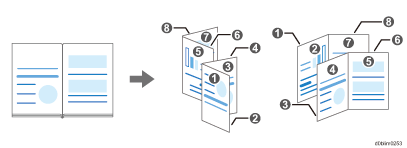
Copy a bound book in the format of Booklet or Magazine.
This function is available on machines implemented with RICOH Always Current Technology v1.2 or later.
Cover Sheet
Adds Front Cover and Back Cover to the printed matter. Paper for the cover sheet is fed from a different tray from that of the main paper. You can use paper of a different type such as thick paper for the cover sheet.
This function is available on machines implemented with RICOH Always Current Technology v1.2 or later.
When inserting a front cover, you cannot copy the text body on the paper of Bypass Tray.
The following types of cover sheet are available:
Front Cover
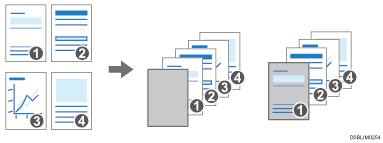
Inserts a cover sheet before the first page. You can also copy something onto the cover sheet.
Front & Back Cover
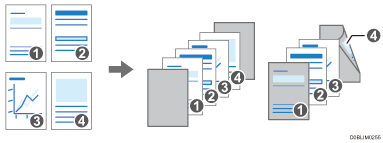
Inserts a cover sheet before the first page and after the last page of the original. You can also copy something onto the cover sheet.
Back Cover
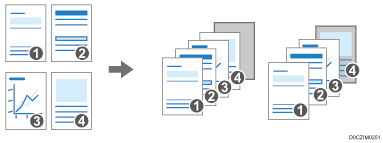
Inserts a cover sheet after the last page. You can also copy something onto the cover sheet.
Copying to Make a Booklet or Magazine
 Press [Copy] on the Home screen.
 Press [Book] on the Copy screen.

If the key is not displayed, select it from [2 Sided/Combine].
 Select the type of original and binding, and then proceed to the next screen.
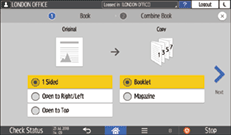
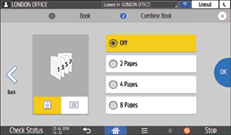
 Select the paper orientation, specify how many pages to combine on a single page, and then press [OK].
 Press [Paper Select] on the Copy screen to select the copy paper.
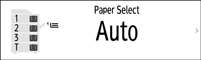
The copy ratio is automatically set in the range of 25 to 400% according to the size of the original and paper.
When you select Auto Paper Select, the paper is selected according to the original size and the combined number of pages.
 Specifying Half Fold (Center Folding) or Staple.
You cannot fold or staple the paper only by specifying binding. Specify Half Fold (Center Folding) or Staple according to the installed finisher.
To specify Half Fold (Center Folding), see the following sections:
When you select [Magazine], specify [Center] under Staple, and you can staple the paper at the center.
 Place the original.
 Press [Start].
When specifying Magazine or Staple and placing the originals on the exposure glass, press [Finish Scn] after scanning all of the originals.

You can specify the page opening direction of booklets and magazines in [Orientation: Booklet, Magazine] under [2 Sided / Combine].
Compensating for Creep Caused by Paper Thickness When Copying
When folding stacked paper, the thickness of the paper causes creep (progressive image loss) between the most inner and most outer pages. When [Magazine] is selected, you can specify the creep value (Creep Adjustment). For example, when folding 15 sheets, the creep value will be 2 mm (0.1 inches).
Press [Copy] on the Home screen.
Press [Book] on the Copy screen.
If the key is not displayed, select it from [2 Sided/Combine].
Select the type of original and press [Magazine], and then proceed to the next screen.
Specify how many pages to combine on a single page, and then press [Creep Adjustment].
Specify the creep adjustment value and press [OK] twice.
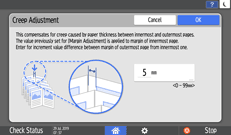
You can specify the creep adjustment value between 0 to 99 mm (0.0 to 3.9 inches) in 1 mm (0.1 inches) steps.
Place the original.
Press [Start].
Copying with a Binding Margin
Press [Copy] on the Home screen.
Press [Margin Adjustment] on the Copy screen.

If the key is not found, select it from [Edit/Color].
Specify the width of binding margins on the front and back sides, and then press [OK].
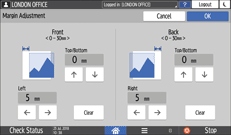
Specify stapling and binding to finish like a booklet.
Place the original.
Press [Start].
When specifying Magazine or Staple and placing the originals on the exposure glass, press [Finish Scn] after scanning all of the originals.
You can change the default value of the margin of the front and back sides by specifying the margin under [Edit / Stamp].
Moving the Scanning Position When Copying
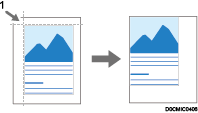
Point from which the machine begins scanning
Press [Copy] on the Home screen.
Press [Scan Position] on the Copy screen.
If the key is not displayed, select it from [Edit/Color].
Specify the scanning position for the front side and back side of the original, and then press [OK].
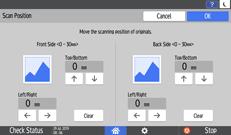
You can move the scanning position up to 30 mm (1.2 inches) in 1 mm (0.1 inches) increments upward, downward, to left and to right.
The scanning position for the back side of the original is valid only when you are copying two-sided originals.
Place the original.
Press [Start].
Press [
 ] and [
 ] to specify the top or bottom position. Press [
 ] and [
 ] to specify the left or right position.
If you are copying one-sided originals with duplex printing enabled, odd pages will be printed using the scanning position specified for the front sides of originals, and even pages will be printed using the scanning position specified for the back sides of originals.
Folding the Copied Paper in Half
Press [Copy] on the Home screen.
Press [Center Folding] on the Copy screen.

If the key is not displayed, select it from [Finishing].
For details about folding the copied paper in half with the Multi-Folding unit by pressing [Fold], see the section below:
Select the Print Side, and then press [OK].
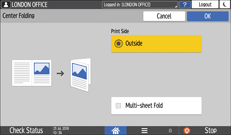
When Booklet Finisher SR4160 is attached to the machine, you can specify whether to use the Multi-sheet Fold function. When you specify the Multi-sheet Fold function, the Mixed Sizes function cannot be used.
When you specify [Center Folding] and [Book], the original is copied on both sides of the paper according to the settings for Booklet regardless of the setting of printing side for Center Folding.
Specify stapling and binding to finish like a booklet.
Place the original.
Press [Start].
When specifying Magazine or Staple and placing the originals on the exposure glass, press [Finish Scn] after scanning all of the originals.
The machine outputs the copied sheets automatically for every maximum number of folding.
Copying and Binding in Booklet Copy
Select the opening type of the original and binding type at finishing, and configure the cover sheet.
Press [Copy] on the Home screen.
Press [Booklet Copy] on the Copy screen.

If the key is not found, select it from [2 Sided/Combine].
Select the Orientation and Binding Type, and proceed to the next screen.
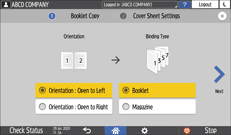
Specify whether to copy the cover sheet, and then press [OK].
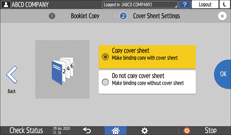
Press [Booklet CopyTo Next].
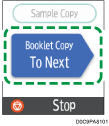
Follow the on-screen instructions to scan the cover sheet and inside pages of the source book on the exposure glass.
After scanning all of the originals, press [Finish Scn].
You can specify the page opening direction of booklets and magazines in [Orientation: Booklet, Magazine] under [2 Sided / Combine].
Copying with Cover Sheets
Specify the paper tray from which to feed a sheet for the cover sheet, and specify the type of cover sheet.
Press [Settings] on the Home screen.
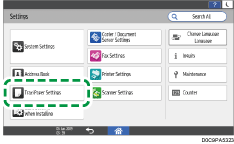
Press [Tray/Paper Settings].
Press [Common Settings/Others] [Front Cover Sheet Tray] or [Back Cover Sheet Tray], and specify the tray to feed cover sheets.
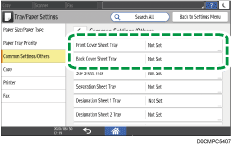
The paper to use for the cover sheet must be the same size and orientation as the paper for the body text.
Press [OK].
Press [Home] ( ) after specifying the settings.
Press [Copy] on the Home screen.
Press [Cover Sheet] on the Copy screen.

If you cannot find the key, select it from [Finishing].
Select the type of the cover sheet to insert, and specify whether to copy on the cover sheet.
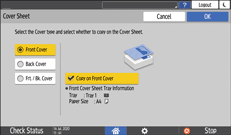
 Press [OK].
 Place the original.
 Press [Start].
When you do not copy on the cover sheet, the cover sheet is not counted as the number of copies.
In [Front Cover Copy in Combine], you can change the setting to not combine the front cover only.
When copying on the back side of the cover sheet in 2-sided copy mode, set as follows according to the settings of the machine.
When [Tray/Paper Settings]
[Common Settings/Others][Front Cover Sheet Tray] or [Back Cover Sheet Tray][Display Time] is set to [At Mode Selected], set [Front Cover Sheet Tray] or [Back Cover Sheet Tray][Apply Duplex] to [Yes].When [Tray/Paper Settings]
[Common Settings/Others][Front Cover Sheet Tray] or [Back Cover Sheet Tray][Display Time] is set to [Full Time], select the [Apply Duplex] check box of the tray to feed cover sheets in [Paper Size/Paper Type].