Printing from a USB Flash Memory Device Directly
You can connect a memory storage device to the media slot of the machine and print the files stored on it. Use this to print external data easily.

|

USB flash memory device is supported for direct printing. However, certain types of USB flash memory device cannot be used.
The machine cannot print a document over 1 GB.
You can select up to 100 files within 1 GB total.
If the print job of PDF file is canceled, execute printing from a PDF viewer such as Acrobat Reader while using the printer driver.
File format |
Details |
|---|---|
JPEG files |
Exif version 1.0 or later |
TIFF files |
Uncompressed TIFF files TIFF files compressed using the MH, MR, or MMR method |
PDF files |
PDF version 1.7 (Acrobat 8.0 compatible) or earlier*1 |
XPS files |
Possible for all XPS files |
*1 The machine does not support the following functions: Crypt Filter, DeviceN Color Space (more than eight components), watermark note, optional contents (version 1.6), AcroForm
The PDF file of a custom size may not be printed.
On the Home screen, press [Print/Scan (Memory Storage Device)]
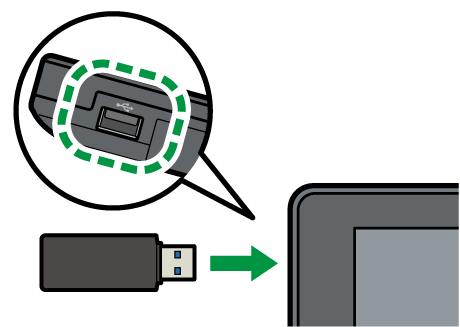
Insert a memory storage device in the media slot on the side of the control panel.
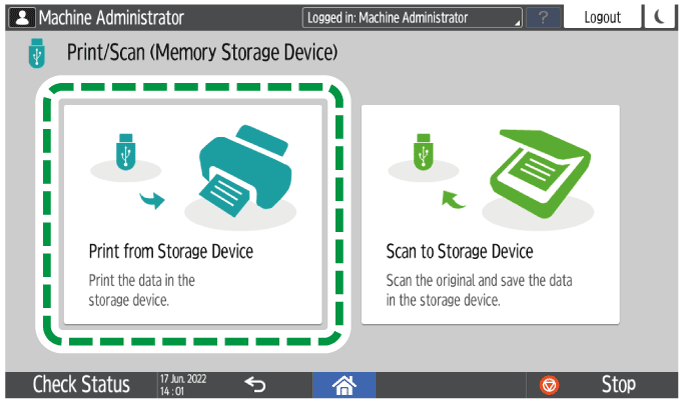
On the Print/Scan (Memory Storage Device) screen, press [Print from Storage Device]
Select the file to print.
Files in the external media are displayed as icons or thumbnail images.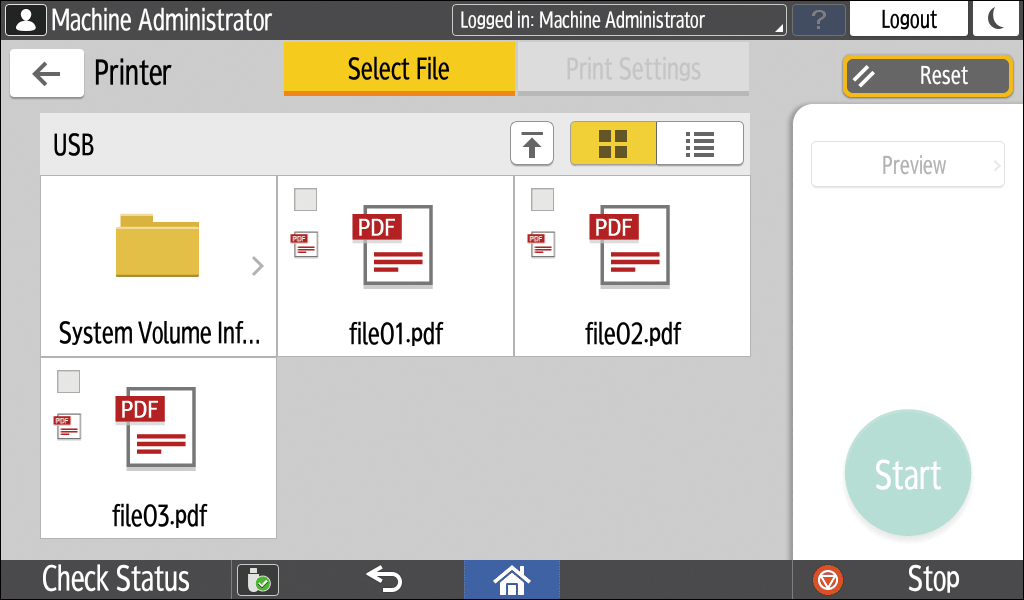
Press [Print Settings] to specify the settings of 2-Sided Print or Finishing as necessary.
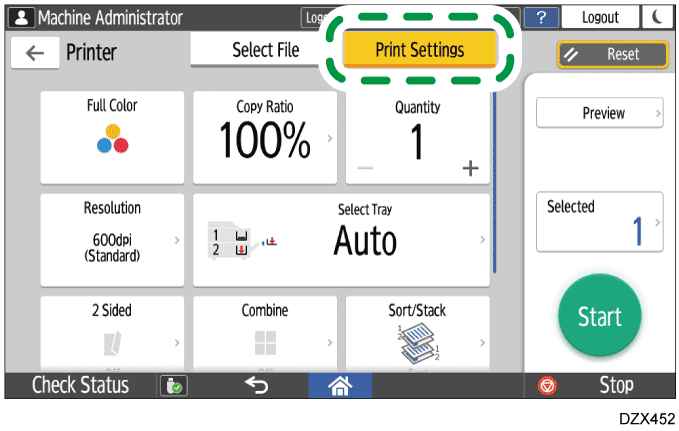
Full Color: Select whether to print in color. The machine may print a document that appears to be black-and-white in color printing mode. To print a document in full black-and-white, select [Black and White].
Copy Ratio: Select whether to print in the original size or to reduce or enlarge to match the paper size.
Quantity: Enter the print quantity.
Resolution: Select the resolution of the image to print.
Select Paper Tray: Select the paper tray.
2 Sided: Select the opening direction of the printed sheet.
Combine: Select whether to combine multiple pages into a sheet.
Sort/Stack: Select whether to print in ordered sets or in a batch page by page.
Book: Select the opening direction of the Magazine binding. You can specify the setting of Magazine binding only when printing a file in the PDF/XPS format.
Staple: Select the staple position.
Punch: Select the punch position.
Fold: Select the type of fold or printing side.
Press [Start] to start printing.