Erasing Shadow and Border When Copying a Book-type Original
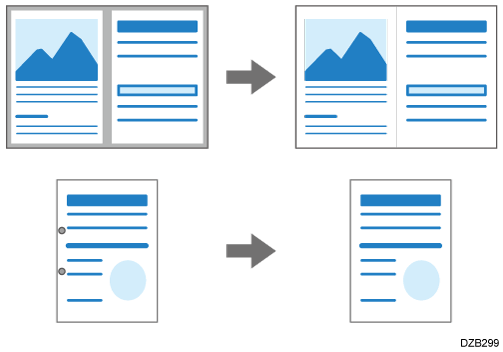
You can erase the shadow in the center and on the four sides of the original when copying a thick book or original with punch holes.
Press [Copy] on the Home screen.

Press [Edit/Color]
 [Erase Center/Border] on the Copy screen.
Select the part to erase, and then proceed to the next screen.
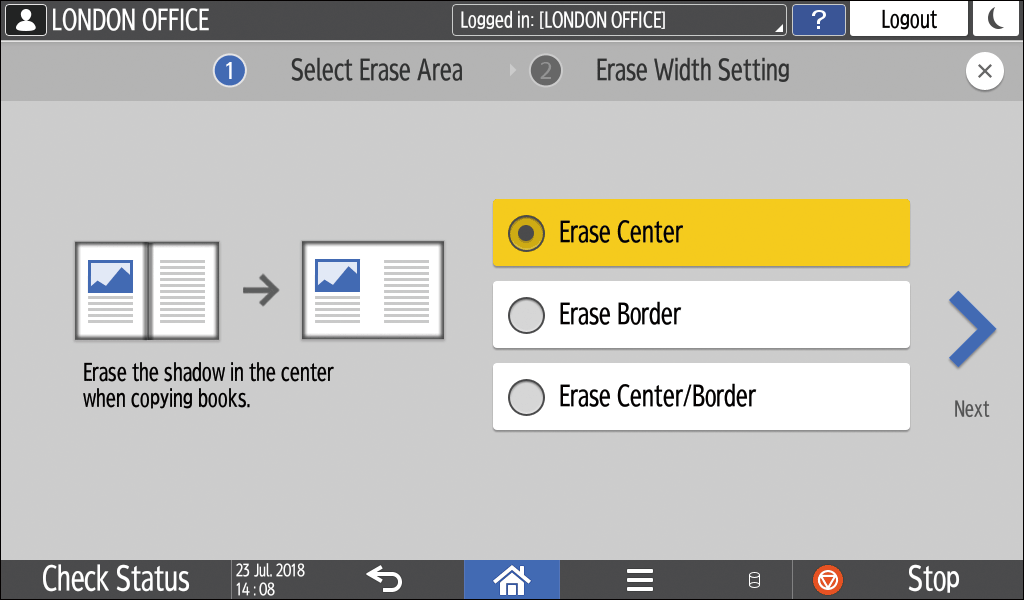
Enter the width of the shadow to erase, and then press [OK].
To enter the same value for erasing widths of shadows when Erase Border or Erase Center/Border is selected, select [Input by same width].Place the original.
Basic Procedure for Copying DocumentsPress [Start].

You can change the value displayed in Step 4 to the frequently used value in [Erase Border] and [Erase Center Width].
Erase