Using the Secure Tray (IM 460FTL Only)
Keys are provided with the manuals when you purchase a main unit. Keys are stored in the tray when you purchase an optional paper feed unit.
To lock a paper tray, turn the key to the left. Make sure that the paper tray is locked.
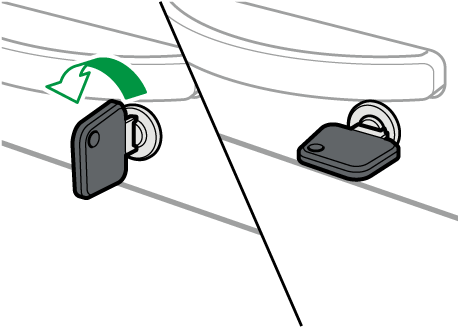
From the control panel, you can restrict the use of secure trays. When the restriction using secure tray mode is enabled, printing from selected trays becomes impossible.
Tray/Paper Settings Items
The following types of label have been evaluated for the machine:
“LB2-ADULT-L3”, “LB2-ADULT-L3-1X2”, “LB2-ADULT-L3Z”, “LB2-PED-L3”, “LB2-PED-L3-1x2”, “LB2-102W3”, “LB2-L3-FAMILY-NUM”, “LB2-BABY-TLC” (Zebra), “TM-PEDS-CLR”, “TM-SRC-02”, “TM-PLS-102A”, “TM-PLS-WH”, “TM-PLS-102”, “9200-00-PDR”, “WBW31”, "EMARWB1", “TMB-3” (CCL)
To use a type of label paper not listed above, be sure to evaluate the paper before using it in the machine.When printing on label paper, be sure to use a paper tray for label paper. Resin sheets are attached on the side paper guides of the paper tray.
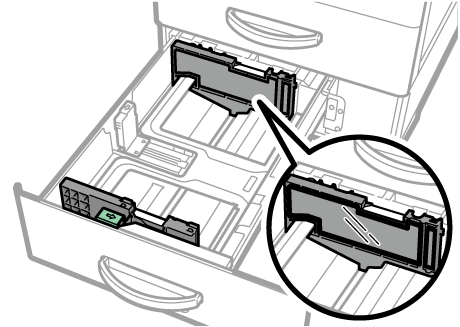
When printing on label paper (including wristbands), you cannot specify settings for labels by selecting Paper Type. Please select Thick Paper 3.
When using label paper with punched holes, load the paper so the holes are in the back of the paper tray.
If a barcode printed on label paper (including wristbands) cannot be read correctly, change the print settings to the ones described below:
Print resolution: [1200 x 1200 dpi] or [1200 x 1200 dpi equivalent (Speed)]
Basic Procedure for Printing DocumentsDepending on the types of paper, sheets of paper may not be stacked in the correct order on the paper tray. If this is the case, remove prints one by one.
When a set of label paper is stacked up to the limit mark indicated in the paper tray, multiple sheets may be fed or jammed. If this is the case, reduce the number of sheets stacked in the tray.
Do not place another piece of label paper on the stacked label paper in a paper tray. Otherwise, multiple sheets may be fed or other paper feeding problems may occur.
To prevent such a problem, fan a set of label paper before loading it in the paper tray, and then print shortly after loading the paper.
If printed images are skewed, align the rear edge of paper when loading it in the paper tray.
Before loading label paper, make sure that any adhesive is not attached to the edges of the paper. Loading label paper with adhesives may cause paper jams.
Do not use curled or deformed label paper. Otherwise, a paper feeding problem may occur.
To prevent a paper feeding problem, make sure to regularly remove paper dust or adhesives from the paper path in the machine.
To prevent label paper from absorbing moisture from the air, seal it completely in a container when storing it. Paper that becomes curled or wavy due to humidity can cause paper jams.
If you consistently use one type of label paper, the characteristics and conditions of the paper that affects paper conveyance may vary even with the same product. When a problem occurs, stop using the paper, and then consult the distributor of the paper.
If you use curled label paper, printed images may become blurred. If this happens, use the bypass tray and load the paper in the direction of
 to print label paper.
Do not use label paper with bent corners.
Do not use label paper with protruding adhesive material.
If you use label paper with a portion coated in film on the non-printable area, load it so the film portion is on the upstream side of the paper feed direction.
If you use label paper with a portion coated in film on the non-printable area, fan the paper before you load it.
If a double-feed occurs, even if you have fanned the paper, load the sheets of paper one by one.
If the paper does not feed even when you load the sheets one by one, load the sheets of paper on the bypass tray one by one. When you load the paper on the bypass tray, make sure the film portions do not touch the paper guide on the bypass tray.Label paper with a portion coated in film on the leading edge that is made of high resistance material cannot be used. Use the bypass tray for such paper.
Remove the printed sheets of paper one by one if they do not align or if they curl or jam.
If the printed image is being transferred to the back of the paper as printouts are stacked, remove the printed sheets of paper one by one.
If double-feed occurred, printed images may be blurred.