Saving Documents in Document Server
You can save documents scanned from the Copy screen in the document server.
You can check the saved documents on the document sever screen. For details about the document sever, see the following section:
Checking Information about Documents in Document Server

Documents saved in the document server are deleted automatically after three days (72 hours) in the factory-default configuration. You can change the period until documents are deleted or specify not to delete documents automatically.
Changing the Storage Period of Document Server or Specifying an Indefinite Period
Press [Copy] on the Home screen.
Press [Original Setting/Store File]
 [Store File] on the Copy screen.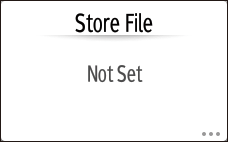
Specify the file name, the folder to save documents, and other settings, and then press [OK].
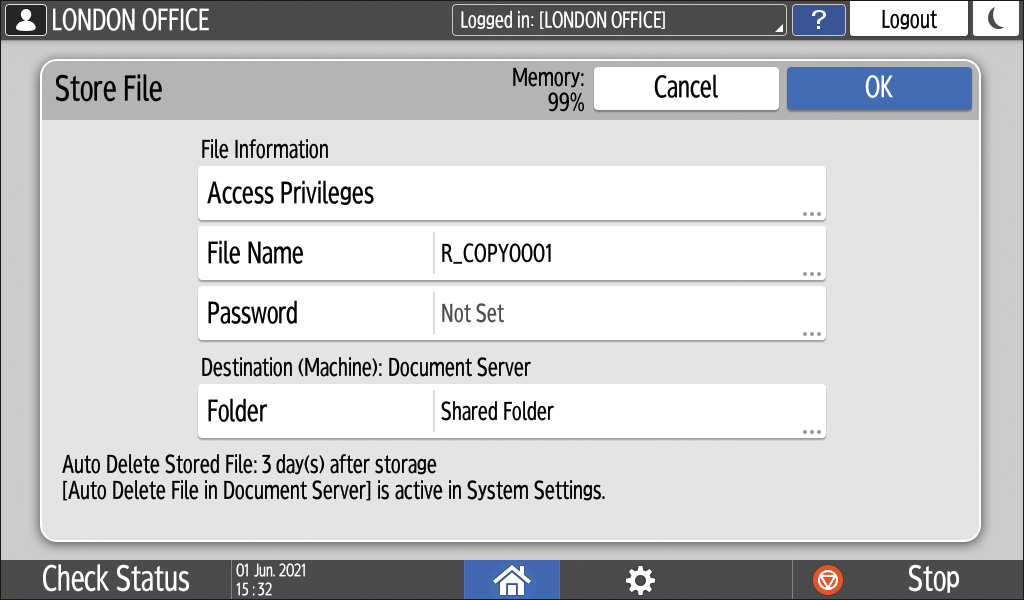
For detailed information of each item, see the following section:
Saving Documents in Document ServerSpecify the scanning conditions such as original size.
Specify the copy settings.
Place the original.
Basic Procedure for Copying DocumentsPress [Start].
When you place the original on the exposure glass, saving document after press [Finish Scn] after scanning all originals.