
When the Copied Image Does Not Appear as Desired

When confirming or changing the settings in [Settings], press [Home] (
 ) after closing [Settings].
Condition | Cause | Solution and reference |
|---|---|---|
Line smears appear on the copied image. | The ADF, exposure glass, or scan glass is dirty. |
|
White lines appear on the copied image. | The exposure glass, scan glass or dust-proof glass is dirty. |
|
Toner has run out. | When the “Add Toner” message is displayed on the screen, replace the toner. | |
White bands appear on transparent film. | Paper powder rubbed off from the paper and is adhering to the transparent film. | Wipe the front and back sides of the transparent film with a dry cloth. |
White spots or smears in the form of water droplets appear on the copied image. | The moisture in the paper has evaporated and condensed on the surface. |
|
The background color appears dirty. | [Density] is set too high, or [Auto Density] is not specified when copying an original on colored paper such as newspaper. | Reduce [Density]. When scanning an original on colored paper, select the [Density] |
Black spots appear on the copied image. | The original is a glossy photo (printed/developed photo) and it adheres on the exposure glass due to high humidity. | Perform one of the following measures and copy the original again.
|
Horizontal lines appear on the copied image. | The machine may have been subject to strong impact. |
|
Toner smears appear on the printed sheets. | The paper is curled or bent. | Flatten out the paper before loading it. |
When removing a jammed sheet, the inside of the printer may have become dirty. Smears may appear on the back side of the paper when you print a file immediately after printing a page whose document size is larger than the paper size. | Print several sheets until they come out clean. | |
The copied images appear faded. | [Density] is set too low. | Increase [Density]. |
Coarse paper or paper with a treated surface is used. | Use recommended paper. | |
The paper contains too much moisture. | Use paper that has been stored in a dry environment. | |
Toner has run out. | When the “Add Toner” message is displayed on the screen, replace the toner. | |
Condensation may have occurred. | If rapid change in temperature or humidity occurs, use this machine only after it has acclimatized. | |
Some blank spots appear on the copied image. | The paper contains too much moisture. |
|
Some areas on the original are missing on the copied image. | The position the original is placed or the paper size setting is incorrect. |
|
An artifact that is not on the original exists on the copied image. | The ADF, exposure glass, or scan glass is dirty. |
|
Text appears on the copied image, or the images in the copied page are filled in gray tone. 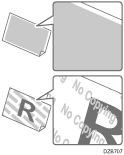 | The unauthorized copy prevention function is applied on the original that was copied. | You cannot copy the original. |
The backside of the original is visible on the copied image. | [Density] is set too high, or the original is too thin. | Reduce [Density]. When scanning a thin original, select the [Density] |
A shadow appears on the overlapping region. | [Density] is set too high. | Reduce [Density]. |
There is a problem with the original. | Apply mending tape on the overlapping region. | |
Moire appears on the copied image.  | The original is placed in an orientation in which moire is likely to occur. | Change the orientation the original is placed. |
The original probably has heavily lined or dotted areas. | Select [Original Setting] | |
The shading level in the areas of halftones appears differently from the original. | [Text/Photo] is selected in [Original Type]. | Select [Original Setting] |
The copied image is slanted. | The original is fed slanted. | Check that the original is placed on the machine correctly. When placing an original in the ADF, check that the original guide is set properly. |
Paper is fed slanted. | Check that the side fences in the source tray are correctly set. | |
The top margins on the copied images vary. | The paper loaded for copying is too thin or too thick. | Check the thinness of paper that can be used on the machine. Recommended Paper Sizes and Types When the paper thickness is close to the minimum or maximum paper thickness, specify [Paper Thickness] accordingly in [Settings] |
The print quality is not consistent. | There is a problem with the machine's location. |
|
The print quality deteriorated. | A non-genuine print cartridge is being used. | Refilled or non-genuine print cartridge reduces print quality and may cause malfunctions. Use genuine print cartridge only. |
An old print cartridge is being used. | Print cartridge should be opened before their expiration date and used within six months after being opened. |
