Encrypting Data to Prevent Data Leaks Caused by a Stolen or Disposed Machine
By encrypting data on the internal storage of the machine, you can prevent possible data leaks when you replace or dispose of the machine, or even if the machine were to be stolen.
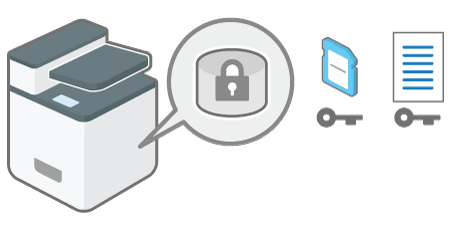
Encrypting data on the internal storage
Encryption is an effective measure against data leaks. Be sure to keep the encryption key secure to use for decryption. Print it on a sheet or save it to a USB flash memory device.
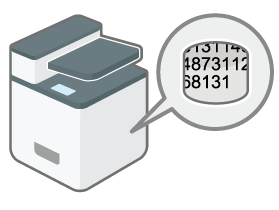
Overwriting data to prevent restoration
You can delete data that you do not want to be restored. The Erase All Memory function deletes all data and initializes the internal storage of the machine.

|
You can encrypt data contained in the Address Book, authentication information, and stored documents to prevent data leaks in case the internal storage is removed from the machine.
Once encryption is enabled, all data subsequently stored on the machine will be encrypted.
The encryption algorithm used in the machine is AES-256.

The machine cannot be operated while encrypting data, updating the encryption key, or canceling encryption.
Do not turn off the power of the machine while encrypting data, updating the encryption key, or canceling encryption. If you turn off the power, the internal storage may be damaged and all data may be unusable.
If the encryption key update was not completed, the created encryption key will not be valid.
After completing this procedure on the machine's control panel, turn off the main power and restart the machine to enable the new settings by turning it back on. Restarting can be slow when there is data to be carried over to the internal storage.
The encryption process takes several hours. Once the encryption process starts, it cannot be stopped.
The encryption key is required for data recovery or migration to another machine. Be sure to keep the encryption key secure by printing it on a sheet or storing it in a USB flash memory device.
To transfer data from the machine to another machine, you must decrypt the encrypted data. Contact your service representative for data migration.
If you specify both the Erase All Memory function and the encryption function, the Erase All Memory function is performed first. Encryption starts after the Erase All Memory function has been completed and the machine has been rebooted.
If you use the Erase All Memory function and the encryption function simultaneously, and select overwrite 3 times for the Random Numbers overwriting method, the process will take up to 3 hours and 15 minutes. Re-encrypting from an already encrypted state takes the same amount of time.
Rebooting will be faster if there is no data to carry over to the internal storage and if encryption is set to [Format All Data], even if all data on the internal storage is formatted. Before you perform encryption, we recommend you back up important data such as the Address Book and all data stored in the machine.
When disposing of a machine, completely erase the memory. For details about erasing all the memory, see Initializing the Machine with the Erase All Memory Function.
Log in to the machine as the machine administrator on the control panel.
Logging in to the Machine as an Administrator
When custom-privileges administrators are registered, you can log in to the machine as a custom-privileges administrator with the File Management privilege as well.
Logging in to the Machine as a Custom-Privileges AdministratorOn the Home screen, press [Settings].

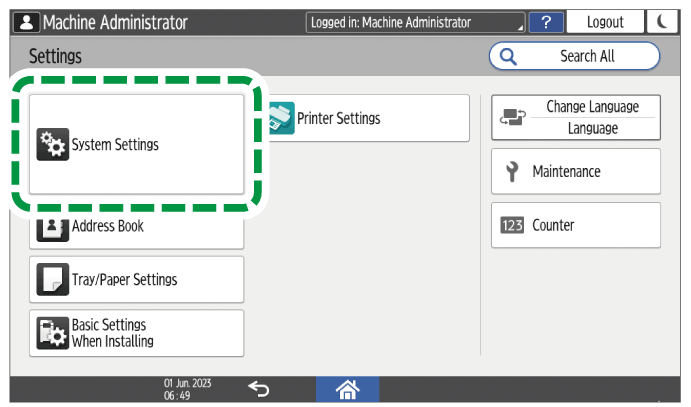
Press [System Settings].
Press [Settings for Administrator]
 [File Management] [Machine Data Encryption Settings].
Press [Encrypt].
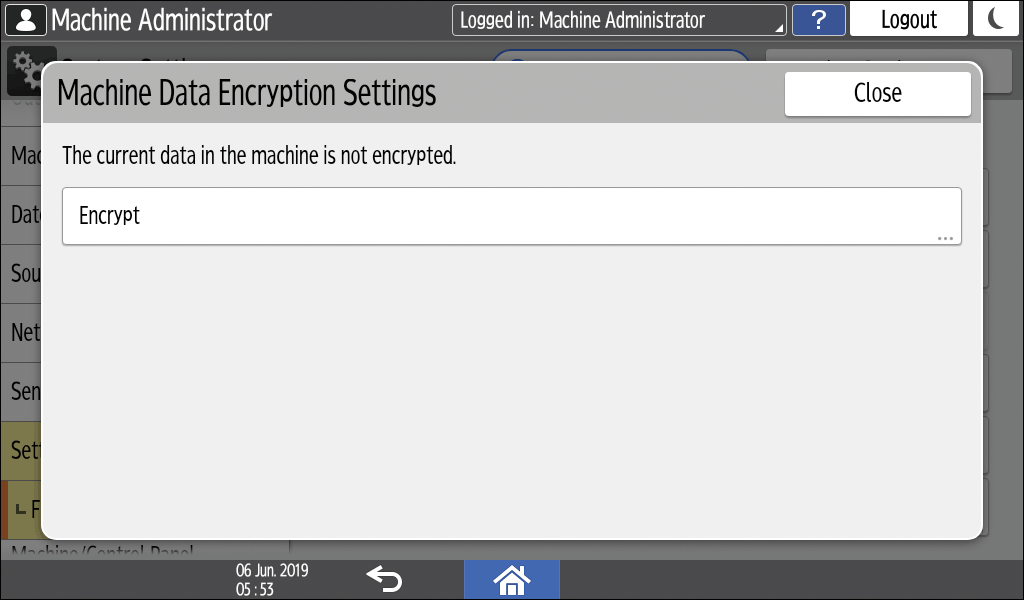
If the data has been encrypted, you can decrypt the data, update the encryption Key, or back up the data.
Update Encryption Key: Encrypts data again and creates a new encryption Key.
Cancel Encryption: Cancels encryption.
Back Up Encryption Key: Makes a backup of the encryption key. The encryption setting is not changed. Proceed to Step 7
Select one of the options from among [All Data], [File System Data Only], and [Format All Data] to encrypt the data.
The initial settings of the machine are not initialized regardless of the option you select.
All Data: Encrypts all data.
File System Data Only: The following data are encrypted or initialized:
Data that are encrypted
Address Book, registered fonts, job logs, access logs, sent/received e-mail, spooled jobs
Data that are initialized
Stored documents (documents related to Locked Print/Sample Print/Stored Print/Hold Print), registered data (stamps/forms)
Format All Data: Initializes all data without encryption. The NVRAM data (memory that remains even after the machine is turned off) will not be deleted (initialized).
Select the location to store the encryption key.
Save to Media: Saves the encryption key to a USB flash memory device. Insert a USB flash memory device into the media slot, and then press [Save to Media]
[OK].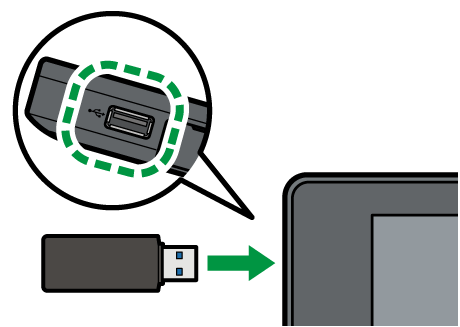
Print on Paper: Prints the encryption key on a sheet of paper. Press [Print on Paper]
[Print].
Press [OK].
When the confirmation dialog is displayed, press [Exit].
Press [Home] (
 ), and then log out of the machine.
Turn off the main power of the machine, and then turn it back on.
When the main power is turned on, the machine starts to convert the data on the memory. Wait until the message "Memory conversion complete. Turn the main power switch off." appears. After that, turn off the main power again.
Overwrite and erase all data stored on the internal storage when you relocate or dispose of the machine. The device settings stored on the machine's memory are initialized.
For details about using the machine after executing Erase All Memory, contact your service representative.
If the main power switch is turned off before the Erase All Memory process is completed, overwriting will be stopped and data will be left on the internal storage. Do not stop the overwrite mid-process. Doing so will damage the internal storage.
Before you start the Erase All Memory process, we recommend that you back up the user codes, the counters for each user code, and the Address Book. You can back up the user codes and the counters for each user code using Device Manager NX. For details, see Device Manager NX Help. You can back up the Address Book using the control panel.
If the method of Random Numbers is selected and overwrite three times is set, the Erase All Memory process takes up to 2 hours and 30 minutes. You cannot operate the machine during overwriting.
The Erase All Memory function also clears the machine's security settings, so that neither machine nor user administration will be possible. Ensure that users do not save any data on the machine after the Erase All Memory process is completed.
Log in to the machine as the machine administrator on the control panel.
Logging in to the Machine as an Administrator
When custom-privileges administrators are registered, you can log in to the machine as a custom-privileges administrator with the Data Management privilege as well.
Logging in to the Machine as a Custom-Privileges AdministratorOn the Home screen, press [Settings].
Press [System Settings].
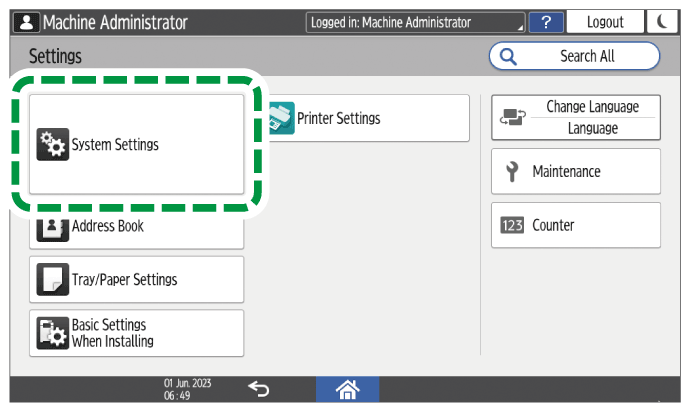
Press [Settings for Administrator]
[Data Management] [Erase All Memory].From the list next to Erase Method, select an erase method.
The default erase method is [Random Numbers], and the default number of overwrites is [3].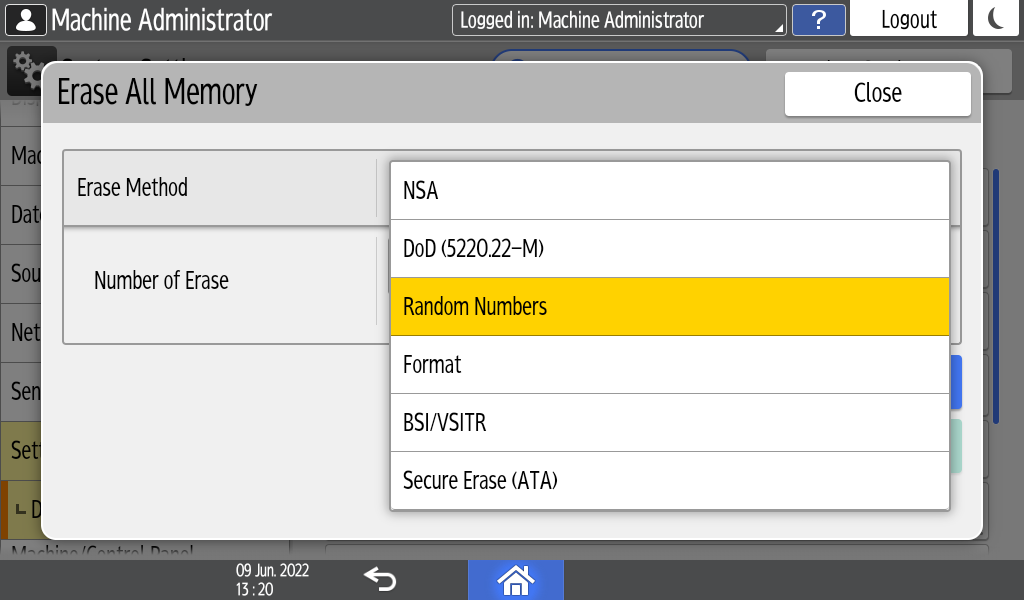
NSA*1: Overwrites data twice with random numbers and once with zeros.
DoD (5220.22-M)*2: Overwrites data with a random number, then with its complement, then with another random number, and the data is verified.
Random Numbers: Overwrites data multiple times with random numbers. Select the number of overwrites from one to nine.
Format: Formats the internal storage. Data is not overwritten.
BSI/VSITR: Overwrites data seven times with the fixed value (for example: 0x00).
Secure Erase (ATA): Overwrites data using an algorithm that is built in to the internal storage.
*2 Department of Defense (U.S.A)Press [Erase].
Press [Yes].
When the Erase All Memory process is completed, press [Exit], and then turn off the main power of the machine.

If the main power of the machine is turned off before the Erase All Memory process is completed, overwriting will start over when the main power is turned back on.
If an error occurs before overwriting is completed, turn off the main power of the machine. Turn it back on, and then repeat from Step 1.
To print the erase result, press [System Settings]
[Settings for Administrator] [Data Management] [Erase All Memory], and then press [Print Report].Initialize the settings on the control panel as necessary. Press [System Settings]
[Settings for Administrator] [Data Management] [Restore Default Control Panel Settings] to initialize the data, including the individual application settings and cache memory.