
Deleting Documents Stored in the Machine
Certain types of documents stored in the machine are deleted automatically.
Stored document (Stored Print)
Documents for Stored Print are automatically deleted after 72 hours (three days).
You can change the period to wait before deleting the documents in [Printer Settings] [Data Management/Maintenance][Print Jobs][Auto Delete Stored Print Jobs].
Documents stored temporarily (Sample Print/Locked Print/Hold Print)
Specify whether to delete automatically.
[Printer Settings][Data Management/Maintenance][Print Jobs][Auto Delete Temporary Print Jobs]
Delete each document manually to increase the amount of data space or to clean the memory space.

You can delete all documents that are not locked by password.
On [Delete All Stored Print Jobs] or [Delete All Temporary Print Jobs] of [Printer Settings]
[Data Management/Maintenance][Print Jobs], you can delete all documents at once including password-protected documents.
 On the Home screen, press [Quick Print Release].

 On the Quick Print Release screen, select the user ID of the document to delete.
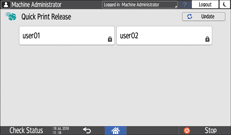
When you are prompted to enter a password, enter the password.
You can also use your smart device for authentication instead of entering the password.
Connecting a Mobile Device to the Machine
Password-protected documents ( ) corresponding to the entered password and documents without password are displayed.
 Select the document to delete.
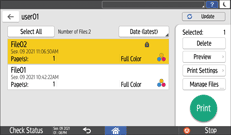
To select all documents, press [Select All].
 Press [Delete] twice.