
Registering Frequently Used Settings as a Program
You can register a "program" made of a combination of the functions used in the Copy or Scanner.
You can load the registered program easily from the application screen.
When you press the icon of a program on the Home screen, the machine applies the settings and performs the function registered in the program automatically.
You can register the following number of items as programs.
Copy: 25 items
Scanner: 100 items
You can prohibit users other than the machine administrator from registering a program.

You cannot register the following settings as a program:
Copy
Orientation of [Combine]
Scanner
[Sender], [PDF Security Settings], Start Number
You can register a destination on the program of the scanner function only when [Program Setting for Destinations] of [Scanner Settings] is set to [Include Destinations].
When [Program Setting for Destinations] of [Scanner Settings] is set to [Exclude Destinations], the destination registered on the recalled program in the scanner function is not displayed.
A folder destination with a destination protection code cannot be registered on a program of the scanner function.
Registering Settings as a Program
First, configure the settings to be registered on the Copy or Scanner screen, and then register them.
 On the Home screen, press [Copy] or [Scanner].
If the icon is not displayed on the Home screen, add the icon from the application list screen.
Adding a Frequently Used Application or Widget to the Home Screen
 Specify scan and output settings to be registered as a program.
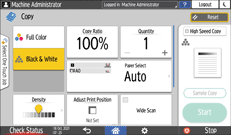
 Press [Menu] (
 ).
).
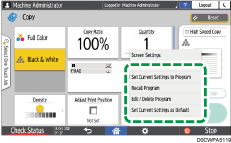
 Press [Set Current Settings to Program].
 Press a program number to register the settings.
 Enter a program name and select an icon.
 Press [Prev. Screen]
 [OK].
[OK].
 Press [Place].
The selected icon is displayed on the Home screen.
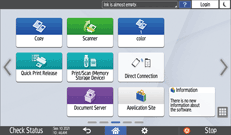
Even if you select [Do not Place], you can add shortcuts to the program to the Home screen after the program registration is complete.
 Press [Exit].
Changing the Contents of the Program
You can change a part of the program and overwrite it or change the contents and register them as a new program.
On the Home screen, press [Copy] or [Scanner].
If the icon is not displayed on the Home screen, add the icon from the application list screen.
Adding a Frequently Used Application or Widget to the Home Screen
Press [Menu] (), and then press [Recall Program].
Press the program number to be changed.
Change the scan and output settings.
Press [Menu] (), and then press [Set Current Settings to Program].
Select a program number to register the changed settings.
To overwrite the program, select the number of the loaded program, and then press [Program] on the message appears.
To register the contents as a new program, select a number that is not programmed.
Enter a program name and select an icon.
Press [Prev. Screen][OK].
Press [Place].
Even if you select [Do not Place], you can add shortcuts to the program to the Home screen after changing the settings of the program is complete.
 Press [Exit].
To change the icon or program name or to delete the program, press [Menu] (
) and operate from [Edit / Delete Program].