
Installing the Printer Driver for LPR Printing
To print using the LPR port, add the LPR port and install the printer driver.

Select the "LPR Port Monitor" check box of [Print and Document Services] in [Turn Windows features on or off] in advance.
Installing the PostScript 3 Printer Driver from the CD-ROM
 Set the CD-ROM in the computer.
If the installer does not start automatically, double-click [Setup.exe] in the Windows folder of the CD-ROM.
 Select a language, and then click [OK].
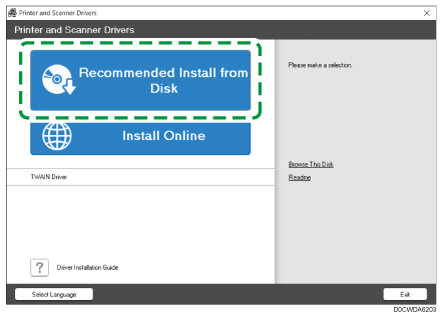
 Click [Recommended Install from Disk].
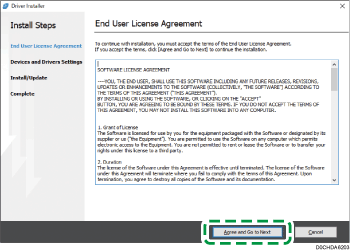
 On the "End User License Agreement" screen, click [Agree and Go to Next].
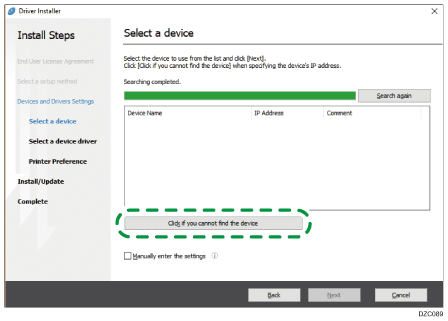
 Click [Click if you cannot find the device].
If the "Network Connection Error" screen is displayed, click [OK].
 Select [Specify device name], and then click [Next].
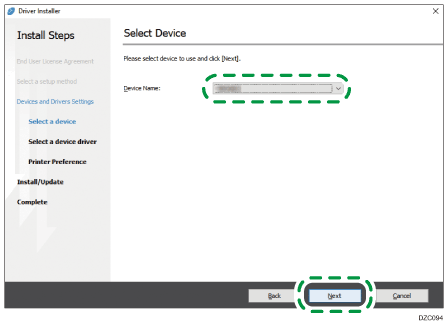
 Select the machine to use, and then click [Next].
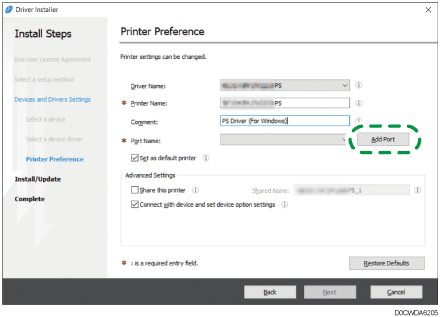
 On the "Printer Preference" screen, click [Add Port].
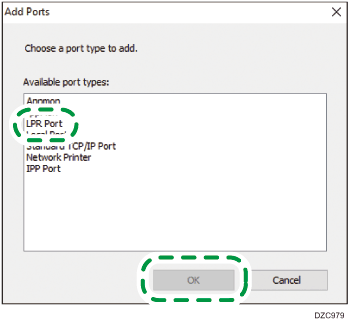
 Select [LPR Port], and then click [OK].
 Enter the information of the port and click [OK].
Name or address of server providing lpd: Enter the IP address of the machine.
Name of printer or print queue on that server: Enter "lp".
 Check that "(IP address of the machine): lp" is displayed in "Port Name" on the "Printer Preference" screen.
 Configure the items of "Advanced Settings" if required, and then click [Next].
Printer driver installation starts.
Consult your administrator if the advanced settings are necessary.
 When the installation is complete, click [Finish].
Installing the Printer Driver from the Downloaded File
Double-click the downloaded file.
If the "Security Warning" screen is displayed, click [OK].
If the "User Account Control" screen is displayed, click [Yes] or [Allow].
On the "End User License Agreement" screen, click [Agree and Go to Next].
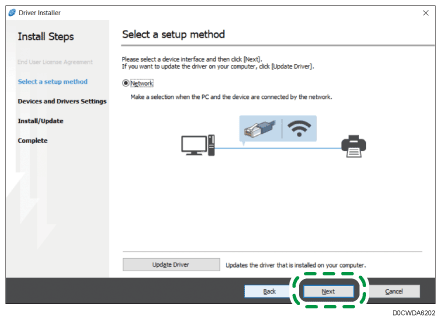
Select [Network], and then click [Next].
Click [Click if you cannot find the device].
If the "Network Connection Error" screen is displayed, click [OK].
Select [Specify device name], and then click [Next].
Select the machine to use, and then click [Next].
On the "Printer Preference" screen, click [Add Port].
Select [LPR Port], and then click [OK].
Enter the information of the port and click [OK].
Name or address of server providing lpd: Enter the IP address of the machine.
Name of printer or print queue on that server: Enter "lp".
Check that "(IP address of the machine): lp" is displayed in "Port Name" on the "Printer Preference" screen.
Configure the items of "Advanced Settings" if required, and then click [Next].
Printer driver installation starts.
Consult your administrator if the advanced settings are necessary.
When the installation is complete, click [Finish].