
Printing on Envelopes
Load envelopes in the bypass tray or paper tray.
Load envelopes in the machine and change the Tray Paper Settings in the Control Panel.
Printing on Envelopes Loaded on the Bypass Tray
 Load an envelope in the Bypass Tray.
Types and orientations of envelopes | Bypass Tray |
|---|---|
Side-opening envelopes  |  Flap: open Side to be printed: face up |
Side-opening envelopes  |  Flap: close Side to be printed: face up |


 On the Home screen, press [Settings].
 On the Settings screen, press [Tray/Paper Settings].
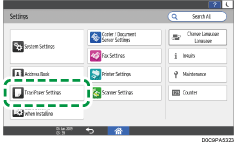
 Press [Paper Size/Paper Type].
 Press [Bypass Tray]
 [Paper Size: Printer], and then select the size of the envelopes.
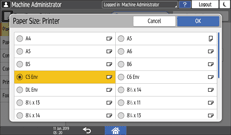
If the size of the loaded envelope is not included in the list, select [Custom] and enter the value.
 Press [OK].
 Press [Paper Type/Thickness], and then select [Envelope] from [Paper Type].
Also, select the thickness of the loaded envelopes from [Paper Thickness].
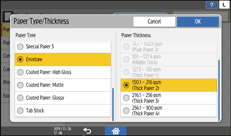
 Press [OK] twice.
 After completing the configuration, press [Home] (
 ).
).
 Open a document to print on the computer, and display the setting screen of the printer driver from the print menu application.
 Specify the paper size and paper type.
Windows
On the [Basic] tab, configure the following settings:
Document Size: Select the envelope size. If the envelope size is not included among the options, enter the value in [Custom Paper Size...].
Paper Type: [Envelope]
You can specify a custom paper size, which is commonly used as the option of the Document Sizes.
macOS
Configure the following settings:
Paper Size: Select the envelope size. If the envelope size is not included among the options, select [Manage Custom Sizes] and enter the value.
Printer Features
PaperPaper Type: [Envelope]
 Execute printing.
Printing on Envelopes Loaded in the Paper Tray
Load an envelope in the Paper Tray.
Types and orientations of envelopes | Tray 2 to 3 | Wide LCT |
|---|---|---|
Side-opening envelopes | 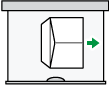 Flap: open Side to be printed: face down | 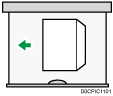 Flap: open Side to be printed: face up |
Side-opening envelopes | 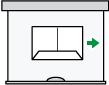 Flap: close Side to be printed: face down | 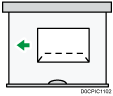 Flap: close Side to be printed: face up |
On the Home screen, press [Settings].
On the Settings screen, press [Tray/Paper Settings].
Press [Paper Size/Paper Type], and then select the tray in which the envelopes are loaded.
Press [Paper Size], and select the size of the envelopes.
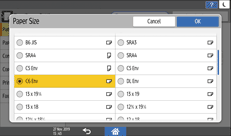
If the size of the loaded envelope is not included in the list, select [Custom] and enter the value.
Press [OK].
Press [Paper Type/Thickness], and then select [Envelope] from [Paper Type].
Also, select the thickness of the loaded envelopes from [Paper Thickness].
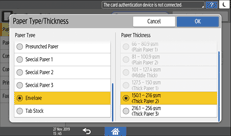
Press [OK] twice.
After completing the configuration, press [Home] ().
Open a document to print on the computer, and display the setting screen of the printer driver from the print menu application.
Specify the paper size and paper type.
Windows
On the [Basic] tab, configure the following settings:
Document Size: Select the envelope size. If the envelope size is not included among the options, enter the value in [Custom Paper Size...].
Paper Type: [Envelope]
You can specify a custom paper size, which is commonly used as the option of the Document Sizes.
macOS
Configure the following settings:
Paper Size: Select the envelope size. If the envelope size is not included among the options, select [Manage Custom Sizes] and enter the value.
Printer Features
PaperPaper Type: [Envelope]
Execute printing.